> ## Documentation Index
> Fetch the complete documentation index at: https://docs-dev-docs-event-stream-action-templates.mintlify.site/llms.txt
> Use this file to discover all available pages before exploring further.
> Learn how to enable Adaptive MFA for low confidence logins based on Auth0's risk assessment and overall confidence scores.
# Enable Adaptive MFA
* Subscribe to an Enterprise Plan with the Adaptive MFA addon. Refer to [Auth0 Pricing](https://auth0.com/pricing/) for details.
* Configure and enable a Database or Active Directory connection.
* Configure and enable at least one MFA factor.
Use Adaptive MFA to trigger MFA when Auth0 determines that an attempted login is risky and to record risk assessments for all login transactions in your tenant logs.
## Enable Adaptive MFA
You can enable Adaptive MFA in the Auth0 Dashboard or with the Auth0 Management API.
1. Go to [**Dashboard > Security > Multi-factor Auth**](https://manage.auth0.com/#/security/mfa).
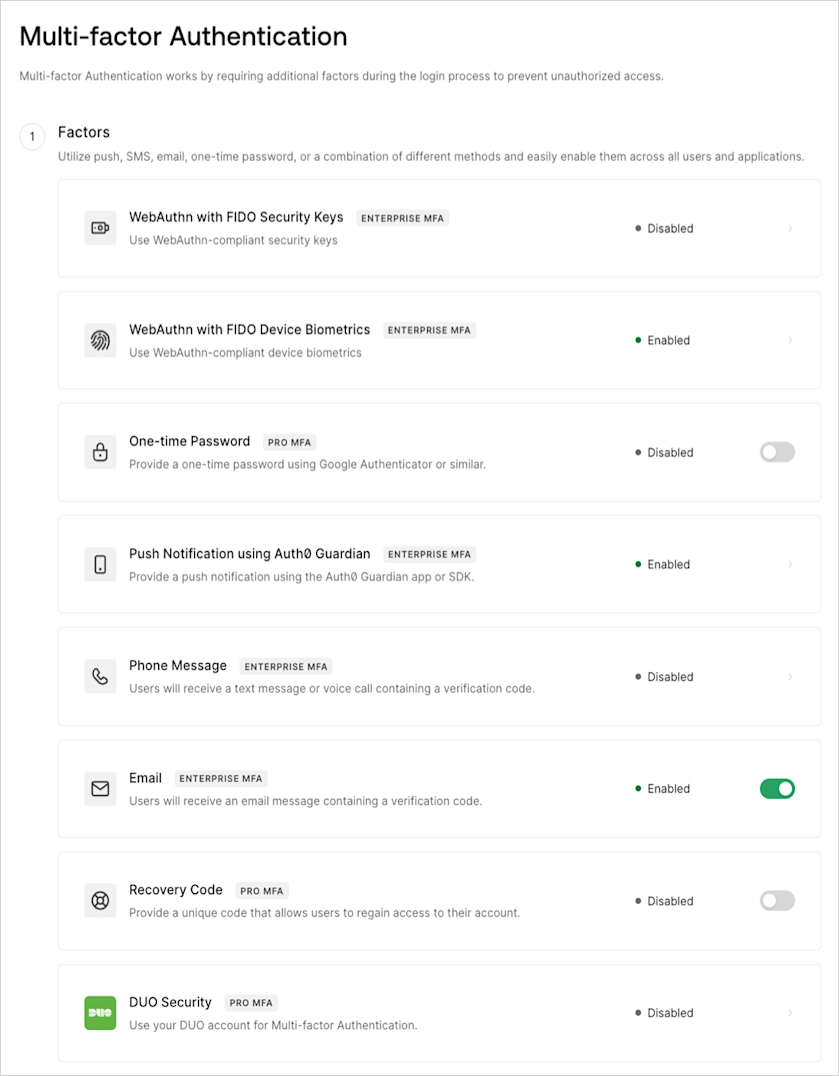 2. In the **Factors** section, enable and configure at least one MFA Factor. To learn more, read [Multi-Factor Authentication Factors](/docs/secure/multi-factor-authentication/multi-factor-authentication-factors).
3. In the **Define policies** section, locate **Require Multi-factor Auth**, and then select **Use Adaptive MFA**. Risk assessment will automatically be enabled and recorded in your tenant logs.
4. In the **Device Trust Duration** field, set the number of days a device remains trusted before the user needs to authenticate with MFA. The default timeframe is 30 days, but you may increase or decrease the number of challenges for your users.
Auth0 customers are responsible for any diminishment in security posture resulting from changing the device remembrance time period to a period longer than Okta's standard recommended setup.
* You can set the trusted device duration between 1 and 365 days.
* If you modify the duration, the new duration value is applied to your users' device the next time they log in.
5. Select **Save**.
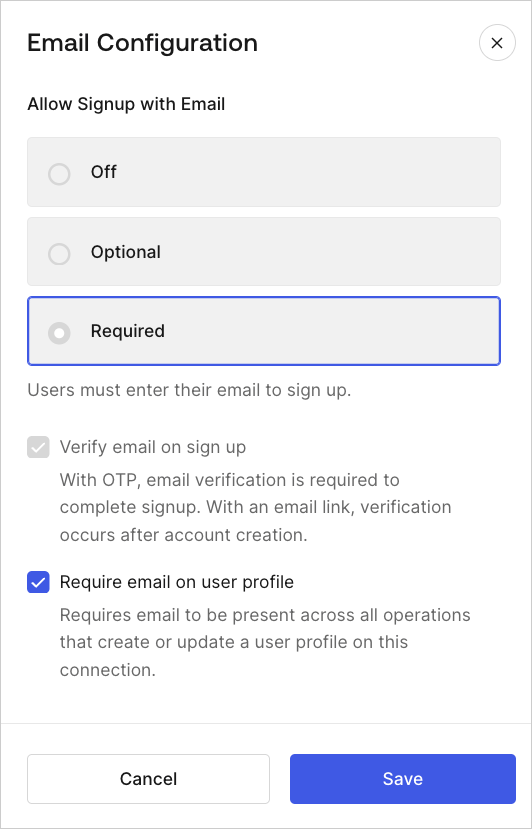
If you are using the [Identifier First Authentication](/docs/authenticate/login/auth0-universal-login/identifier-first) factor `email`, you must update email attributes in [Dashboard > Database Connections > Authentication Methods](https://manage.auth0.com/#/connections/database). On the Email Configuration tab, ensure the email attribute is active. Then, set **Allow Signup to Required** and enable **Require** email on user profile.
2. In the **Factors** section, enable and configure at least one MFA Factor. To learn more, read [Multi-Factor Authentication Factors](/docs/secure/multi-factor-authentication/multi-factor-authentication-factors).
3. In the **Define policies** section, locate **Require Multi-factor Auth**, and then select **Use Adaptive MFA**. Risk assessment will automatically be enabled and recorded in your tenant logs.
4. In the **Device Trust Duration** field, set the number of days a device remains trusted before the user needs to authenticate with MFA. The default timeframe is 30 days, but you may increase or decrease the number of challenges for your users.
Auth0 customers are responsible for any diminishment in security posture resulting from changing the device remembrance time period to a period longer than Okta's standard recommended setup.
* You can set the trusted device duration between 1 and 365 days.
* If you modify the duration, the new duration value is applied to your users' device the next time they log in.
5. Select **Save**.
If you are using the [Identifier First Authentication](/docs/authenticate/login/auth0-universal-login/identifier-first) factor `email`, you must update email attributes in [Dashboard > Database Connections > Authentication Methods](https://manage.auth0.com/#/connections/database). On the Email Configuration tab, ensure the email attribute is active. Then, set **Allow Signup to Required** and enable **Require** email on user profile.
 1. Get a [Management API access token](/docs/secure/tokens/access-tokens/management-api-access-tokens/get-management-api-access-tokens-for-production) with the `update:mfa_policies` scope.
2. Call the Management API [Set the multi-factor authentication policies](https://auth0.com/docs/api/management/v2/guardian/put-policies) endpoint with the appropriate payload.
3. If you want to change the **Device Trust Duration** from the default 30 days, call the [Update New Device Accessor](https://auth0.com/docs/api/management/v2/risk-assessments/patch-new-device). You need to add the following scopes to your Management API access token:
* `read:attack_protection`
* `update:attack_protection`
Auth0 customers are responsible for any diminishment in security posture resulting from changing the device remembrance time period to a period longer than Okta's standard recommended setup.
## Enable Adaptive MFA Risk Assessment
If you aren't ready to enable Adaptive MFA, but want to start training it to analyze login behavior, you can enable Adaptive MFA Risk Assessment independently.
1. Go to [Dashboard > Security > Multi-factor Auth](https://manage.auth0.com/#/security/mfa).
2. Locate the **Define policies** section.
3. In **MFA Risk Assessors**, select **Enable Adaptive MFA Risk Assessment**.
4. Select **Save**.
## Customize Adaptive MFA
You can customize the behavior of Adaptive MFA to provide the best experience for your users while ensuring security. To learn more, read [Customize Adaptive MFA](/docs/secure/multi-factor-authentication/adaptive-mfa/customize-adaptive-mfa).
Actions that trigger MFA take precedence over default Adaptive MFA behavior.
## Limitations
Assessment information in tenant logs is only available for interactive flows. Auth0 does not support recording assessment information for Resource Owner Password Grant (ROPG) flows without adaptive MFA enabled. For more information about authentication flow limitations, read [Adaptive MFA](/docs/secure/multi-factor-authentication/adaptive-mfa).
## Learn more
* [Customize Adaptive MFA](/docs/secure/multi-factor-authentication/adaptive-mfa/customize-adaptive-mfa)
* [Adaptive MFA Log Events](/docs/secure/multi-factor-authentication/adaptive-mfa/adaptive-mfa-log-events)
* [Multi-Factor Authentication Factors](/docs/secure/multi-factor-authentication/multi-factor-authentication-factors)
1. Get a [Management API access token](/docs/secure/tokens/access-tokens/management-api-access-tokens/get-management-api-access-tokens-for-production) with the `update:mfa_policies` scope.
2. Call the Management API [Set the multi-factor authentication policies](https://auth0.com/docs/api/management/v2/guardian/put-policies) endpoint with the appropriate payload.
3. If you want to change the **Device Trust Duration** from the default 30 days, call the [Update New Device Accessor](https://auth0.com/docs/api/management/v2/risk-assessments/patch-new-device). You need to add the following scopes to your Management API access token:
* `read:attack_protection`
* `update:attack_protection`
Auth0 customers are responsible for any diminishment in security posture resulting from changing the device remembrance time period to a period longer than Okta's standard recommended setup.
## Enable Adaptive MFA Risk Assessment
If you aren't ready to enable Adaptive MFA, but want to start training it to analyze login behavior, you can enable Adaptive MFA Risk Assessment independently.
1. Go to [Dashboard > Security > Multi-factor Auth](https://manage.auth0.com/#/security/mfa).
2. Locate the **Define policies** section.
3. In **MFA Risk Assessors**, select **Enable Adaptive MFA Risk Assessment**.
4. Select **Save**.
## Customize Adaptive MFA
You can customize the behavior of Adaptive MFA to provide the best experience for your users while ensuring security. To learn more, read [Customize Adaptive MFA](/docs/secure/multi-factor-authentication/adaptive-mfa/customize-adaptive-mfa).
Actions that trigger MFA take precedence over default Adaptive MFA behavior.
## Limitations
Assessment information in tenant logs is only available for interactive flows. Auth0 does not support recording assessment information for Resource Owner Password Grant (ROPG) flows without adaptive MFA enabled. For more information about authentication flow limitations, read [Adaptive MFA](/docs/secure/multi-factor-authentication/adaptive-mfa).
## Learn more
* [Customize Adaptive MFA](/docs/secure/multi-factor-authentication/adaptive-mfa/customize-adaptive-mfa)
* [Adaptive MFA Log Events](/docs/secure/multi-factor-authentication/adaptive-mfa/adaptive-mfa-log-events)
* [Multi-Factor Authentication Factors](/docs/secure/multi-factor-authentication/multi-factor-authentication-factors)