> ## Documentation Index
> Fetch the complete documentation index at: https://docs-dev-docs-event-stream-action-templates.mintlify.site/llms.txt
> Use this file to discover all available pages before exploring further.
> Learn how to enable and configure bot detection when using custom login pages built with the auth0.js library.
# Add Bot Detection to Custom Login Pages
If you build a custom login page using the auth0.js library, you can enable Bot Detection to render a CAPTCHA step in scenarios when a request is determined to be high risk by Auth0.
Your custom login form code must handle scenarios where the user is asked to pass a CAPTCHA step. If you don't account for this scenario, your application may cause an error.
Bot detection is only supported for custom login pages hosted by Auth0. You may need to contact your account representative to enable this feature for your tenant.
## Use custom login page template
Auth0 provides a template for you to use with code to handle high-risk logins.
1. Go to [Dashboard > Branding > Universal Login](https://manage.auth0.com/#/login_settings) and select **Classic**.
2. Click the **Login** tab and enable the **Customize Login Page** switch if it is not already enabled.
3. Locate the **Default Templates** drop-down menu and select **Custom Login Form**.
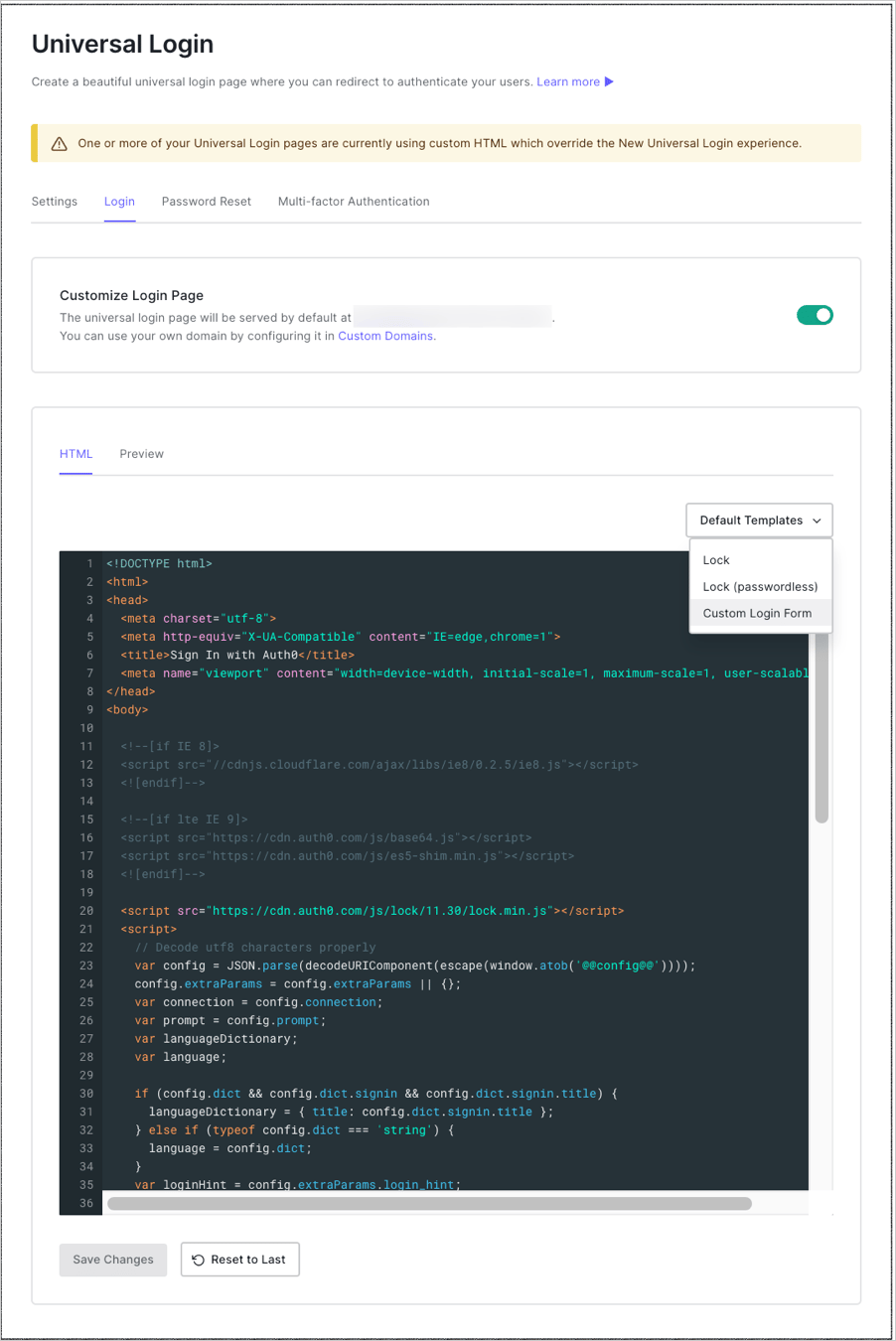 4. Use the provided template to begin customizing your login page.
We recommend using version control software to manage the source code of your Custom Login Pages. To learn more, read [Classic Login Page Version Control](/docs/customize/login-pages/classic-login/version-control).
5. If you are not using version control software, you can replace the template with your source code directly in the Dashboard.
6. Select **Preview** to see your new form.
7. Select **Save Changes**.
## Customize the login form
If you'd like to support Bot Detection, you must use version `9.28` or higher of the `auth0.js` library.
``
1. Add an element to render the CAPTCHA below your password input and above your sign-up and login buttons. For example: ``
2. Initialize the `loginCaptcha` and `signupCaptcha` components after the `WebAuth` constructor.
```javascript lines theme={null}
var webAuth = new auth0.WebAuth(params);
var loginCaptcha = webAuth.renderCaptcha(
document.querySelector('.captcha-container'),
null,
(error, payload) => {
if (payload) {
triggerCaptcha = payload.triggerCaptcha;
}
}
);
var signupCaptcha = webAuth.renderSignupCaptcha(
document.querySelector('.captcha-container'),
null,
(error, payload) => {
if (payload) {
triggerCaptcha = payload.triggerCaptcha;
}
}
);
```
3. When you call the `login` method, assign the `captcha` property the value `loginCaptcha.getValue()`:
```text lines theme={null}
webAuth.login({
realm: connection,
username: username,
password: password,
captcha: loginCaptcha.getValue()
}, function(err) {
displayError(err);
//...
});
```
To learn more about the `login` method’s callback function parameter (`cb`), read [WebAuth on auth0.js documentation](https://auth0.github.io/auth0.js/global.html#login).
4. When you call the `signupAndLogin` method, assign the `captcha` property the value `signupCaptcha.getValue()`:
```text lines theme={null}
webAuth.redirect.signupAndLogin({
connection: databaseConnection,
email: email,
password: password,
captcha: signupCaptcha.getValue()
}, function(err) {
displayError(err);
//...
});
```
To learn more about the `signupAndLogin` method’s callback function parameter (`cb`), read [WebAuth on auth0.js documentation](https://auth0.github.io/auth0.js/global.html#login).
5. Reload the `loginCaptcha` and `signupCaptcha` components in your generic error handling logic.
```javascript lines theme={null}
function displayError(err) {
loginCaptcha.reload();
signupCaptcha.reload();
var errorMessage = document.getElementById('error-message');
errorMessage.innerHTML = err.description;
errorMessage.style.display = 'block';
}
```
### Configure CAPTCHA templates
When you call the `renderCaptcha` and `renderSignupCaptcha` methods, you can configure the template for each [supported CAPTCHA provider](/docs/secure/attack-protection/bot-detection/configure-captcha) through the `options` parameter.
The `templates` property in the `options` parameter supports the following properties:
| Name | Description |
| ---------------------- | --------------------------------------------------------------------------------------------------------------------------------- |
| `auth0` | Template function receiving the challenge and returning a string. |
| `recaptcha_v2` | Template function receiving the challenge and returning a string. |
| `recaptcha_enterprise` | Template function receiving the challenge and returning a string. |
| `hcaptcha` | Template function receiving the challenge and returning a string. |
| `friendly_captcha` | Template function receiving the challenge and returning a string. |
| `arkose` | Template function receiving the challenge and returning a string. |
| `auth0_v2` | Template function receiving the challenge and returning a string. |
| `error` | Template function returning a custom error message when the challenge could not be fetched, receives the error as first argument. |
To learn more about the default template functions for each provider, read [auth0.js/src/web-auth/captcha.js on GitHub](https://github.com/auth0/auth0.js/blob/a3ddc0905a5da33aa190a9098467576976b95ec8/src/web-auth/captcha.js#L28).
## Support passwordless flows
If you'd like to support Bot Detection for passwordless flows, you must use version `9.24` or higher of the auth0.js library.
``
1. Add an element to render the CAPTCHA above the submit button. If you also support a username/password login, a separate element should be created for the passwordless CAPTCHA. For example:
``
2. Initialize the CAPTCHA component for passwordless flows after the WebAuth constructor.
```javascript lines theme={null}
var passwordlessCaptcha = webAuth.renderPasswordlessCaptcha(
document.querySelector('.passwordless-captcha-container')
);
```
3. Add the captcha property to the Passwordless call, and reload the CAPTCHA component upon errors.
```text lines theme={null}
webAuth.passwordlessStart({
connection: 'email',
send: 'code',
email: 'foo@bar.com',
captcha: passwordlessCaptcha.getValue()
}, function (err,res) {
if (err) {
passwordlessCaptcha.reload();
// handle errors
}
// continue
});
```
## Learn more
* [Add Bot Detection to Native Applications](/docs/secure/attack-protection/bot-detection/bot-detection-native-apps)
4. Use the provided template to begin customizing your login page.
We recommend using version control software to manage the source code of your Custom Login Pages. To learn more, read [Classic Login Page Version Control](/docs/customize/login-pages/classic-login/version-control).
5. If you are not using version control software, you can replace the template with your source code directly in the Dashboard.
6. Select **Preview** to see your new form.
7. Select **Save Changes**.
## Customize the login form
If you'd like to support Bot Detection, you must use version `9.28` or higher of the `auth0.js` library.
``
1. Add an element to render the CAPTCHA below your password input and above your sign-up and login buttons. For example: ``
2. Initialize the `loginCaptcha` and `signupCaptcha` components after the `WebAuth` constructor.
```javascript lines theme={null}
var webAuth = new auth0.WebAuth(params);
var loginCaptcha = webAuth.renderCaptcha(
document.querySelector('.captcha-container'),
null,
(error, payload) => {
if (payload) {
triggerCaptcha = payload.triggerCaptcha;
}
}
);
var signupCaptcha = webAuth.renderSignupCaptcha(
document.querySelector('.captcha-container'),
null,
(error, payload) => {
if (payload) {
triggerCaptcha = payload.triggerCaptcha;
}
}
);
```
3. When you call the `login` method, assign the `captcha` property the value `loginCaptcha.getValue()`:
```text lines theme={null}
webAuth.login({
realm: connection,
username: username,
password: password,
captcha: loginCaptcha.getValue()
}, function(err) {
displayError(err);
//...
});
```
To learn more about the `login` method’s callback function parameter (`cb`), read [WebAuth on auth0.js documentation](https://auth0.github.io/auth0.js/global.html#login).
4. When you call the `signupAndLogin` method, assign the `captcha` property the value `signupCaptcha.getValue()`:
```text lines theme={null}
webAuth.redirect.signupAndLogin({
connection: databaseConnection,
email: email,
password: password,
captcha: signupCaptcha.getValue()
}, function(err) {
displayError(err);
//...
});
```
To learn more about the `signupAndLogin` method’s callback function parameter (`cb`), read [WebAuth on auth0.js documentation](https://auth0.github.io/auth0.js/global.html#login).
5. Reload the `loginCaptcha` and `signupCaptcha` components in your generic error handling logic.
```javascript lines theme={null}
function displayError(err) {
loginCaptcha.reload();
signupCaptcha.reload();
var errorMessage = document.getElementById('error-message');
errorMessage.innerHTML = err.description;
errorMessage.style.display = 'block';
}
```
### Configure CAPTCHA templates
When you call the `renderCaptcha` and `renderSignupCaptcha` methods, you can configure the template for each [supported CAPTCHA provider](/docs/secure/attack-protection/bot-detection/configure-captcha) through the `options` parameter.
The `templates` property in the `options` parameter supports the following properties:
| Name | Description |
| ---------------------- | --------------------------------------------------------------------------------------------------------------------------------- |
| `auth0` | Template function receiving the challenge and returning a string. |
| `recaptcha_v2` | Template function receiving the challenge and returning a string. |
| `recaptcha_enterprise` | Template function receiving the challenge and returning a string. |
| `hcaptcha` | Template function receiving the challenge and returning a string. |
| `friendly_captcha` | Template function receiving the challenge and returning a string. |
| `arkose` | Template function receiving the challenge and returning a string. |
| `auth0_v2` | Template function receiving the challenge and returning a string. |
| `error` | Template function returning a custom error message when the challenge could not be fetched, receives the error as first argument. |
To learn more about the default template functions for each provider, read [auth0.js/src/web-auth/captcha.js on GitHub](https://github.com/auth0/auth0.js/blob/a3ddc0905a5da33aa190a9098467576976b95ec8/src/web-auth/captcha.js#L28).
## Support passwordless flows
If you'd like to support Bot Detection for passwordless flows, you must use version `9.24` or higher of the auth0.js library.
``
1. Add an element to render the CAPTCHA above the submit button. If you also support a username/password login, a separate element should be created for the passwordless CAPTCHA. For example:
``
2. Initialize the CAPTCHA component for passwordless flows after the WebAuth constructor.
```javascript lines theme={null}
var passwordlessCaptcha = webAuth.renderPasswordlessCaptcha(
document.querySelector('.passwordless-captcha-container')
);
```
3. Add the captcha property to the Passwordless call, and reload the CAPTCHA component upon errors.
```text lines theme={null}
webAuth.passwordlessStart({
connection: 'email',
send: 'code',
email: 'foo@bar.com',
captcha: passwordlessCaptcha.getValue()
}, function (err,res) {
if (err) {
passwordlessCaptcha.reload();
// handle errors
}
// continue
});
```
## Learn more
* [Add Bot Detection to Native Applications](/docs/secure/attack-protection/bot-detection/bot-detection-native-apps)