> ## Documentation Index
> Fetch the complete documentation index at: https://docs-dev-docs-event-stream-action-templates.mintlify.site/llms.txt
> Use this file to discover all available pages before exploring further.
# JAR(JWT-Secured Authorization Request)を構成する
> アプリケーションにJWT-secured Authorization Requests(JAR)を構成する方法を説明します。
export const AuthCodeBlock = ({filename, icon, language, highlight, children}) => {
const [displayText, setDisplayText] = useState(children);
const [copyText, setCopyText] = useState(children);
const wrapperRef = React.useRef(null);
useEffect(() => {
let unsubscribe = null;
function init() {
if (!window.autorun || !window.rootStore) {
return;
}
unsubscribe = window.autorun(() => {
let processedChildrenForDisplay = children;
let processedChildrenForCopy = children;
for (const [key, value] of window.rootStore.variableStore.values.entries()) {
const escapedKey = key.replaceAll(/[.*+?^${}()|[\]\\]/g, (String.raw)`\$&`);
let displayValue = value;
if (key === "{yourClientSecret}" && value !== "{yourClientSecret}") {
displayValue = value.substring(0, 3) + "*****MASKED*****";
}
processedChildrenForDisplay = processedChildrenForDisplay.replaceAll(new RegExp(escapedKey, "g"), displayValue);
processedChildrenForCopy = processedChildrenForCopy.replaceAll(new RegExp(escapedKey, "g"), value);
}
setDisplayText(processedChildrenForDisplay);
setCopyText(processedChildrenForCopy);
});
}
if (window.rootStore) {
init();
} else {
window.addEventListener("adu:storeReady", init);
}
return () => {
window.removeEventListener("adu:storeReady", init);
unsubscribe?.();
};
}, [children]);
useEffect(() => {
if (!wrapperRef.current) return;
const originalWriteText = navigator.clipboard.writeText.bind(navigator.clipboard);
let isOverriding = false;
const handleClick = e => {
const button = e.target.closest('[data-testid="copy-code-button"]');
if (!button || !wrapperRef.current.contains(button)) return;
isOverriding = true;
navigator.clipboard.writeText = text => {
if (isOverriding) {
isOverriding = false;
navigator.clipboard.writeText = originalWriteText;
return originalWriteText(copyText);
}
return originalWriteText(text);
};
setTimeout(() => {
if (isOverriding) {
isOverriding = false;
navigator.clipboard.writeText = originalWriteText;
}
}, 100);
};
const wrapper = wrapperRef.current;
wrapper.addEventListener('click', handleClick, true);
return () => {
wrapper.removeEventListener('click', handleClick, true);
if (navigator.clipboard.writeText !== originalWriteText) {
navigator.clipboard.writeText = originalWriteText;
}
};
}, [copyText]);
return
{displayText}
;
};
export const codeExample1 = `POST https://{yourTenant}.auth0.com/api/v2/clients/{yourClientId}/credentials
Authorization: Bearer
Content-Type: application/json
{
"name": "My credentials for JAR",
"credential_type": "public_key",
"pem": "[YOUR PEM FILE CONTENT]",
"alg": "RS256"
}`;
export const codeExample2 = `PATCH https://{yourTenant}.auth0.com/api/v2/clients/{yourClientId}
Authorization: Bearer
Content-Type: application/json
{
"signed_request_object": {
"credentials": [{"id": "[YOUR CREDENTIAL ID]"}]
}
}`;
ハイリーレギュレーテッドアイデンティティ機能を使用するには、エンタープライズプランとハイリーレギュレーテッドアイデンティティアドオンが必要です。詳細については、「[Auth0の価格設定](https://auth0.com/pricing/)」を参照してください。
JWT-secured Authorization Requests(JAR)を使用すると、OAuth2認可要求パラメーターが単一のJWT要求パラメーターにパッケージ化され、整合性保護のため署名されます。
## 前提条件
JARを使用するようにアプリケーションを構成する前に、[RSA鍵ペアを生成する](/docs/ja-jp/secure/application-credentials/generate-rsa-key-pair)必要があります。
資格情報の用途や目的ごとに個別のキーペアを生成する必要があります。たとえば、JAR認証と秘密鍵JWT認証の両方に同じキーペアを使用しないでください。
## アプリケーションに対するJARの構成
アプリケーションにJARを構成するには、Auth0 DashboardまたはManagement APIを使用できます。
Auth0 Dashboardを使用して、以前生成されたRSAキーでJARを使用するアプリケーションを構成します。
1. [[Auth0 Dashboard] > [Applications(アプリケーション)]](https://manage.auth0.com/#/applications)に移動します。
2. JARで使用したいアプリケーションを選択します。
3. **[Application Settings(アプリケーションの設定)]** タブを選択します。
4. **[Authorization Requests(認可要求)]** セクションで、**[Require JWT-Secured Authorization Requests(JWT保護の認可要求をする)]** を有効にします。
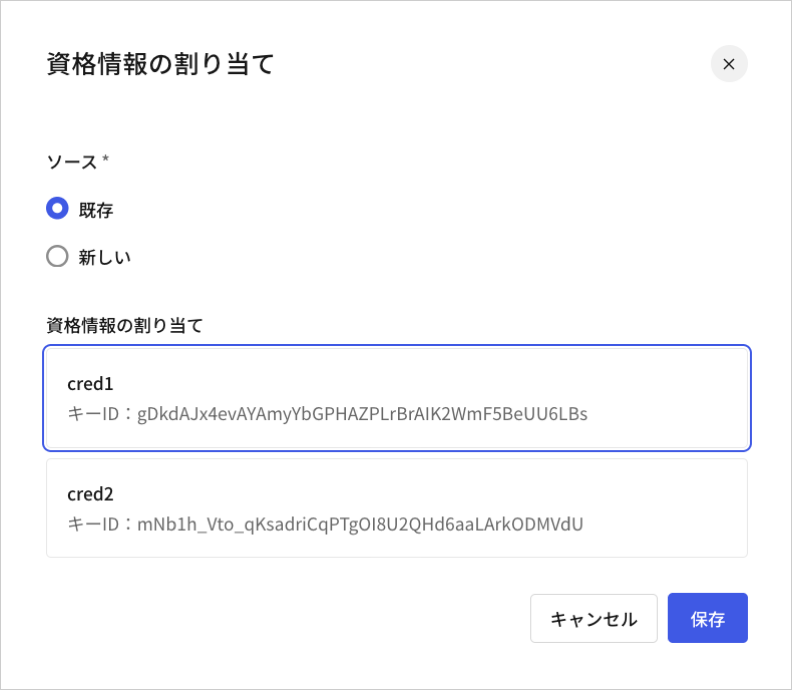
5. 資格情報が割り当てられておらず、利用可能な資格情報がある場合、既存の資格情報の割り当てを要求されます。
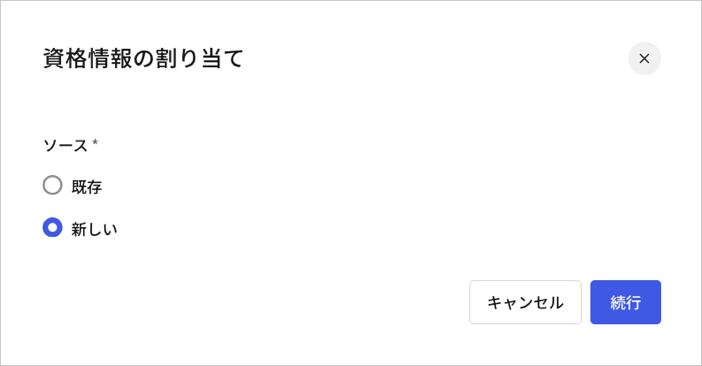
 6. 新しい資格情報を割り当てることもできます。
 7. 以前生成されたRSAキーペアをアップロードして、新しい資格情報を追加し、割り当ててください。要求された場合、次の情報を入力します:
* **[Name(名前)]** :資格情報を識別する名前
* **[Public Key(公開鍵)]** :PEM形式のX.509証明書の公開鍵
* **[Algorithm(アルゴリズム)]** :JAR署名のアルゴリズムを選択します
* **[Expiration Date(有効期限)]** :資格情報の有効期限を設定します
[Management API](https://auth0.com/docs/api/management/v2)で、`signed_request_object`クライアント構成プロパティを使用して、アプリケーションにJARを構成します。このオブジェクトプロパティには次のフィールドを含みます:
* `required`:JARを使用するために、すべての認可要求を`/authorize`と`/oauth/par`に送ります。詳細については、「[JWT保護の認可要求を使用した認可コードフロー](/docs/ja-jp/get-started/authentication-and-authorization-flow/authorization-code-flow/authorization-code-flow-with-jar)」と「[PARとJARを使用した認可コードフロー](/docs/ja-jp/get-started/authentication-and-authorization-flow/authorization-code-flow/authorization-code-flow-with-par-and-jar)」をお読みください。
* `credentials`:署名の検証に使用される資格情報IDの配列。
資格情報パラメーターは、新しいアプリケーションの作成時に資格情報作成をサポートする秘密鍵JWTパラメーター、`client_authentication_methods.private_key_jwt.credentials`と同じように動作します。詳細については、「[秘密鍵JWTを構成する](/docs/ja-jp/get-started/applications/configure-private-key-jwt)」をお読みください。
Management APIから、新しいアプリケーション、または既存のアプリケーションに対してJARを構成することができます。
#### 新しいアプリケーションに対するJARの構成
新しいアプリケーションを作成する際、`signed_request_object`としてPOST要求を送って、JARを構成します。そのPOST要求には、該当のクライアント資格情報(キーPEM)を登録することもできます。
```json lines theme={null}
POST https://{yourTenant}.auth0.com/api/v2/clients
Authorization: Bearer
Content-Type: application/json
{
"name": "My App using JAR",
"signed_request_object": {
"required": true,
"credentials": [{
"name": "My credential for JAR",
"credential_type": "public_key",
"pem": "[YOUR PEM FILE CONTENT]",
"alg": "RS256"
}]
},
"jwt_configuration": {
"alg": "RS256"
}
}
```
#### 既存のアプリケーションに対するJARの構成
既存のアプリケーションを更新する際、まずはクライアント資格情報を明確に作成する必要があります。次のPOST要求で、JARに対するクライアント資格情報を作成するためのPEMファイルコンテンツを使用します:
改行は、追加の書式を使わずに適切にJSONエンコードします。
次に、`signed_request_object`クライアント構成にクライアント資格情報を割り当てます。次のPATCH要求は、クライアント資格情報を`signed_request_object`と関連付けます:
## もっと詳しく
* [JWT-Secured Authorization Requests(JAR)を使った認可コードフロー](/docs/ja-jp/get-started/authentication-and-authorization-flow/authorization-code-flow/authorization-code-flow-with-jar)
* [PARとJARを使った認可コードフロー](/docs/ja-jp/get-started/authentication-and-authorization-flow/authorization-code-flow/authorization-code-flow-with-par-and-jar)
7. 以前生成されたRSAキーペアをアップロードして、新しい資格情報を追加し、割り当ててください。要求された場合、次の情報を入力します:
* **[Name(名前)]** :資格情報を識別する名前
* **[Public Key(公開鍵)]** :PEM形式のX.509証明書の公開鍵
* **[Algorithm(アルゴリズム)]** :JAR署名のアルゴリズムを選択します
* **[Expiration Date(有効期限)]** :資格情報の有効期限を設定します
[Management API](https://auth0.com/docs/api/management/v2)で、`signed_request_object`クライアント構成プロパティを使用して、アプリケーションにJARを構成します。このオブジェクトプロパティには次のフィールドを含みます:
* `required`:JARを使用するために、すべての認可要求を`/authorize`と`/oauth/par`に送ります。詳細については、「[JWT保護の認可要求を使用した認可コードフロー](/docs/ja-jp/get-started/authentication-and-authorization-flow/authorization-code-flow/authorization-code-flow-with-jar)」と「[PARとJARを使用した認可コードフロー](/docs/ja-jp/get-started/authentication-and-authorization-flow/authorization-code-flow/authorization-code-flow-with-par-and-jar)」をお読みください。
* `credentials`:署名の検証に使用される資格情報IDの配列。
資格情報パラメーターは、新しいアプリケーションの作成時に資格情報作成をサポートする秘密鍵JWTパラメーター、`client_authentication_methods.private_key_jwt.credentials`と同じように動作します。詳細については、「[秘密鍵JWTを構成する](/docs/ja-jp/get-started/applications/configure-private-key-jwt)」をお読みください。
Management APIから、新しいアプリケーション、または既存のアプリケーションに対してJARを構成することができます。
#### 新しいアプリケーションに対するJARの構成
新しいアプリケーションを作成する際、`signed_request_object`としてPOST要求を送って、JARを構成します。そのPOST要求には、該当のクライアント資格情報(キーPEM)を登録することもできます。
```json lines theme={null}
POST https://{yourTenant}.auth0.com/api/v2/clients
Authorization: Bearer
Content-Type: application/json
{
"name": "My App using JAR",
"signed_request_object": {
"required": true,
"credentials": [{
"name": "My credential for JAR",
"credential_type": "public_key",
"pem": "[YOUR PEM FILE CONTENT]",
"alg": "RS256"
}]
},
"jwt_configuration": {
"alg": "RS256"
}
}
```
#### 既存のアプリケーションに対するJARの構成
既存のアプリケーションを更新する際、まずはクライアント資格情報を明確に作成する必要があります。次のPOST要求で、JARに対するクライアント資格情報を作成するためのPEMファイルコンテンツを使用します:
改行は、追加の書式を使わずに適切にJSONエンコードします。
次に、`signed_request_object`クライアント構成にクライアント資格情報を割り当てます。次のPATCH要求は、クライアント資格情報を`signed_request_object`と関連付けます:
## もっと詳しく
* [JWT-Secured Authorization Requests(JAR)を使った認可コードフロー](/docs/ja-jp/get-started/authentication-and-authorization-flow/authorization-code-flow/authorization-code-flow-with-jar)
* [PARとJARを使った認可コードフロー](/docs/ja-jp/get-started/authentication-and-authorization-flow/authorization-code-flow/authorization-code-flow-with-par-and-jar)