> ## Documentation Index
> Fetch the complete documentation index at: https://docs-dev-docs-event-stream-action-templates.mintlify.site/llms.txt
> Use this file to discover all available pages before exploring further.

# ユースケース：Formsを使用して更新ポリシーフォームを構成する

> Forms for Actionsを使用して更新ポリシーフォームを構成する

<Card title="始める前に">
  1. 以下のスコープを有効にして、[マシンツーマシンアプリケーション](https://auth0.com/docs/get-started/auth0-overview/create-applications/machine-to-machine-apps)を作成します。

  * `read:users`
  * `update:users`
  * `create:users`
  * `read:users_app_metadata`
  * `update:users_app_metadata`
  * `create:users_app_metadata`

  2. マシンツーマシンアプリケーションの資格情報を使って[Vault接続](/docs/ja-jp/customize/forms/vault)を追加します。
</Card>

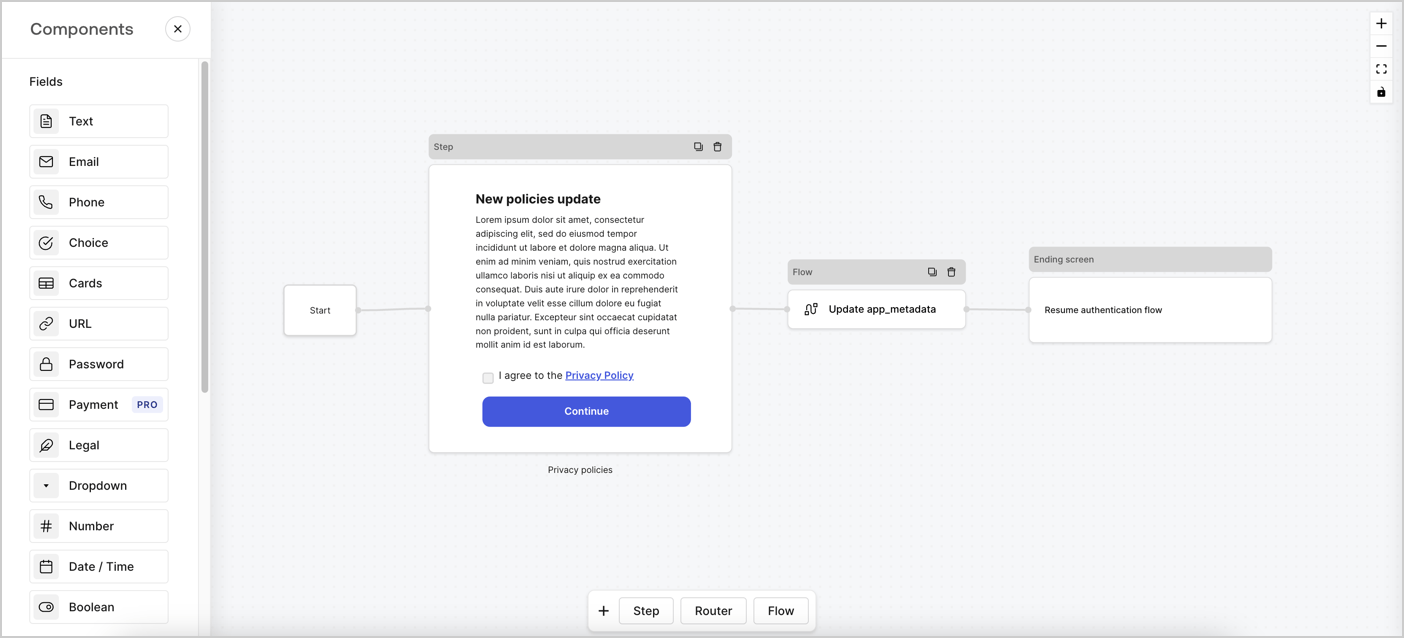
Forms for Actionsは、カスタムプライバシーポリシーフローを作成し、`app_metadata`オブジェクトの下に同意を保存できるようにします。
<Frame>
  <img src="https://mintcdn.com/docs-dev-docs-event-stream-action-templates/ZqABYvyPOuGZRvBz/docs/images/ja-jp/cdy7uua7fh8z/6i68dMvHDTijfRmSgN1x8Q/ad900e7d4c0fb34645921435472b8684/privavy-policy-form.png?fit=max&auto=format&n=ZqABYvyPOuGZRvBz&q=85&s=32c7258fe3d0c26ae1964623af50ba8c" alt="Dashboard > Actions > Forms > Privacy policy use case" data-og-width="1404" width="1404" data-og-height="638" height="638" data-path="docs/images/ja-jp/cdy7uua7fh8z/6i68dMvHDTijfRmSgN1x8Q/ad900e7d4c0fb34645921435472b8684/privavy-policy-form.png" data-optimize="true" data-opv="3" srcset="https://mintcdn.com/docs-dev-docs-event-stream-action-templates/ZqABYvyPOuGZRvBz/docs/images/ja-jp/cdy7uua7fh8z/6i68dMvHDTijfRmSgN1x8Q/ad900e7d4c0fb34645921435472b8684/privavy-policy-form.png?w=280&fit=max&auto=format&n=ZqABYvyPOuGZRvBz&q=85&s=29e4879f28560932d72e194feceea00d 280w, https://mintcdn.com/docs-dev-docs-event-stream-action-templates/ZqABYvyPOuGZRvBz/docs/images/ja-jp/cdy7uua7fh8z/6i68dMvHDTijfRmSgN1x8Q/ad900e7d4c0fb34645921435472b8684/privavy-policy-form.png?w=560&fit=max&auto=format&n=ZqABYvyPOuGZRvBz&q=85&s=f69765fced6a4fbc221da56415a0a82e 560w, https://mintcdn.com/docs-dev-docs-event-stream-action-templates/ZqABYvyPOuGZRvBz/docs/images/ja-jp/cdy7uua7fh8z/6i68dMvHDTijfRmSgN1x8Q/ad900e7d4c0fb34645921435472b8684/privavy-policy-form.png?w=840&fit=max&auto=format&n=ZqABYvyPOuGZRvBz&q=85&s=baa41d7ac1b8e94e1d278127ab895a8b 840w, https://mintcdn.com/docs-dev-docs-event-stream-action-templates/ZqABYvyPOuGZRvBz/docs/images/ja-jp/cdy7uua7fh8z/6i68dMvHDTijfRmSgN1x8Q/ad900e7d4c0fb34645921435472b8684/privavy-policy-form.png?w=1100&fit=max&auto=format&n=ZqABYvyPOuGZRvBz&q=85&s=641c70e91f34a555f59cb69d818c43a0 1100w, https://mintcdn.com/docs-dev-docs-event-stream-action-templates/ZqABYvyPOuGZRvBz/docs/images/ja-jp/cdy7uua7fh8z/6i68dMvHDTijfRmSgN1x8Q/ad900e7d4c0fb34645921435472b8684/privavy-policy-form.png?w=1650&fit=max&auto=format&n=ZqABYvyPOuGZRvBz&q=85&s=8b222acd52bbc212a9bb85052894d055 1650w, https://mintcdn.com/docs-dev-docs-event-stream-action-templates/ZqABYvyPOuGZRvBz/docs/images/ja-jp/cdy7uua7fh8z/6i68dMvHDTijfRmSgN1x8Q/ad900e7d4c0fb34645921435472b8684/privavy-policy-form.png?w=2500&fit=max&auto=format&n=ZqABYvyPOuGZRvBz&q=85&s=9fb268a4c59d96b7c517e4a6ab09492d 2500w" />
</Frame>

以下のセクションでは、ノードとフローを使用して更新ポリシーフォームを作成する方法と、フォームを[ログイン後](/docs/ja-jp/customize/actions/explore-triggers/signup-and-login-triggers/login-trigger)のアクションに追加する手順について説明します。

## フォームをゼロから作成する

情報を収集するためのフォームを作成するには、次の手順に従ってください。

1. **［Auth0 Dashboard］>［Actions（アクション）］>［Forms（フォーム）］** の順に選択して、フォームエディターを開きます。
2. **［Create Form（フォームを作成）］** > **［Start from scratch（初めから作成する）］** の順に選択します。

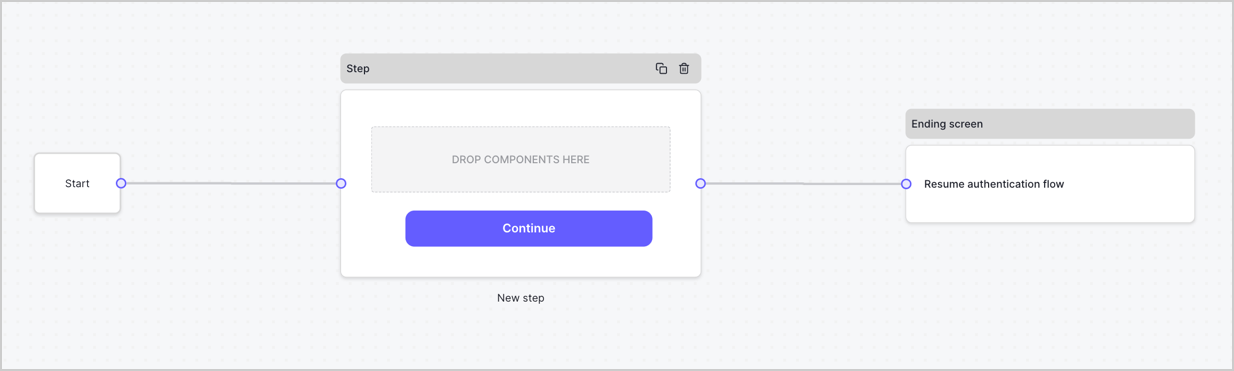
特に設定を変更しない限り、新しいフォームには開始ノード、ステップノード、および終了スクリーンノードが含まれます。
<Frame>
  <img src="https://mintcdn.com/docs-dev-docs-event-stream-action-templates/5l8GTXHD40NsjgmL/docs/images/ja-jp/cdy7uua7fh8z/2TZ9jSjgEcARFpULI6hz4R/a4319a1bd482f2ee5cc23100fdb2f42c/New-form-Forms-for-action-use-case.png?fit=max&auto=format&n=5l8GTXHD40NsjgmL&q=85&s=d476a8852881c0961defe03a06dfc204" alt="Dashboard > Forms > Use Cases > Form" data-og-width="1234" width="1234" data-og-height="371" height="371" data-path="docs/images/ja-jp/cdy7uua7fh8z/2TZ9jSjgEcARFpULI6hz4R/a4319a1bd482f2ee5cc23100fdb2f42c/New-form-Forms-for-action-use-case.png" data-optimize="true" data-opv="3" srcset="https://mintcdn.com/docs-dev-docs-event-stream-action-templates/5l8GTXHD40NsjgmL/docs/images/ja-jp/cdy7uua7fh8z/2TZ9jSjgEcARFpULI6hz4R/a4319a1bd482f2ee5cc23100fdb2f42c/New-form-Forms-for-action-use-case.png?w=280&fit=max&auto=format&n=5l8GTXHD40NsjgmL&q=85&s=2233bfb8b4a48be444fee11ec88ad930 280w, https://mintcdn.com/docs-dev-docs-event-stream-action-templates/5l8GTXHD40NsjgmL/docs/images/ja-jp/cdy7uua7fh8z/2TZ9jSjgEcARFpULI6hz4R/a4319a1bd482f2ee5cc23100fdb2f42c/New-form-Forms-for-action-use-case.png?w=560&fit=max&auto=format&n=5l8GTXHD40NsjgmL&q=85&s=6345cf95af45a0e2ae4efe4a0beab577 560w, https://mintcdn.com/docs-dev-docs-event-stream-action-templates/5l8GTXHD40NsjgmL/docs/images/ja-jp/cdy7uua7fh8z/2TZ9jSjgEcARFpULI6hz4R/a4319a1bd482f2ee5cc23100fdb2f42c/New-form-Forms-for-action-use-case.png?w=840&fit=max&auto=format&n=5l8GTXHD40NsjgmL&q=85&s=5b99b71bd8564ece5e56d53a79b31d4f 840w, https://mintcdn.com/docs-dev-docs-event-stream-action-templates/5l8GTXHD40NsjgmL/docs/images/ja-jp/cdy7uua7fh8z/2TZ9jSjgEcARFpULI6hz4R/a4319a1bd482f2ee5cc23100fdb2f42c/New-form-Forms-for-action-use-case.png?w=1100&fit=max&auto=format&n=5l8GTXHD40NsjgmL&q=85&s=9dda918cd4f24cdbecd46fb8c389df5c 1100w, https://mintcdn.com/docs-dev-docs-event-stream-action-templates/5l8GTXHD40NsjgmL/docs/images/ja-jp/cdy7uua7fh8z/2TZ9jSjgEcARFpULI6hz4R/a4319a1bd482f2ee5cc23100fdb2f42c/New-form-Forms-for-action-use-case.png?w=1650&fit=max&auto=format&n=5l8GTXHD40NsjgmL&q=85&s=302e451234a901a5bba01772f4cc1c6e 1650w, https://mintcdn.com/docs-dev-docs-event-stream-action-templates/5l8GTXHD40NsjgmL/docs/images/ja-jp/cdy7uua7fh8z/2TZ9jSjgEcARFpULI6hz4R/a4319a1bd482f2ee5cc23100fdb2f42c/New-form-Forms-for-action-use-case.png?w=2500&fit=max&auto=format&n=5l8GTXHD40NsjgmL&q=85&s=0958dbb7429073bfe07c45801d0bc7ad 2500w" />
</Frame>

### ステップノードを構成する

ステップノードは、ユーザーに表示されるグラフィカルインターフェースです。次の手順に従って、ステップノードに[フィールド](/docs/ja-jp/customize/forms/nodes-and-components)を追加し、新しい同意の値を収集します。

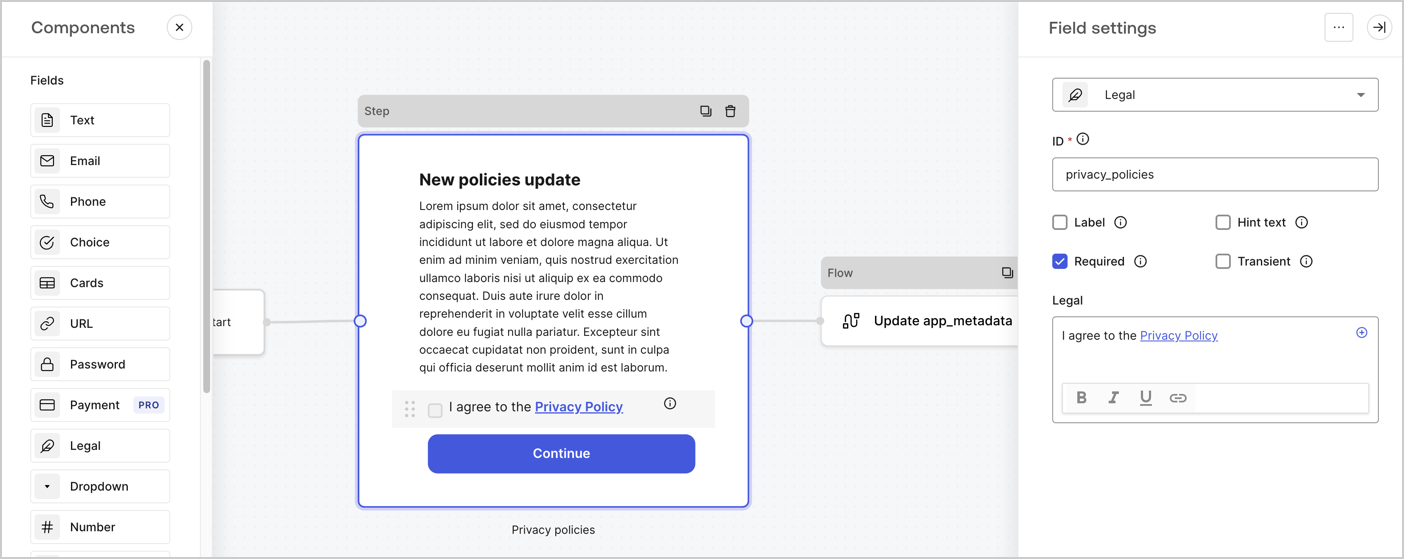
1. **［Components menu（コンポーネントメニュー）］** から **［Rich text（リッチテキスト）］** フィールドを **Step（ステップ）** ノードにドラッグします。

   * **Rich text（リッチテキスト）** ：プライバシーポリシー更新の説明を入力します。
   * **［Save（保存）］** を選択します。
2. **［Legal（法務）］** フィールドを **Step（ステップ）** ノードにドラッグします。

   * **Id** ：`privacy_policies`を入力します。
   * **Required（必要）** ：チェックボックスを有効にします。
   * **Legal（法的文）** ：「`I agree to the Privacy Policy`（プライバシーポリシーに同意します）」と入力します。
   * **［Save（保存）］** を選択します。
3. **［Publish（公開）］** を選択して保存します。

<Frame>
  <img src="https://mintcdn.com/docs-dev-docs-event-stream-action-templates/oCq_HmOgBHEv-wbr/docs/images/ja-jp/cdy7uua7fh8z/59zFFjQjAnjogkc2QGIqqJ/0ad66b1b636544122aa4e65968b76c2c/privacy-policy-step-node.png?fit=max&auto=format&n=oCq_HmOgBHEv-wbr&q=85&s=4b3983af26dda56f591394d6b46e5be5" alt="Dashboard > Actions > Forms > Use case privacy policy step node" data-og-width="1404" width="1404" data-og-height="559" height="559" data-path="docs/images/ja-jp/cdy7uua7fh8z/59zFFjQjAnjogkc2QGIqqJ/0ad66b1b636544122aa4e65968b76c2c/privacy-policy-step-node.png" data-optimize="true" data-opv="3" srcset="https://mintcdn.com/docs-dev-docs-event-stream-action-templates/oCq_HmOgBHEv-wbr/docs/images/ja-jp/cdy7uua7fh8z/59zFFjQjAnjogkc2QGIqqJ/0ad66b1b636544122aa4e65968b76c2c/privacy-policy-step-node.png?w=280&fit=max&auto=format&n=oCq_HmOgBHEv-wbr&q=85&s=a1230a1d12bee5bf9bef0960a56bbcd2 280w, https://mintcdn.com/docs-dev-docs-event-stream-action-templates/oCq_HmOgBHEv-wbr/docs/images/ja-jp/cdy7uua7fh8z/59zFFjQjAnjogkc2QGIqqJ/0ad66b1b636544122aa4e65968b76c2c/privacy-policy-step-node.png?w=560&fit=max&auto=format&n=oCq_HmOgBHEv-wbr&q=85&s=63e4da698dc90a1f9d39827d4b8bf064 560w, https://mintcdn.com/docs-dev-docs-event-stream-action-templates/oCq_HmOgBHEv-wbr/docs/images/ja-jp/cdy7uua7fh8z/59zFFjQjAnjogkc2QGIqqJ/0ad66b1b636544122aa4e65968b76c2c/privacy-policy-step-node.png?w=840&fit=max&auto=format&n=oCq_HmOgBHEv-wbr&q=85&s=a4a98bffa3b3de7b9f3a87f2184f182c 840w, https://mintcdn.com/docs-dev-docs-event-stream-action-templates/oCq_HmOgBHEv-wbr/docs/images/ja-jp/cdy7uua7fh8z/59zFFjQjAnjogkc2QGIqqJ/0ad66b1b636544122aa4e65968b76c2c/privacy-policy-step-node.png?w=1100&fit=max&auto=format&n=oCq_HmOgBHEv-wbr&q=85&s=fc3333e23693e97ddfd149194460e9ff 1100w, https://mintcdn.com/docs-dev-docs-event-stream-action-templates/oCq_HmOgBHEv-wbr/docs/images/ja-jp/cdy7uua7fh8z/59zFFjQjAnjogkc2QGIqqJ/0ad66b1b636544122aa4e65968b76c2c/privacy-policy-step-node.png?w=1650&fit=max&auto=format&n=oCq_HmOgBHEv-wbr&q=85&s=6ffd8d16a59793c1cbd0f45ab2372b95 1650w, https://mintcdn.com/docs-dev-docs-event-stream-action-templates/oCq_HmOgBHEv-wbr/docs/images/ja-jp/cdy7uua7fh8z/59zFFjQjAnjogkc2QGIqqJ/0ad66b1b636544122aa4e65968b76c2c/privacy-policy-step-node.png?w=2500&fit=max&auto=format&n=oCq_HmOgBHEv-wbr&q=85&s=41699078e1630b37c4d291aab895914f 2500w" />
</Frame>

### フローノードを構成する

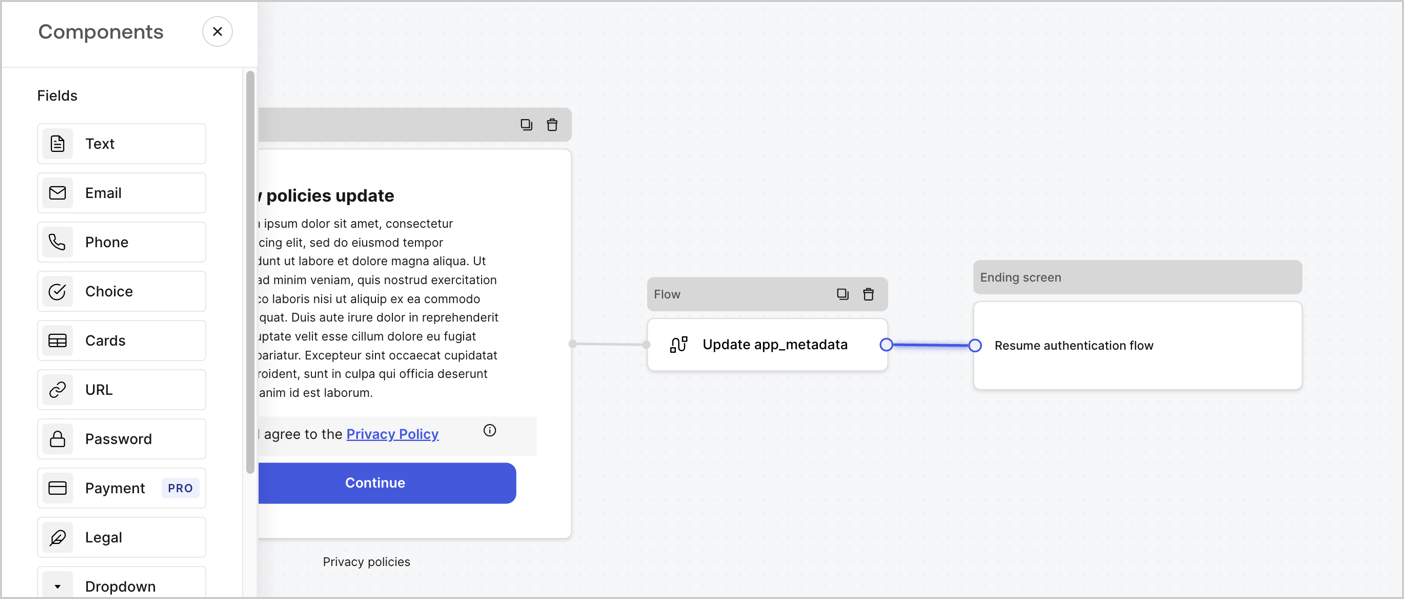
次の手順に従って、 **Step（ステップ）** ノードの後に **Flow（フロー）** ノードを追加し、`app_metadata`を更新して認証フローを再開します。

1. フォームエディターの下にある **［Flow（フロー）］** を選択します。
2. **Step（ステップ）** ノードと **Ending Screen（終了画面）** ノードの間にある既存のリンクを削除します。
3. 新たに **［Flow（フロー）］** > **［Click to add a flow（クリックしてフローを追加する）］** > **［Create a new flow（新しいフローを作成する）］** を選択します。

   * **［Name（名前）］** フィールドに`Update app_metadata`と入力します。
   * **［Create（作成）］** を選択します。
   * **［Save（保存）］** を選択します。
4. 下の画像のように **Flow（フロー）ノード** を **Step（ステップ）** ノードと **Ending Screen（終了画面）** ノードにリンクします。
5. **［Publish（公開）］** を選択して保存します。

<Frame>
  <img src="https://mintcdn.com/docs-dev-docs-event-stream-action-templates/ZqABYvyPOuGZRvBz/docs/images/ja-jp/cdy7uua7fh8z/6YIkzm7SrpM9LW76AXuRzh/353c518fe82bbaa440836da1d83596d6/link-policies.png?fit=max&auto=format&n=ZqABYvyPOuGZRvBz&q=85&s=9f0232c52ff70b1314c35bb76cb3e2a6" alt="Dashboard > Actions > Forms > Form" data-og-width="1404" width="1404" data-og-height="599" height="599" data-path="docs/images/ja-jp/cdy7uua7fh8z/6YIkzm7SrpM9LW76AXuRzh/353c518fe82bbaa440836da1d83596d6/link-policies.png" data-optimize="true" data-opv="3" srcset="https://mintcdn.com/docs-dev-docs-event-stream-action-templates/ZqABYvyPOuGZRvBz/docs/images/ja-jp/cdy7uua7fh8z/6YIkzm7SrpM9LW76AXuRzh/353c518fe82bbaa440836da1d83596d6/link-policies.png?w=280&fit=max&auto=format&n=ZqABYvyPOuGZRvBz&q=85&s=94f444c6fc194fc649a8af3ef44d76f9 280w, https://mintcdn.com/docs-dev-docs-event-stream-action-templates/ZqABYvyPOuGZRvBz/docs/images/ja-jp/cdy7uua7fh8z/6YIkzm7SrpM9LW76AXuRzh/353c518fe82bbaa440836da1d83596d6/link-policies.png?w=560&fit=max&auto=format&n=ZqABYvyPOuGZRvBz&q=85&s=c9166a8bfd2f1d32038ce78a0088ecba 560w, https://mintcdn.com/docs-dev-docs-event-stream-action-templates/ZqABYvyPOuGZRvBz/docs/images/ja-jp/cdy7uua7fh8z/6YIkzm7SrpM9LW76AXuRzh/353c518fe82bbaa440836da1d83596d6/link-policies.png?w=840&fit=max&auto=format&n=ZqABYvyPOuGZRvBz&q=85&s=678fc92106c1361a63fea5bb6c0f3f83 840w, https://mintcdn.com/docs-dev-docs-event-stream-action-templates/ZqABYvyPOuGZRvBz/docs/images/ja-jp/cdy7uua7fh8z/6YIkzm7SrpM9LW76AXuRzh/353c518fe82bbaa440836da1d83596d6/link-policies.png?w=1100&fit=max&auto=format&n=ZqABYvyPOuGZRvBz&q=85&s=10d370e6afa21cb5fd2478bb71863eb7 1100w, https://mintcdn.com/docs-dev-docs-event-stream-action-templates/ZqABYvyPOuGZRvBz/docs/images/ja-jp/cdy7uua7fh8z/6YIkzm7SrpM9LW76AXuRzh/353c518fe82bbaa440836da1d83596d6/link-policies.png?w=1650&fit=max&auto=format&n=ZqABYvyPOuGZRvBz&q=85&s=8fe46b230c3da76419d17a4a9b25cb30 1650w, https://mintcdn.com/docs-dev-docs-event-stream-action-templates/ZqABYvyPOuGZRvBz/docs/images/ja-jp/cdy7uua7fh8z/6YIkzm7SrpM9LW76AXuRzh/353c518fe82bbaa440836da1d83596d6/link-policies.png?w=2500&fit=max&auto=format&n=ZqABYvyPOuGZRvBz&q=85&s=6673f547819bad1ce271e5476a5d63c9 2500w" />
</Frame>

Auth0ユーザーの更新アクションをフローに追加するには、次の手順に従います。

1. **［Update user\_metadata（user\_metadata更新）］* \*\*\* フロー*\* を選択してから **［Edit flow（フローの編集）］** を選択し、新しいタブにフローエディターを開きます。
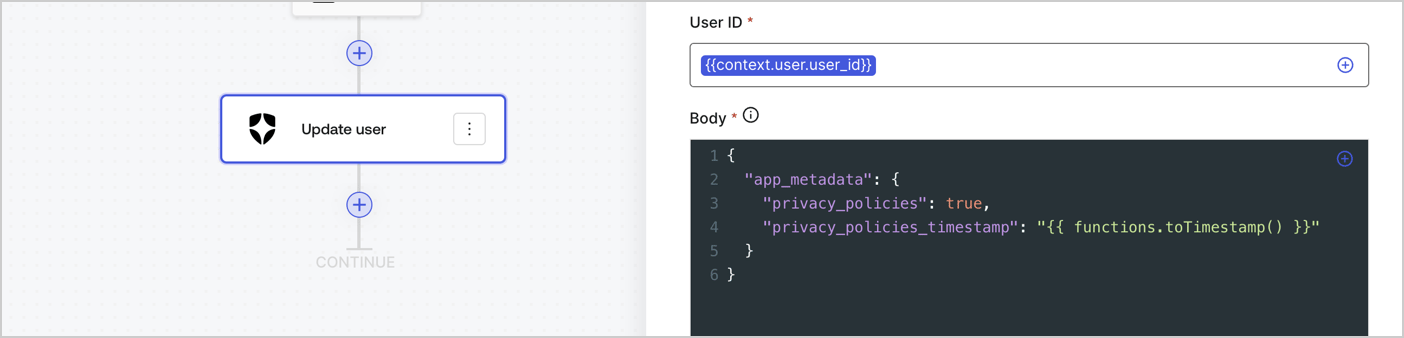
2. アクションの **［Start（開始）］** の下にある **［+］** アイコンを選択し、 **Update user（ユーザー更新）** アクションを追加します。以下のフィールドに入力して、 **［Save（保存）］** を選択します。

   * **Connection（接続）** ：ドロップダウンからM2MアプリケーションへのVault接続を選択します。

   * **User ID（ユーザーID）** ：`{{context.user.user_id}}`と入力します。

   * **Body（ボディー）** ：以下のコードをコピーして貼り付け、privacy\_policiesとprivacy\_policies\_timestampのプロパティを含むapp\_metadataを更新します。

     ```text lines theme={null}
     {
       "app_metadata": {
         "privacy_policies": true,
         "privacy_policies_timestamp": "{{ functions.toTimestamp() }}"
       }
     }
     ```

   * **［Save（保存）］** を選択します。
3. **［Publish（公開）］** を選択して保存します。

<Frame>
  <img src="https://mintcdn.com/docs-dev-docs-event-stream-action-templates/9Vac8_IYDB9MGlmx/docs/images/ja-jp/cdy7uua7fh8z/CvMNIwWrOUwaFW4X3G28p/1fb70ae57a20749d9ffaaba8dc0b7e26/update-user-privacy.png?fit=max&auto=format&n=9Vac8_IYDB9MGlmx&q=85&s=189c1bb09b47e7b6c526662d6ee3a0fd" alt="Dashboard > Actions > Forms > User case privacy policy code" data-og-width="1404" width="1404" data-og-height="338" height="338" data-path="docs/images/ja-jp/cdy7uua7fh8z/CvMNIwWrOUwaFW4X3G28p/1fb70ae57a20749d9ffaaba8dc0b7e26/update-user-privacy.png" data-optimize="true" data-opv="3" srcset="https://mintcdn.com/docs-dev-docs-event-stream-action-templates/9Vac8_IYDB9MGlmx/docs/images/ja-jp/cdy7uua7fh8z/CvMNIwWrOUwaFW4X3G28p/1fb70ae57a20749d9ffaaba8dc0b7e26/update-user-privacy.png?w=280&fit=max&auto=format&n=9Vac8_IYDB9MGlmx&q=85&s=aa91a4d8b6cdfa5cf682e4fe33ab2486 280w, https://mintcdn.com/docs-dev-docs-event-stream-action-templates/9Vac8_IYDB9MGlmx/docs/images/ja-jp/cdy7uua7fh8z/CvMNIwWrOUwaFW4X3G28p/1fb70ae57a20749d9ffaaba8dc0b7e26/update-user-privacy.png?w=560&fit=max&auto=format&n=9Vac8_IYDB9MGlmx&q=85&s=c94876bd91205c06f99244344bb7b8a7 560w, https://mintcdn.com/docs-dev-docs-event-stream-action-templates/9Vac8_IYDB9MGlmx/docs/images/ja-jp/cdy7uua7fh8z/CvMNIwWrOUwaFW4X3G28p/1fb70ae57a20749d9ffaaba8dc0b7e26/update-user-privacy.png?w=840&fit=max&auto=format&n=9Vac8_IYDB9MGlmx&q=85&s=ca2f0d563ebcc8fd721c306feaf57b84 840w, https://mintcdn.com/docs-dev-docs-event-stream-action-templates/9Vac8_IYDB9MGlmx/docs/images/ja-jp/cdy7uua7fh8z/CvMNIwWrOUwaFW4X3G28p/1fb70ae57a20749d9ffaaba8dc0b7e26/update-user-privacy.png?w=1100&fit=max&auto=format&n=9Vac8_IYDB9MGlmx&q=85&s=3a89de94d28d149a2162d3af59ae699d 1100w, https://mintcdn.com/docs-dev-docs-event-stream-action-templates/9Vac8_IYDB9MGlmx/docs/images/ja-jp/cdy7uua7fh8z/CvMNIwWrOUwaFW4X3G28p/1fb70ae57a20749d9ffaaba8dc0b7e26/update-user-privacy.png?w=1650&fit=max&auto=format&n=9Vac8_IYDB9MGlmx&q=85&s=724b4aa708cf9f54bb4beb07ee25ad83 1650w, https://mintcdn.com/docs-dev-docs-event-stream-action-templates/9Vac8_IYDB9MGlmx/docs/images/ja-jp/cdy7uua7fh8z/CvMNIwWrOUwaFW4X3G28p/1fb70ae57a20749d9ffaaba8dc0b7e26/update-user-privacy.png?w=2500&fit=max&auto=format&n=9Vac8_IYDB9MGlmx&q=85&s=219a59d35517d925db439c2a87c04fa0 2500w" />
</Frame>

<Callout icon="file-lines" color="#0EA5E9" iconType="regular">
  **Update app\_metadata** フローは、`privacy_policies true`値を`app_metadata`オブジェクトに追加し、[ヘルパー関数](/docs/ja-jp/customize/forms/variables)を使ってタイムスタンプを生成します。
</Callout>

## フォームのレンダーコードを取得する

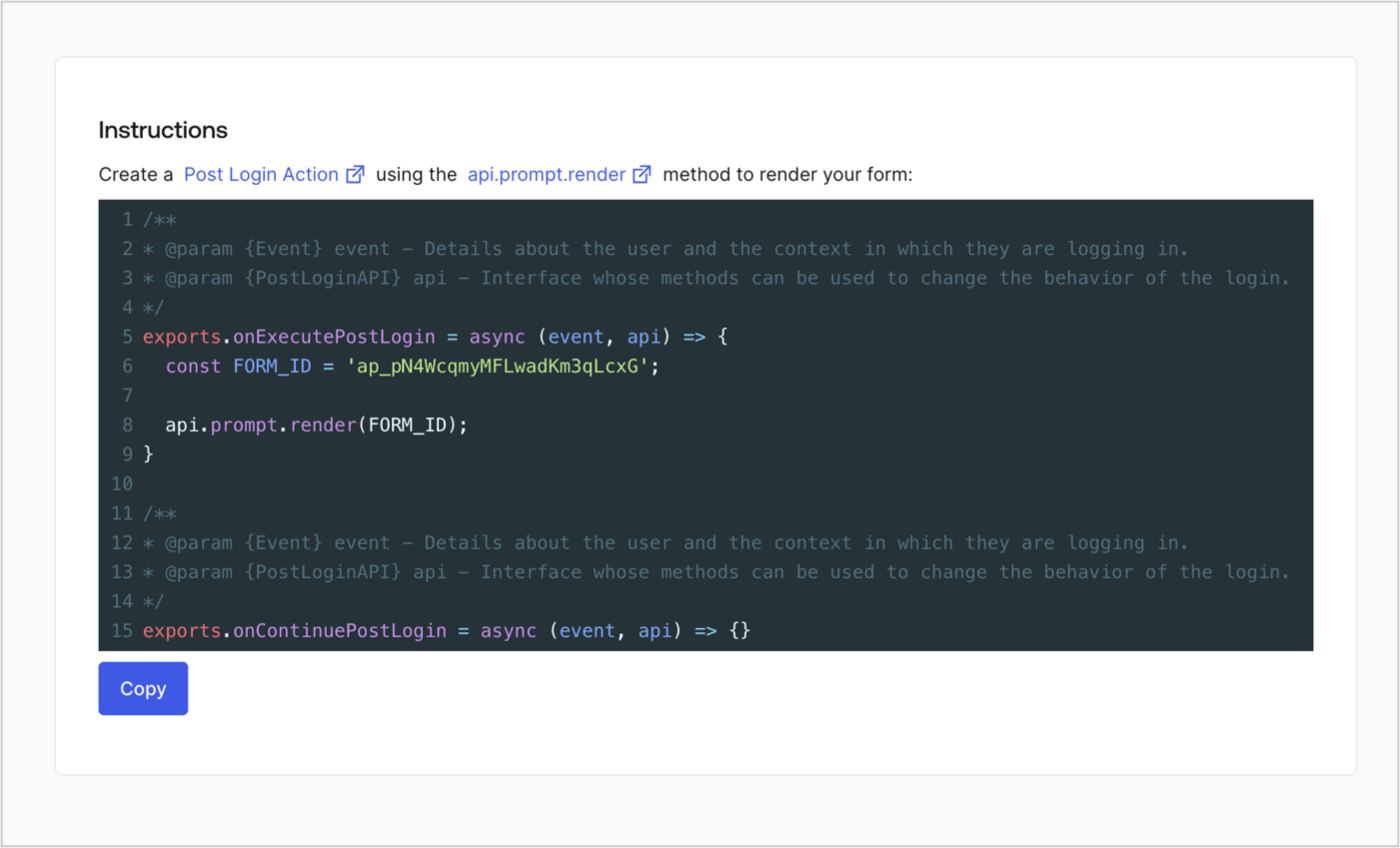
フォームのレンダーコードを取得して、カスタムのログイン後アクションでフォームを視覚的にレンダリングするには、以下の手順に従います。

* フォームエディターから **`<>`［Render（レンダー）］** を選択します。
* **［Copy（コピー）］** を選択します。

<Frame>
  <img src="https://mintcdn.com/docs-dev-docs-event-stream-action-templates/5l8GTXHD40NsjgmL/docs/images/ja-jp/cdy7uua7fh8z/2EIUzc539sq9lwoTKbjoJv/496a864c0fc44a782c9cadca119dbfb0/embed.png?fit=max&auto=format&n=5l8GTXHD40NsjgmL&q=85&s=1d450c72430eaafbbf1d7c9fa55c2739" alt="Dashboard > Actions > Forms > Form > Embed" data-og-width="1400" width="1400" data-og-height="848" height="848" data-path="docs/images/ja-jp/cdy7uua7fh8z/2EIUzc539sq9lwoTKbjoJv/496a864c0fc44a782c9cadca119dbfb0/embed.png" data-optimize="true" data-opv="3" srcset="https://mintcdn.com/docs-dev-docs-event-stream-action-templates/5l8GTXHD40NsjgmL/docs/images/ja-jp/cdy7uua7fh8z/2EIUzc539sq9lwoTKbjoJv/496a864c0fc44a782c9cadca119dbfb0/embed.png?w=280&fit=max&auto=format&n=5l8GTXHD40NsjgmL&q=85&s=5886177f257c7dbd81499fa30e17e5d1 280w, https://mintcdn.com/docs-dev-docs-event-stream-action-templates/5l8GTXHD40NsjgmL/docs/images/ja-jp/cdy7uua7fh8z/2EIUzc539sq9lwoTKbjoJv/496a864c0fc44a782c9cadca119dbfb0/embed.png?w=560&fit=max&auto=format&n=5l8GTXHD40NsjgmL&q=85&s=af1baf16d0c38de58afeaeddd09adbee 560w, https://mintcdn.com/docs-dev-docs-event-stream-action-templates/5l8GTXHD40NsjgmL/docs/images/ja-jp/cdy7uua7fh8z/2EIUzc539sq9lwoTKbjoJv/496a864c0fc44a782c9cadca119dbfb0/embed.png?w=840&fit=max&auto=format&n=5l8GTXHD40NsjgmL&q=85&s=09c4c5a1da2d5cb3b2fa8b2adfc4ced6 840w, https://mintcdn.com/docs-dev-docs-event-stream-action-templates/5l8GTXHD40NsjgmL/docs/images/ja-jp/cdy7uua7fh8z/2EIUzc539sq9lwoTKbjoJv/496a864c0fc44a782c9cadca119dbfb0/embed.png?w=1100&fit=max&auto=format&n=5l8GTXHD40NsjgmL&q=85&s=2a06a690f63656ebcaf54ed0f7114715 1100w, https://mintcdn.com/docs-dev-docs-event-stream-action-templates/5l8GTXHD40NsjgmL/docs/images/ja-jp/cdy7uua7fh8z/2EIUzc539sq9lwoTKbjoJv/496a864c0fc44a782c9cadca119dbfb0/embed.png?w=1650&fit=max&auto=format&n=5l8GTXHD40NsjgmL&q=85&s=9b7d1243190aadaf56c561e44e498f25 1650w, https://mintcdn.com/docs-dev-docs-event-stream-action-templates/5l8GTXHD40NsjgmL/docs/images/ja-jp/cdy7uua7fh8z/2EIUzc539sq9lwoTKbjoJv/496a864c0fc44a782c9cadca119dbfb0/embed.png?w=2500&fit=max&auto=format&n=5l8GTXHD40NsjgmL&q=85&s=b6d083438f5673166e15a4b05a1805c6 2500w" />
</Frame>

## ログイン後のアクションを作成する

ログイン後のアクションを作成してフォームをレンダリングするには、次の手順に従います。

1. **［Auth0 Dashboard］>［Actions（アクション）］>［Flows（フロー）］>［Login（ログイン）］** に移動します。
2. **［+］** アイコンを選択し、 **［Build from scratch（初めから構築する）］** を選択します。

   * **Name（名前）** ：`Render Update Policy Form`（更新ポリシーフォームのレンダリング）と入力します。
   * **Trigger（トリガー）** ：［`Login / Post Login`（ログイン/ログイン後）］を選択します。
   * **Runtime（ランタイム）** ：推奨バージョンを選択します。
3. **［Create（作成）］** を選択します。

ログイン後のアクションを構成するには、以下を行います。

1. 既存のコードをコードエディターから削除します。

2. フォームのレンダリングコードをコードエディターに貼り付けます。

3. コードを編集して、フォームをレンダリングする条件ロジックを定義します。

   ```javascript lines theme={null}
   /**
   * @param {Event} event - Details about the user and the context in which they are logging in.
   * @param {PostLoginAPI} api - Interface whose methods can be used to change the behavior of the login.
   */
   exports.onExecutePostLogin = async (event, api) => {
     const FORM_ID = 'REPLACE_WITH_YOUR_FORM_ID';

     if (event.user.app_metadata.privacy_policies !== true) {
       api.prompt.render(FORM_ID);
     }
   }

   exports.onContinuePostLogin = async (event, api) => { }
   ```

   <Callout icon="file-lines" color="#0EA5E9" iconType="regular">
     上の例にあるコードでは、ユーザーのアプリメタデータに`privacy_policies`プロパティがない場合にフォームが表示されます。
   </Callout>

4. **［Deploy（デプロイ）］** を選択します。

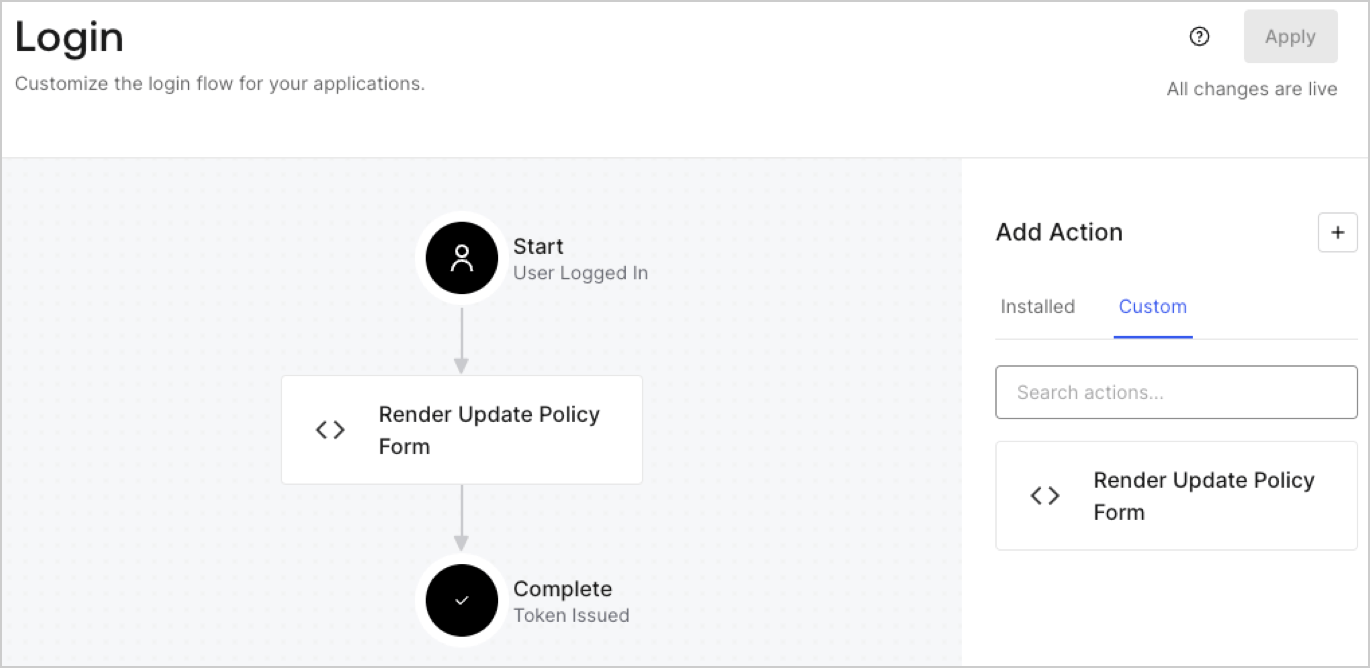
5. **［Render Update Policy Form（更新ポリシーフォームのレンダリング）］** アクションを **Login（ログイン）** フローにドラッグ＆ドロップします。

   <Frame>
     <img src="https://mintcdn.com/docs-dev-docs-event-stream-action-templates/V-g8sIA_dMysRiDH/docs/images/ja-jp/cdy7uua7fh8z/5TOwDgevZsBqd7yZynUYWU/41ca909dc3007aed4f40ff794a05efa5/postlogin.png?fit=max&auto=format&n=V-g8sIA_dMysRiDH&q=85&s=dbf15f10961ce23fde8a16616ee44448" alt="Dashboard > Forms > Use Case > Render update policy form login action" data-og-width="1370" width="1370" data-og-height="668" height="668" data-path="docs/images/ja-jp/cdy7uua7fh8z/5TOwDgevZsBqd7yZynUYWU/41ca909dc3007aed4f40ff794a05efa5/postlogin.png" data-optimize="true" data-opv="3" srcset="https://mintcdn.com/docs-dev-docs-event-stream-action-templates/V-g8sIA_dMysRiDH/docs/images/ja-jp/cdy7uua7fh8z/5TOwDgevZsBqd7yZynUYWU/41ca909dc3007aed4f40ff794a05efa5/postlogin.png?w=280&fit=max&auto=format&n=V-g8sIA_dMysRiDH&q=85&s=0cbe1224d432c9c126e6bb94b1129fa4 280w, https://mintcdn.com/docs-dev-docs-event-stream-action-templates/V-g8sIA_dMysRiDH/docs/images/ja-jp/cdy7uua7fh8z/5TOwDgevZsBqd7yZynUYWU/41ca909dc3007aed4f40ff794a05efa5/postlogin.png?w=560&fit=max&auto=format&n=V-g8sIA_dMysRiDH&q=85&s=75c07ece2bd52b3bc471a0464936c660 560w, https://mintcdn.com/docs-dev-docs-event-stream-action-templates/V-g8sIA_dMysRiDH/docs/images/ja-jp/cdy7uua7fh8z/5TOwDgevZsBqd7yZynUYWU/41ca909dc3007aed4f40ff794a05efa5/postlogin.png?w=840&fit=max&auto=format&n=V-g8sIA_dMysRiDH&q=85&s=50c841f6246aa2c97915ce1ff3820aee 840w, https://mintcdn.com/docs-dev-docs-event-stream-action-templates/V-g8sIA_dMysRiDH/docs/images/ja-jp/cdy7uua7fh8z/5TOwDgevZsBqd7yZynUYWU/41ca909dc3007aed4f40ff794a05efa5/postlogin.png?w=1100&fit=max&auto=format&n=V-g8sIA_dMysRiDH&q=85&s=9aab7d7efba543af36e89b42d77a3b03 1100w, https://mintcdn.com/docs-dev-docs-event-stream-action-templates/V-g8sIA_dMysRiDH/docs/images/ja-jp/cdy7uua7fh8z/5TOwDgevZsBqd7yZynUYWU/41ca909dc3007aed4f40ff794a05efa5/postlogin.png?w=1650&fit=max&auto=format&n=V-g8sIA_dMysRiDH&q=85&s=0cb36ff43b2342305534772d3c4a7621 1650w, https://mintcdn.com/docs-dev-docs-event-stream-action-templates/V-g8sIA_dMysRiDH/docs/images/ja-jp/cdy7uua7fh8z/5TOwDgevZsBqd7yZynUYWU/41ca909dc3007aed4f40ff794a05efa5/postlogin.png?w=2500&fit=max&auto=format&n=V-g8sIA_dMysRiDH&q=85&s=3c769df7970fcf6ac991e9467aed4c12 2500w" />
   </Frame>

6. **［Apply（適用）］** を選択します。

### 実装をテストする

次の手順に従って実装をテストします。

1. `app_metadata`属性の`privacy_policies`に値がない既存のユーザーとしてログインします。
2. ログインフローのログイン後アクションがフォームをレンダリングして、同意を求めます。
3. **［Auth0 Dashboard］>［User Management（ユーザー管理）］>［Users（ユーザー）］** に移動し、ユーザーを見つけて、`app_metadata`属性の`privacy_policies`に`true`値とタイムスタンプが含まれていることを確認します。