> ## Documentation Index
> Fetch the complete documentation index at: https://docs-dev-docs-event-stream-action-templates.mintlify.site/llms.txt
> Use this file to discover all available pages before exploring further.
> Describes how to enable Android App Links support for your Auth0 application using the Auth0 Dashboard.
# Enable Android App Links Support
[Android App Links](https://developer.android.com/training/app-links) allow an application to designate itself as the default handler of a given type of link. For example, clicking a URL in an email would open the link in the designated application. This guide will show you how to enable Android App links support for your Auth0-registered application using Auth0's Dashboard.
1. Go to [Auth0 Dashboard > Applications > Applications](https://manage.auth0.com/#/applications), and select the name of the application to view.
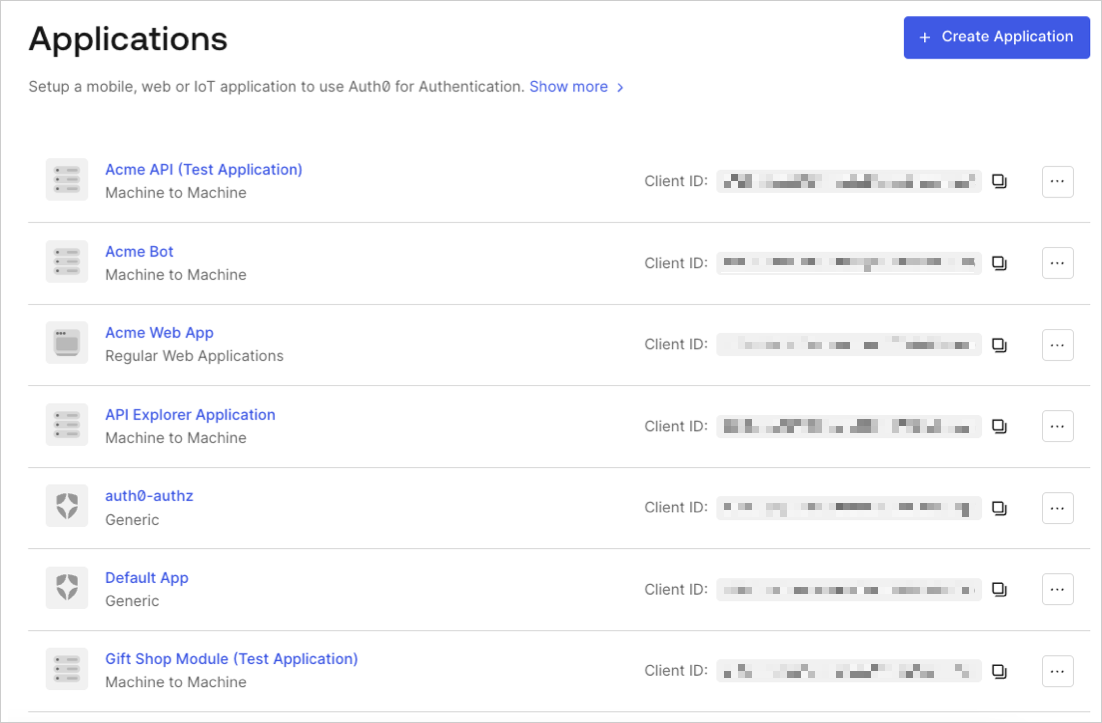 2. Scroll to the bottom of the **Settings** page, and select **Show Advanced Settings**.
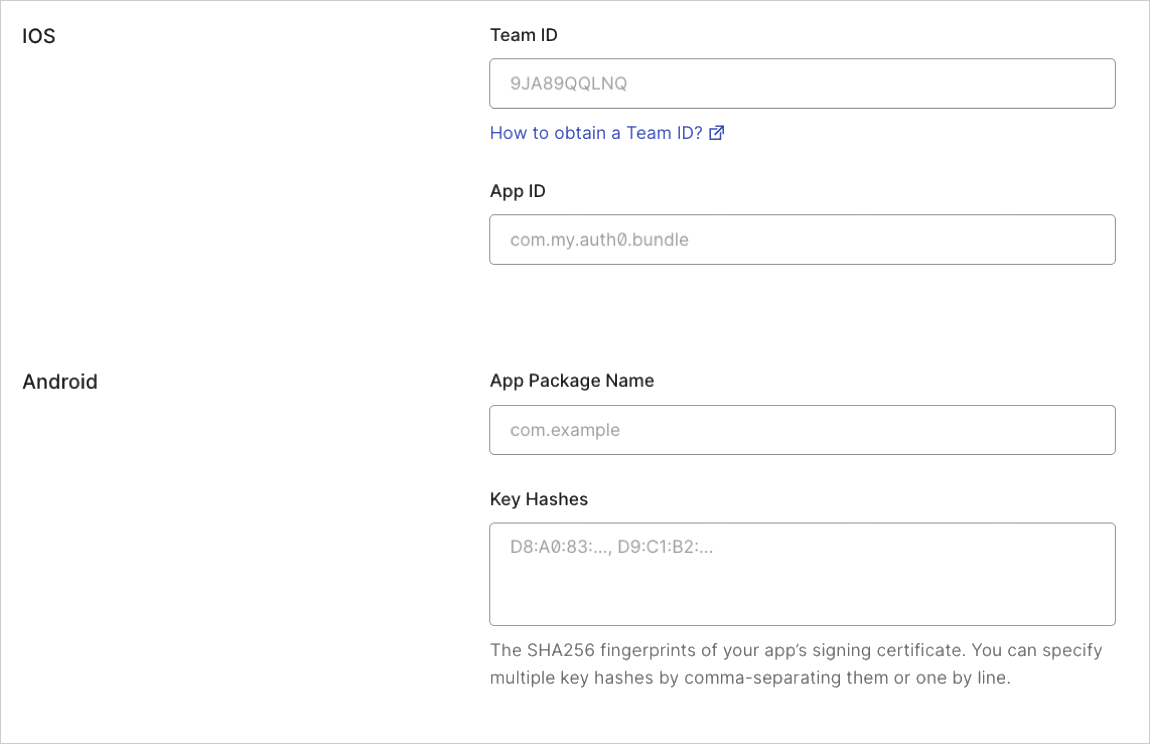
3. Select **Device Settings**, provide the [App Package Name](https://developer.android.com/studio/build/application-id) and the SHA256 fingerprints of your app’s signing certificate for your Android application, and select **Save Changes**.
2. Scroll to the bottom of the **Settings** page, and select **Show Advanced Settings**.
3. Select **Device Settings**, provide the [App Package Name](https://developer.android.com/studio/build/application-id) and the SHA256 fingerprints of your app’s signing certificate for your Android application, and select **Save Changes**.
 You can use the following command to generate the fingerprint using the Java keytool in your terminal:
`keytool -list -v -keystore my-release-key.keystore`
To learn more about signing certificates, see Android's [Sign Your App](https://developer.android.com/studio/publish/app-signing.html) developer documentation.
## Test link
1. Navigate to the following URL in your browser: `https://{yourDomain}/.well-known/assetlinks.json`
2. If the link is successful, you will return the following JSON (formatted for readability):
```json lines theme={null}
[{
"relation": ["delegate_permission/common.handle_all_urls"],
"target": {
"namespace": "android_app",
"package_name": "com.mycompany.app1",
"sha256_cert_fingerprints":
["14:6D:E9:83:C5:73:06:50:D8:EE:B9:95:2F:34:FC:64:16:A0:83:42:E6:1D:BE:A8:8A:04:96:B2:3F:CF:44:E5"]
}
}]
```
To learn more about testing your app link, read [Verify Android App Links](https://developer.android.com/training/app-links/verify-applinks) at [https://developer.android.com](https://developer.android.com).
You can use the following command to generate the fingerprint using the Java keytool in your terminal:
`keytool -list -v -keystore my-release-key.keystore`
To learn more about signing certificates, see Android's [Sign Your App](https://developer.android.com/studio/publish/app-signing.html) developer documentation.
## Test link
1. Navigate to the following URL in your browser: `https://{yourDomain}/.well-known/assetlinks.json`
2. If the link is successful, you will return the following JSON (formatted for readability):
```json lines theme={null}
[{
"relation": ["delegate_permission/common.handle_all_urls"],
"target": {
"namespace": "android_app",
"package_name": "com.mycompany.app1",
"sha256_cert_fingerprints":
["14:6D:E9:83:C5:73:06:50:D8:EE:B9:95:2F:34:FC:64:16:A0:83:42:E6:1D:BE:A8:8A:04:96:B2:3F:CF:44:E5"]
}
}]
```
To learn more about testing your app link, read [Verify Android App Links](https://developer.android.com/training/app-links/verify-applinks) at [https://developer.android.com](https://developer.android.com).