> ## Documentation Index
> Fetch the complete documentation index at: https://docs-dev-docs-event-stream-action-templates.mintlify.site/llms.txt
> Use this file to discover all available pages before exploring further.
> Learn how to configure, update, and delete application metadata (client_metadata and clientMetadata) in the Auth0 Dashboard Applications Advanced Settings.
# Configure Application Metadata
Application metadata is optional and consists of customizable keys and values (max 255 characters each), that you can set for each application. Metadata is exposed in the `Client` object as `client_metadata`, and in Rules as `context.clientMetadata`. You might store, for example, the URL for the application’s home page (a field that Auth0 doesn’t provide by default in the application settings).
Client metadata is stored as part of the application (client) properties. To learn more about data types, field names, and storage limitations, read [Metadata Field Names and Data Types](/docs/manage-users/user-accounts/metadata/metadata-fields-data).
Where to store the secret depends on the scope of the secret:
* Is it just one secret per application? Then `client_metadata` would be a good place.
* Is it the same secret for the whole system (i.e., for all applications or many)? Then the rule’s configuration values might be a better choice
* Is it a different secret for each user? Then storing in `app_metadata` might be better.
Claims in the ID token are not encrypted, so depending on the flow that you use, the user might be able to get the token and inspect the contents. Auth0 does **not** recommend storing a secret in that way.
Existing applications will have no value for this property.
You can access application metadata in [Actions](/docs/customize/actions):
```js lines theme={null}
exports.onExecutePostLogin = async (event, api) => {
if (event.client.metadata.SKIP_VERIFICATION === "yes"){
return;
}
// ... continue this Action
}
```
... or in [Rules](/docs/customize/rules):
```javascript lines theme={null}
function applicationMetadataExample (user, context, callback){
context.clientMetadata = context.clientMetadata || {};
if (context.clientMetadata.SKIP_VERIFICATION === "yes"){
return callback();
}
// ... continue this Rule
}
```
You can read and add to the application metadata using either the Dashboard or the Management API. To learn how to manage client metadata with the Management API, read [Manage Metadata Using the Management API](/docs/manage-users/user-accounts/metadata/manage-metadata-api).
## Add application metadata key/value pairs
1. Go to [Dashboard > Applications > Applications](https://manage.auth0.com/#/applications) and select the application.
2. Scroll down and click **Advanced Settings**.
3. On the **Application Metadata** tab, enter the key's name and value, then click **Add**.
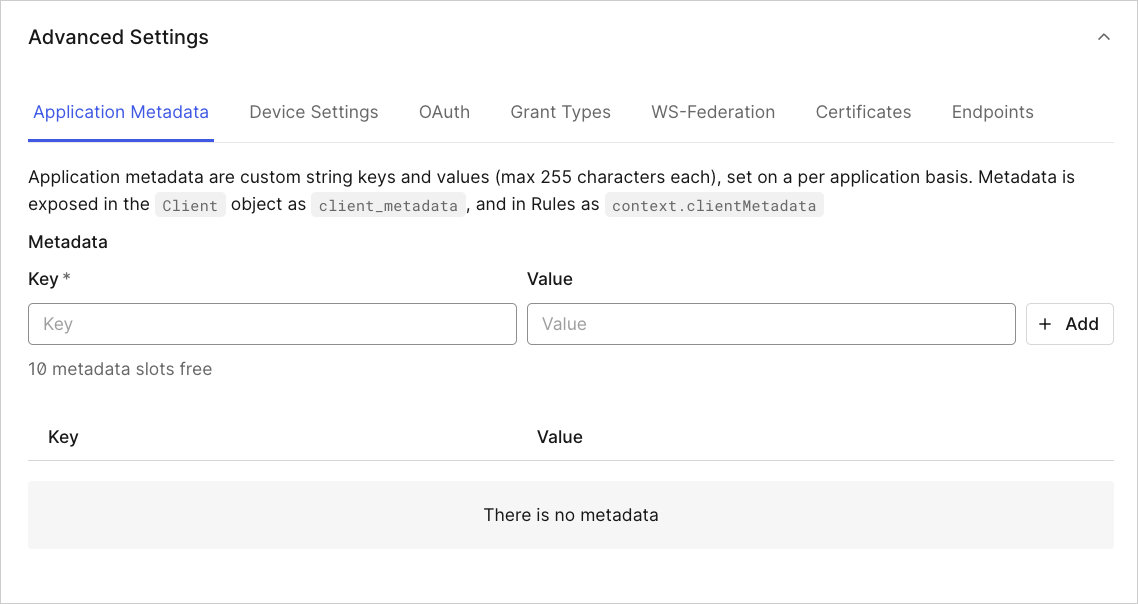 4. Click **Save Changes**.
## Update application metadata value
1. Go to [Dashboard > Applications > Applications](https://manage.auth0.com/#/applications) and select the application.
2. Scroll down and click **Advanced Settings**.
3. On the **Application Metadata** tab, enter the key's name that you want to change and enter a new value, then click **Add**.
4. Click **Save Changes**
## Delete application metadata
1. Go to [Dashboard > Applications > Applications](https://manage.auth0.com/#/applications) and select the application.
2. Scroll down and click **Advanced Settings**.
3. On the **Application Metadata** tab locate the key/value pair you want to delete and click the trash can icon.
4. Confirm the deletion.
5. Click **Save Changes**.
## Learn more
* [Metadata Field Names and Data Types](/docs/manage-users/user-accounts/metadata/metadata-fields-data)
* [Manage Metadata Using the Management API](/docs/manage-users/user-accounts/metadata/manage-metadata-api)
* [Manage Metadata with Rules](/docs/manage-users/user-accounts/metadata/manage-metadata-rules)
* [Rotate Client Secrets](/docs/get-started/applications/rotate-client-secret)
4. Click **Save Changes**.
## Update application metadata value
1. Go to [Dashboard > Applications > Applications](https://manage.auth0.com/#/applications) and select the application.
2. Scroll down and click **Advanced Settings**.
3. On the **Application Metadata** tab, enter the key's name that you want to change and enter a new value, then click **Add**.
4. Click **Save Changes**
## Delete application metadata
1. Go to [Dashboard > Applications > Applications](https://manage.auth0.com/#/applications) and select the application.
2. Scroll down and click **Advanced Settings**.
3. On the **Application Metadata** tab locate the key/value pair you want to delete and click the trash can icon.
4. Confirm the deletion.
5. Click **Save Changes**.
## Learn more
* [Metadata Field Names and Data Types](/docs/manage-users/user-accounts/metadata/metadata-fields-data)
* [Manage Metadata Using the Management API](/docs/manage-users/user-accounts/metadata/manage-metadata-api)
* [Manage Metadata with Rules](/docs/manage-users/user-accounts/metadata/manage-metadata-rules)
* [Rotate Client Secrets](/docs/get-started/applications/rotate-client-secret)