> ## Documentation Index
> Fetch the complete documentation index at: https://docs-dev-docs-event-stream-action-templates.mintlify.site/llms.txt
> Use this file to discover all available pages before exploring further.
> Learn about ACUL development workflow
# ACUL Development Workflow
There are two primary modes for the development of your ACUL screens: local development and live tenant integration testing.
## Local development
Customize your ACUL screens locally with the [Auth0 CLI](https://github.com/auth0/auth0-cli/) command `auth0 acul dev`. Quickly iterate your ACUL screens without any delays or backend dependencies with the [Universal Login Context Inspector](https://github.com/auth0/ul-context-inspector).
The Universal Login Context Inspector provides mock context data to test your authentication screens against tenant specific configurations.
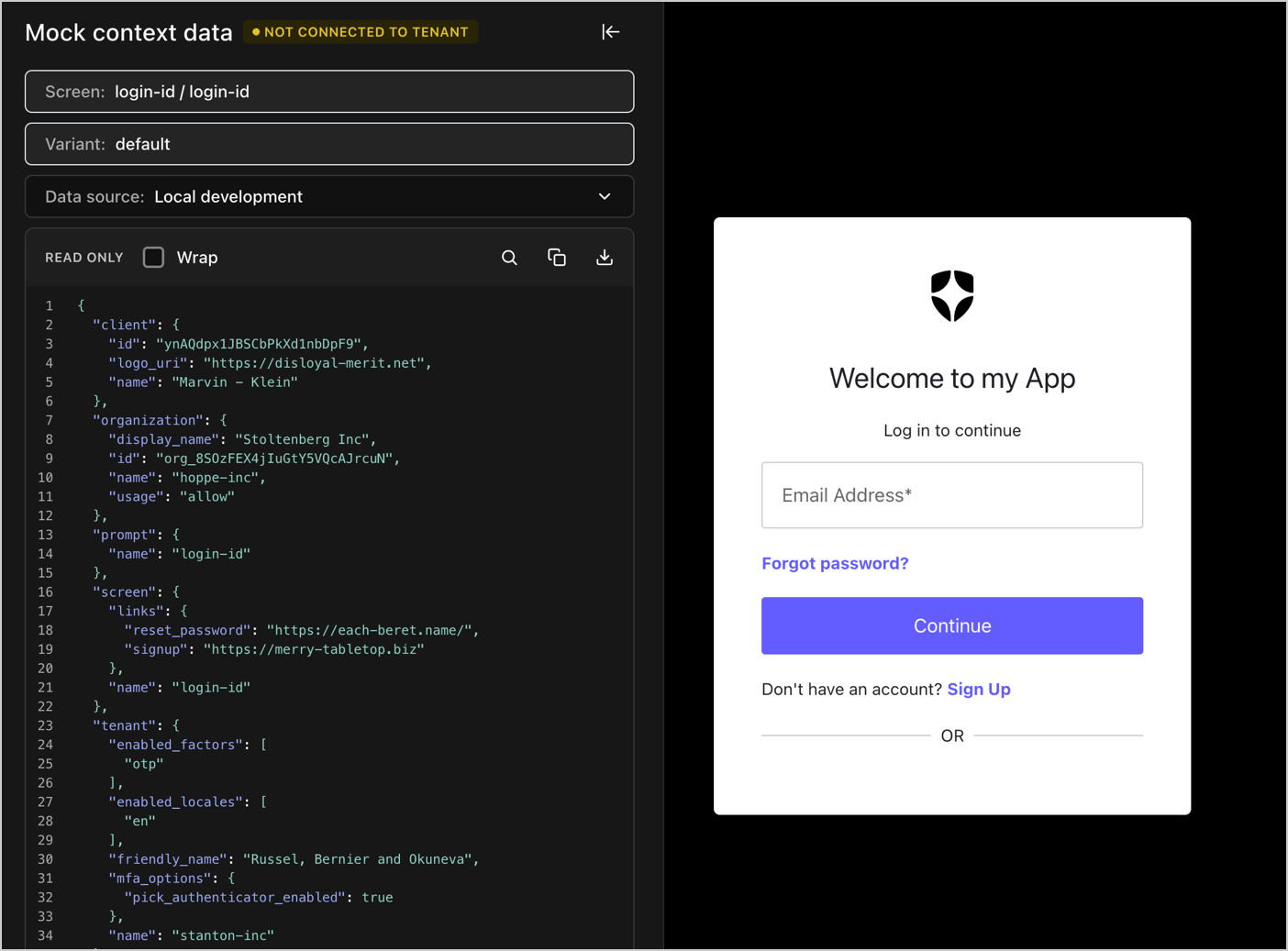 * Select **Screen** to see your available ACUL configured screens with default mock context data.
* Select **Data Source** to select mock context data served from **Auth0 CDN** or mock context data from your **Local Development** project's `public/screens/{prompt}/{screen}` directory.
* Select the **Download JSON** icon to download the context data for a selected screen.
## Live tenant integration testing
Live tenant integration with the Auth0 CLI command `auth0 acul dev --connected` allows for End-to-End testing of your custom screen UIs and verifies integration with your Auth0 tenant.
Use `--connected` mode for integration testing after the UI is largely complete, as each reload restarts the authentication flow.
When using `auth0 acul dev --connected`
* Select your ACUL project's directory.
* Select `npm run build` to build the project and configure your Auth0 tenant.
* Select the **port** to serve your local assets, by default `55444` and start the local server in the background.
* Optionally, allow `--connected` mode to continually monitor watch for changes to the project's `/dist/assets` directory.
Open a new terminal and run `auth0 test login` to test the login flow on your tenant.
In `--connected` mode, The Auth0 CLI command watches for file changes, rebuilds assets, and automatically updates your tenant's configuration.
To learn more, read [Auth0 CLI](https://auth0.github.io/auth0-cli/auth0_acul_dev.html) on GitHub.
* Select **Screen** to see your available ACUL configured screens with default mock context data.
* Select **Data Source** to select mock context data served from **Auth0 CDN** or mock context data from your **Local Development** project's `public/screens/{prompt}/{screen}` directory.
* Select the **Download JSON** icon to download the context data for a selected screen.
## Live tenant integration testing
Live tenant integration with the Auth0 CLI command `auth0 acul dev --connected` allows for End-to-End testing of your custom screen UIs and verifies integration with your Auth0 tenant.
Use `--connected` mode for integration testing after the UI is largely complete, as each reload restarts the authentication flow.
When using `auth0 acul dev --connected`
* Select your ACUL project's directory.
* Select `npm run build` to build the project and configure your Auth0 tenant.
* Select the **port** to serve your local assets, by default `55444` and start the local server in the background.
* Optionally, allow `--connected` mode to continually monitor watch for changes to the project's `/dist/assets` directory.
Open a new terminal and run `auth0 test login` to test the login flow on your tenant.
In `--connected` mode, The Auth0 CLI command watches for file changes, rebuilds assets, and automatically updates your tenant's configuration.
To learn more, read [Auth0 CLI](https://auth0.github.io/auth0-cli/auth0_acul_dev.html) on GitHub.