> ## Documentation Index
> Fetch the complete documentation index at: https://docs-dev-docs-event-stream-action-templates.mintlify.site/llms.txt
> Use this file to discover all available pages before exploring further.
> How to use secure AWS API Gateway using custom authorizers that accept Auth0-issued access tokens.
# Secure AWS API Gateway Endpoints Using Custom Authorizers
export const AuthCodeGroup = ({children, dropdown}) => {
const [processedChildren, setProcessedChildren] = useState(children);
useEffect(() => {
let unsubscribe = null;
function init() {
unsubscribe = window.autorun(() => {
const processChildren = node => {
if (typeof node === "string") {
let processedNode = node;
for (const [key, value] of window.rootStore.variableStore.values.entries()) {
const escapedKey = key.replaceAll(/[.*+?^${}()|[\]\\]/g, (String.raw)`\$&`);
processedNode = processedNode.replaceAll(new RegExp(escapedKey, "g"), value);
}
return processedNode;
} else if (Array.isArray(node)) {
return node.map(processChildren);
} else if (node && node.props && node.props.children) {
return {
...node,
props: {
...node.props,
children: processChildren(node.props.children)
}
};
}
return node;
};
setProcessedChildren(processChildren(children));
});
}
if (window.rootStore) {
init();
} else {
window.addEventListener("adu:storeReady", init);
}
return () => {
window.removeEventListener("adu:storeReady", init);
unsubscribe?.();
};
}, [children]);
return {processedChildren};
};
export const AuthCodeBlock = ({filename, icon, language, highlight, children}) => {
const [displayText, setDisplayText] = useState(children);
const [copyText, setCopyText] = useState(children);
const wrapperRef = React.useRef(null);
useEffect(() => {
let unsubscribe = null;
function init() {
if (!window.autorun || !window.rootStore) {
return;
}
unsubscribe = window.autorun(() => {
let processedChildrenForDisplay = children;
let processedChildrenForCopy = children;
for (const [key, value] of window.rootStore.variableStore.values.entries()) {
const escapedKey = key.replaceAll(/[.*+?^${}()|[\]\\]/g, (String.raw)`\$&`);
let displayValue = value;
if (key === "{yourClientSecret}" && value !== "{yourClientSecret}") {
displayValue = value.substring(0, 3) + "*****MASKED*****";
}
processedChildrenForDisplay = processedChildrenForDisplay.replaceAll(new RegExp(escapedKey, "g"), displayValue);
processedChildrenForCopy = processedChildrenForCopy.replaceAll(new RegExp(escapedKey, "g"), value);
}
setDisplayText(processedChildrenForDisplay);
setCopyText(processedChildrenForCopy);
});
}
if (window.rootStore) {
init();
} else {
window.addEventListener("adu:storeReady", init);
}
return () => {
window.removeEventListener("adu:storeReady", init);
unsubscribe?.();
};
}, [children]);
useEffect(() => {
if (!wrapperRef.current) return;
const originalWriteText = navigator.clipboard.writeText.bind(navigator.clipboard);
let isOverriding = false;
const handleClick = e => {
const button = e.target.closest('[data-testid="copy-code-button"]');
if (!button || !wrapperRef.current.contains(button)) return;
isOverriding = true;
navigator.clipboard.writeText = text => {
if (isOverriding) {
isOverriding = false;
navigator.clipboard.writeText = originalWriteText;
return originalWriteText(copyText);
}
return originalWriteText(text);
};
setTimeout(() => {
if (isOverriding) {
isOverriding = false;
navigator.clipboard.writeText = originalWriteText;
}
}, 100);
};
const wrapper = wrapperRef.current;
wrapper.addEventListener('click', handleClick, true);
return () => {
wrapper.removeEventListener('click', handleClick, true);
if (navigator.clipboard.writeText !== originalWriteText) {
navigator.clipboard.writeText = originalWriteText;
}
};
}, [copyText]);
return
{displayText}
;
};
export const codeExample = `JWKS_URI="https://{yourDomain}/.well-known/jwks.json"
AUDIENCE="https://your-api-gateway"
TOKEN_ISSUER="https://{yourDomain}/"
`;
Secure AWS API Gateway endpoints using custom authorizers that accept Auth0-issued access tokens. To do this, you configure your API with API Gateway, create and configure your AWS Lambda functions (including the custom authorizers) to secure your API endpoints, and implement the authorization flow so that your users can retrieve the access tokens needed to gain access to your API from Auth0.
To learn more, visit [AWS Lambda Overview](https://aws.amazon.com/lambda/) once you log into your [AWS API Gateway](https://aws.amazon.com/api-gateway/).
The API Gateway extends the capabilities of Lambda by adding a service layer in front of your Lambda functions to extend security, manage input and output message transformations, and provide capabilities like throttling and auditing. A serverless approach simplifies your operational demands since concerns like scaling out and fault tolerance are now the responsibility of the compute service that is executing your code.
The custom authorizers will:
* Confirm that the access token has been passed via the `authorization` header of the request to access the API.
* Verify the RS256 signature of the Access Token using a public key obtained via a JWKS endpoint.
* Ensure the access token has the required Issuer `iss` and audience `aud` claims.
Use the following steps to use custom authorizers:
1. [Create an Auth0 API](#create-an-auth0-api)
2. [Import and deploy the AWS API Gateway API](#import-and-deploy-the-aws-api-gateway-api)
3. [Create the custom authorizers](#create-the-custom-authorizers)
4. [Secure the API using custom authorizers](#secure-the-api-using-custom-authorizers)
5. [Test your deployment](#test-your-deployment)
To read more about signing algorithms, read [Signing Algorithms](/docs/get-started/applications/signing-algorithms). For more details on using JWKS, visit [JSON Web Key Sets](/docs/secure/tokens/json-web-tokens/json-web-key-sets).
## How API Gateway custom authorizers work
[According to Amazon](http://docs.aws.amazon.com/apigateway/latest/developerguide/use-custom-authorizer.html), an API Gateway custom authorizer is a "Lambda function you provide to control access to your API using bearer token authentication strategies, such as OAuth or SAML."
Whenever someone (or some program) attempts to call your API, API Gateway checks to see if there's a custom authorizer configured for the API.
If **there is a custom authorizer for the API**, API Gateway calls the custom authorizer and provides the authorization token extracted from the request header received.
You can use the custom authorizer to implement different types of authorization strategies, including JWT verification, to return IAM policies authorizing the request. If the policy returned is invalid or if the permissions are denied, the API call fails.
For a valid policy, API caches the returned policy, associating it with the incoming token and using it for the current and subsequent requests. You can configure the amount of time for which the policy is cached. The default value is `300` seconds and the maximum length of caching is `3600` seconds (you can also set the value to 0 to disable caching).
To read more, visit [What is Amazon API Gateway?](http://docs.aws.amazon.com/apigateway/latest/developerguide/use-custom-authorizer.html) in the Amazon Developer's Guide. For more information on JWT verification, review our [JSON Web Token](/docs/secure/tokens/json-web-tokens) article.
## Prerequisite
You need to [sign up for an AWS account](https://portal.aws.amazon.com/gp/aws/developer/registration/index.html). This grants you access to the AWS features, including API Gateway and Lambda. All new members receive twelve months of free tier access to AWS.
## Create an Auth0 API
Configure the APIs consumed by the applications that successfully authorize.
1. Go to [Auth0 Dashboard > Applications > APIs](https://manage.auth0.com/#/apis), and select **Create API**.
2. Enter values for the following fields, and select **Create**.
| Field | Description |
| ----------------- | ---------------------------------------------------------------------------------------------------------------------------------------------------------------------------------------------------- |
| Name | A friendly name for your API. This is the name you'll see in your list of Auth0 APIs. |
| Identifier | A logical identifier for your API. We recommend formatting this identifier like a URL `https://your-api-gateway`. |
| Signing Algorithm | The algorithm you want Auth0 to use to sign the issued [access token](/docs/glossary?term=access+token). To learn more, see [Signing Algorithms](/docs/get-started/applications/signing-algorithms). |
To see the details of your newly-created API, refer to the **Settings** view.
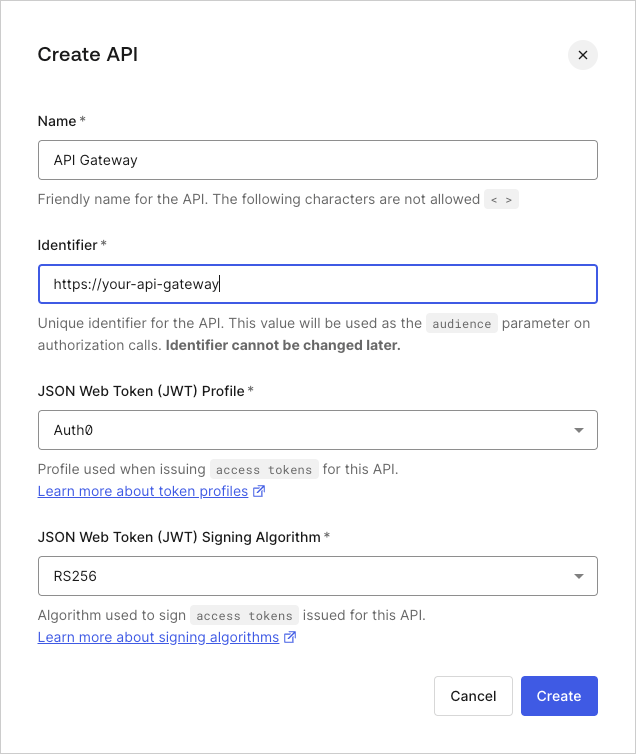 Creating an API also creates a Machine to Machine Application for use with the API. You can see this application listed as **Authorized** under the **Machine to Machine Application** view. Take note of the Client ID; you will need it in part 3 of this tutorial.
## Import and deploy the AWS API Gateway API
This portion of the tutorial has been adapted from the [official AWS example](http://docs.aws.amazon.com/apigateway/latest/developerguide/api-gateway-create-api-from-example.html). Please refer to this example for in-depth notes and discussion.
In this step, you will:
* Import an API into API Gateway
* Test an API import
* Deploy an API for use with any front-end applications
* Test an API deployment
### Import and configure the Pets API
1. Log in to your AWS account, and using the **Services** drop-down located in the top navigation bar, go to the **API Gateway** Console.
2. If you've previously created an API, simply navigate to the API Gateway Console and click **Create API**. You'll be given the option to create the **Example API** on the **Create new API** form.
If you've never created an API using API Gateway, you'll see the following screen. Click **Get Started** to proceed.
Creating an API also creates a Machine to Machine Application for use with the API. You can see this application listed as **Authorized** under the **Machine to Machine Application** view. Take note of the Client ID; you will need it in part 3 of this tutorial.
## Import and deploy the AWS API Gateway API
This portion of the tutorial has been adapted from the [official AWS example](http://docs.aws.amazon.com/apigateway/latest/developerguide/api-gateway-create-api-from-example.html). Please refer to this example for in-depth notes and discussion.
In this step, you will:
* Import an API into API Gateway
* Test an API import
* Deploy an API for use with any front-end applications
* Test an API deployment
### Import and configure the Pets API
1. Log in to your AWS account, and using the **Services** drop-down located in the top navigation bar, go to the **API Gateway** Console.
2. If you've previously created an API, simply navigate to the API Gateway Console and click **Create API**. You'll be given the option to create the **Example API** on the **Create new API** form.
If you've never created an API using API Gateway, you'll see the following screen. Click **Get Started** to proceed.
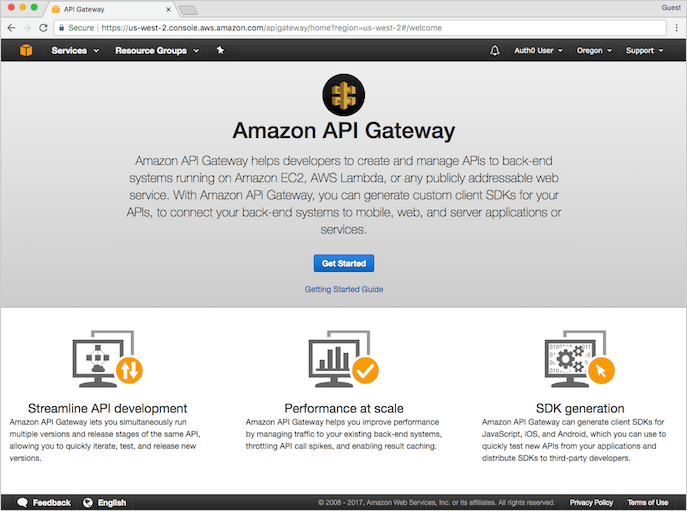 You'll see a pop-up message welcoming you to API Gateway. Click **OK** to proceed.
3. On the **Create new API** form, you'll see that **Example API** is selected by default, and there's an example API defined in the editor. We'll use this API for the rest of our tutorial, so begin the API creation process by clicking **Import**.
You'll see a pop-up message welcoming you to API Gateway. Click **OK** to proceed.
3. On the **Create new API** form, you'll see that **Example API** is selected by default, and there's an example API defined in the editor. We'll use this API for the rest of our tutorial, so begin the API creation process by clicking **Import**.
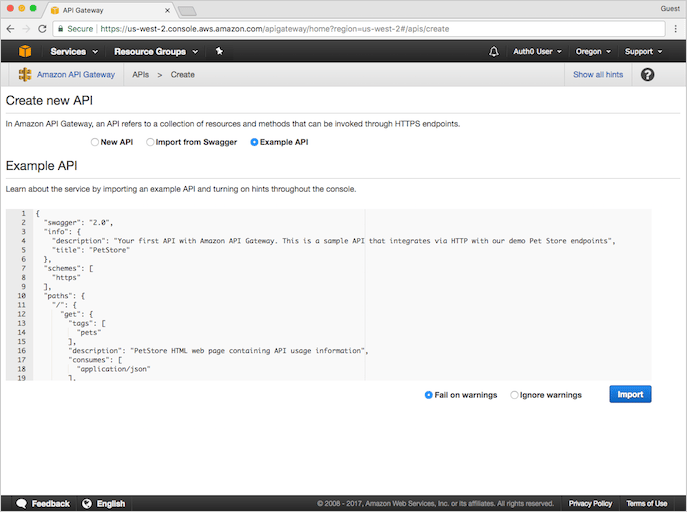 When done, AWS displays a message indicating that your API created and populated with the provided data. Notice the API already has methods associated with it (namely, `GET` and `POST`). You can view the details of a method, modify its configuration, or test the method invocation by clicking the method name from the resource tree.
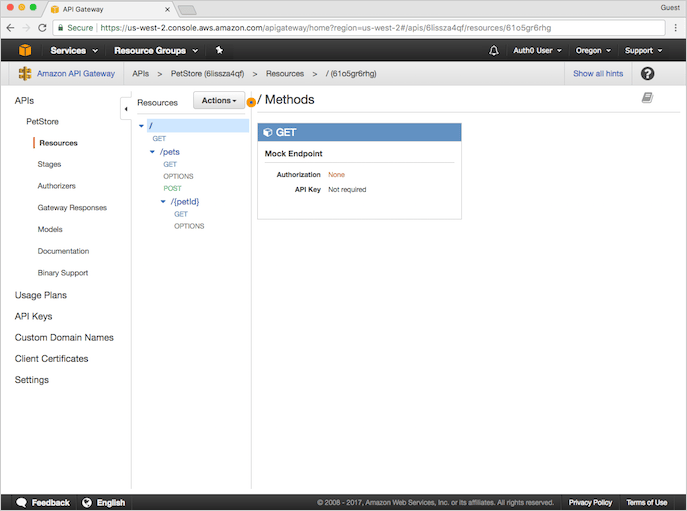 ### Test your API
To test your API, click **POST** under `/pets`. This brings up the **Method Execution** window that provides an overview of the `POST` method's structure and behaviors:
* **Method Request** and **Method Response**: the API's interface with the front-end
* **Integration Request** and **Integration Response**: the API's interface with the back-end
We can use this area to test the API.
1. Click **Test** (shown on the **Client** sliver located in the middle of the page). You'll be redirected to the `/pets - POST - Method Test` page. Scroll to the bottom of the page, and provide the following snippet as the **Request Body**:
```json lines theme={null}
{"type": "dog", "price": 249.99}
```
The request body indicates the attributes of the pet we want to add to the database, as well as the cost for the pet.
### Test your API
To test your API, click **POST** under `/pets`. This brings up the **Method Execution** window that provides an overview of the `POST` method's structure and behaviors:
* **Method Request** and **Method Response**: the API's interface with the front-end
* **Integration Request** and **Integration Response**: the API's interface with the back-end
We can use this area to test the API.
1. Click **Test** (shown on the **Client** sliver located in the middle of the page). You'll be redirected to the `/pets - POST - Method Test` page. Scroll to the bottom of the page, and provide the following snippet as the **Request Body**:
```json lines theme={null}
{"type": "dog", "price": 249.99}
```
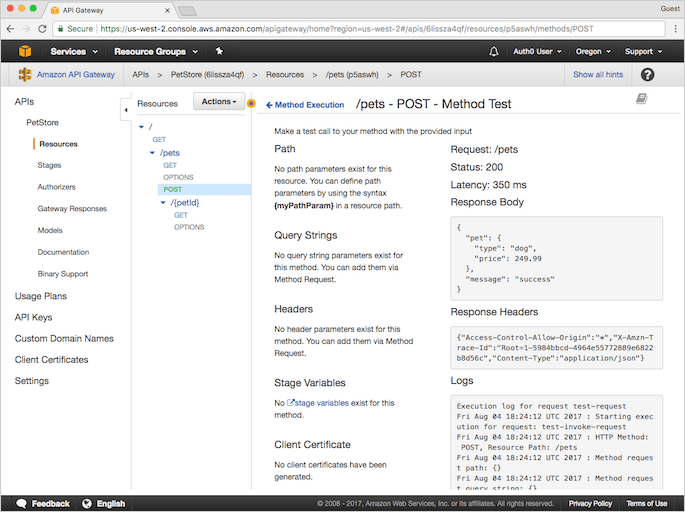
The request body indicates the attributes of the pet we want to add to the database, as well as the cost for the pet.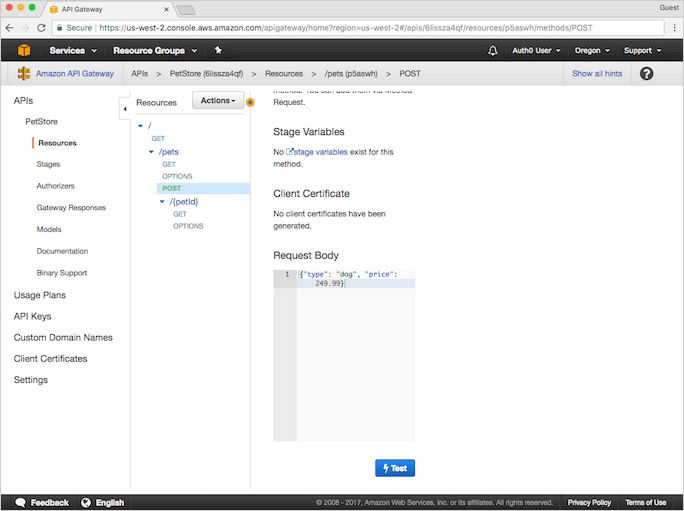 2. Click **Test** to proceed. You'll see the results of the test at the right side of the page.
 ### Deploy the API
The test we just completed was done using the API Gateway console. To use the API with a different application, you'll need to deploy the API to a stage.
1. From the **Actions** menu, select **Deploy API**.
2. Provide the following values, and click **Deploy**.
| Parameter | Value |
| -------------------------- | --------------------------------------------- |
| **Deployment stage** | Choose `[New Stage]` |
| **Stage name** | Provide a name for your stage |
| **Stage description** | Provide a description for your stage |
| **Deployment description** | Provide a description for your API deployment |
### Test the deployment
When the API has successfully deployed, you'll be redirected to the **Test Stage Editor**. You can, at this point, test the API to see if it deployed correctly.
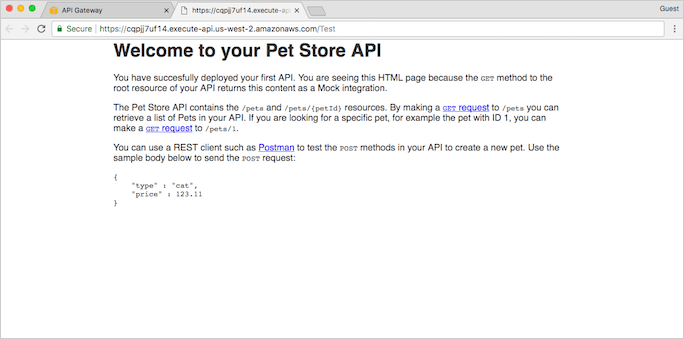
1. At the top of the **Test Stage Editor** window is a blue banner with your **Invoke URL**. This is the URL used to invoke the `GET` endpoint of your API. Click on the link to submit the `GET / method` request in a browser. This should result in the following success response:
### Deploy the API
The test we just completed was done using the API Gateway console. To use the API with a different application, you'll need to deploy the API to a stage.
1. From the **Actions** menu, select **Deploy API**.
2. Provide the following values, and click **Deploy**.
| Parameter | Value |
| -------------------------- | --------------------------------------------- |
| **Deployment stage** | Choose `[New Stage]` |
| **Stage name** | Provide a name for your stage |
| **Stage description** | Provide a description for your stage |
| **Deployment description** | Provide a description for your API deployment |
### Test the deployment
When the API has successfully deployed, you'll be redirected to the **Test Stage Editor**. You can, at this point, test the API to see if it deployed correctly.
1. At the top of the **Test Stage Editor** window is a blue banner with your **Invoke URL**. This is the URL used to invoke the `GET` endpoint of your API. Click on the link to submit the `GET / method` request in a browser. This should result in the following success response:
 2. In the **Stages** page, expand the tree under **Test**. Click **GET** under `/pets/{petId}`.
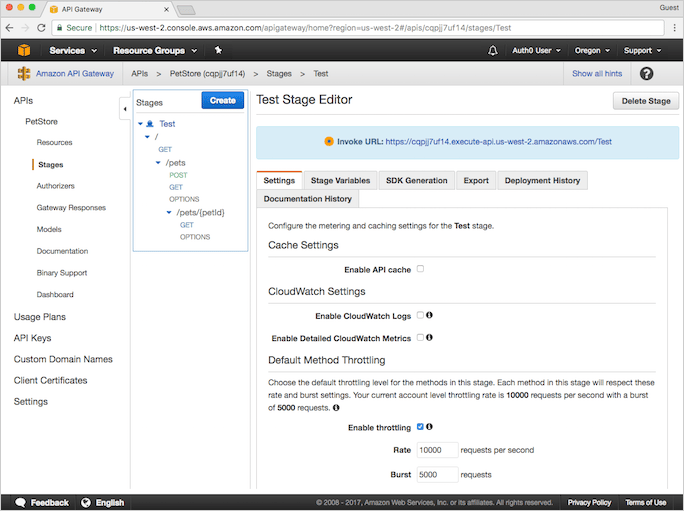 3. You'll see an **Invoke URL** displayed in the blue banner at the top of the window. The final portion, `{petID}`, stands for a path variable. Replace this variable with `1`, and navigate to the new URL using your browser. You should receive an HTTP 200 request with the following JSON payload:
```json lines theme={null}
{
"id": 1,
"type": "dog",
"price": 249.99
}
```
## Create the custom authorizers
Now that we have a fully functional API that's managed by API Gateway, secure this API so only those with the appropriate authorization may access the back-end behind the API.
Use API Gateway's custom request authorizers to authorize your APIs using bearer token authorization strategies, such as OAuth 2.0 or SAML. For each incoming request, the following happens:
1. API Gateway checks for a properly-configured custom authorizer.
2. API Gateway calls the custom authorizer (which is a Lambda function) with the authorization token.
3. If the authorization token is valid, the custom authorizer returns the appropriate AWS Identity and Access Management (IAM) policies.
4. API Gateway uses the policies returned in step 3 to authorize the request.
### Prepare the custom authorizer
You can [download a sample custom authorizer](https://github.com/auth0-samples/jwt-rsa-aws-custom-authorizer) that supports Auth0-issued tokens. Afterward, you'll need to customize the files so that the custom authorizer works for your environment.
1. Unzip the folder containing the sample files you downloaded above to the location of your choice, and navigate to the folder using the command line.
2. Within the sample folder, run `npm install` to install the Node.js packages required for deployment; AWS requires that these files be included in the bundle you will upload to AWS during a later step.
3. Configure your local environment with a `.env` file. You can copy the `.env.sample` file (while simultaneously renaming it `.env`) using `cp .env.sample .env`. Make the following changes:
| Parameter | Value |
| ------------------ | -------------------------------------------------------------------------------------------------------------------------- |
| **`TOKEN_ISSUER`** | The issuer of the token. If Auth0 is the token issuer, use `https://{yourDomain}/`. Be sure to include the trailing slash. |
| **`JWKS_URI`** | The URL of the JWKS endpoint. If Auth0 is the token issuer, use `https://{yourDomain}/.well-known/jwks.json` |
| **`AUDIENCE`** | The **identifier** value of the API you created in the Create an Auth0 API section above. |
As an example, the text of your `.env` file should look something like this when complete:
### Test the custom authorizer locally
Obtain a valid JWT access token. There are multiple ways you can get one and the method you choose depends on your application's type, trust level, or overall end-user experience. For more information, review [Get Access Tokens](/docs/secure/tokens/access-tokens/get-access-tokens).
1. You can get a test token for your API by navigating to [Auth0 Dashboard > Applications > APIs](https://manage.auth0.com/#/apis), selecting your API, and selecting **Test**.
2. Create a local `event.json` file containing the token. You can copy the sample file (run `cp event.json.sample event.json`). Replace `ACCESS_TOKEN` with your JWT token, and `methodArn` with the appropriate ARN value for the `GET` method of your API.
To get the `methodArn`:
1. Using the API Gateway Console, open the **PetStore** API.
2. In the left-hand navigation, select **Resources**.
3. In the middle **Resources** panel, expand the resource tree. Underneath `/pets`, select **GET**.
4. In the **Method Request** box, you'll see the **ARN**.
5. Run the test using `npm test`.
The test uses the lambda-local package to test the custom authorizer using your token. If the test was successful, you'll see output similar to the following:
```json lines theme={null}
Message
------
{
"principalId": "C8npTEMVnBrILsBTI91MOh6dfuZbPVAU@clients",
"policyDocument": {
"Version": "2012-10-17",
"Statement": [
{
"Action": "execute-api:Invoke",
"Effect": "Allow",
"Resource": "arn:aws:execute-api:us-east-1:1234567890:apiId/stage/method/resourcePath"
}
]
},
"context": {
"scope": "FULL_LIST_OF_SCOPES"
}
}
```
If the value of `Effect` is `Allow`, your authorizer would've allowed the call to API Gateway.
To learn more, visit [Lambda-local](https://www.npmjs.com/package/lambda-local) at NPM.
### Create the IAM role
The IAM role has the required permissions to call Lambda functions; before we can proceed with our custom authorizer, we'll need to create an IAM role that can call our custom authorizer whenever API Gateway receives a request for access.
1. Log in to AWS, and navigate to the [IAM Console](https://console.aws.amazon.com/iam). In the left-hand navigation, select **Roles**.
2. Select **Create new role**.
3. Under **AWS service**, select the **AWS Lambda** row, then **Next: Permissions**.
4. On the **Attach permissions policy** screen, select the **AWSLambdaRole**. You can use the provided filter to narrow down the list of options. Select **Next: Tags**, then select **Next: Review** to proceed.
5. On the **Review** screen, provide a **Role name**, such as `Auth0Integration`. Leave the rest of the fields as is. Select **Create role**.
6. Once AWS has created your role, you'll be directed back to the **Roles** page of IAM. Select your new role.
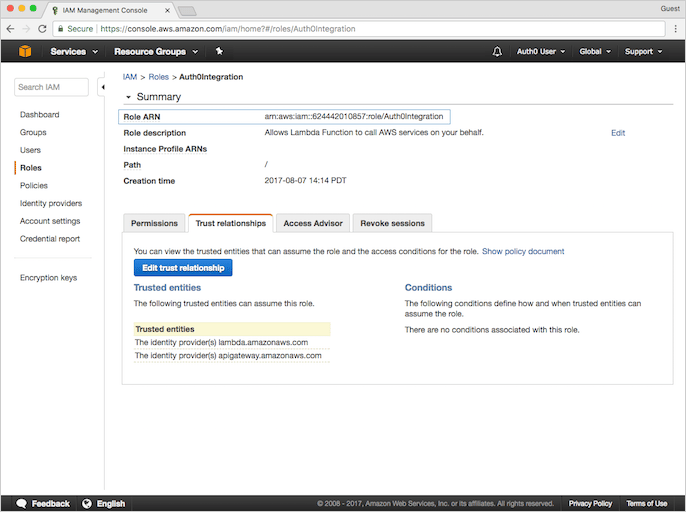
7. On the **Summary** page for the role you've just created, select the **Trust relationships** view.
8. Select **Edit trust relationship**, and populate the **Policy Document** field with the following JSON snippet:
```json lines theme={null}
{
"Version": "2012-10-17",
"Statement": [
{
"Effect": "Allow",
"Principal": {
"Service": [
"apigateway.amazonaws.com",
"lambda.amazonaws.com"
]
},
"Action": "sts:AssumeRole"
}
]
}
```
9. Click **Update Trust Policy**.
10. You'll be redirected back to the **Summary** page. Copy down the **Role ARN** value for later use.
3. You'll see an **Invoke URL** displayed in the blue banner at the top of the window. The final portion, `{petID}`, stands for a path variable. Replace this variable with `1`, and navigate to the new URL using your browser. You should receive an HTTP 200 request with the following JSON payload:
```json lines theme={null}
{
"id": 1,
"type": "dog",
"price": 249.99
}
```
## Create the custom authorizers
Now that we have a fully functional API that's managed by API Gateway, secure this API so only those with the appropriate authorization may access the back-end behind the API.
Use API Gateway's custom request authorizers to authorize your APIs using bearer token authorization strategies, such as OAuth 2.0 or SAML. For each incoming request, the following happens:
1. API Gateway checks for a properly-configured custom authorizer.
2. API Gateway calls the custom authorizer (which is a Lambda function) with the authorization token.
3. If the authorization token is valid, the custom authorizer returns the appropriate AWS Identity and Access Management (IAM) policies.
4. API Gateway uses the policies returned in step 3 to authorize the request.
### Prepare the custom authorizer
You can [download a sample custom authorizer](https://github.com/auth0-samples/jwt-rsa-aws-custom-authorizer) that supports Auth0-issued tokens. Afterward, you'll need to customize the files so that the custom authorizer works for your environment.
1. Unzip the folder containing the sample files you downloaded above to the location of your choice, and navigate to the folder using the command line.
2. Within the sample folder, run `npm install` to install the Node.js packages required for deployment; AWS requires that these files be included in the bundle you will upload to AWS during a later step.
3. Configure your local environment with a `.env` file. You can copy the `.env.sample` file (while simultaneously renaming it `.env`) using `cp .env.sample .env`. Make the following changes:
| Parameter | Value |
| ------------------ | -------------------------------------------------------------------------------------------------------------------------- |
| **`TOKEN_ISSUER`** | The issuer of the token. If Auth0 is the token issuer, use `https://{yourDomain}/`. Be sure to include the trailing slash. |
| **`JWKS_URI`** | The URL of the JWKS endpoint. If Auth0 is the token issuer, use `https://{yourDomain}/.well-known/jwks.json` |
| **`AUDIENCE`** | The **identifier** value of the API you created in the Create an Auth0 API section above. |
As an example, the text of your `.env` file should look something like this when complete:
### Test the custom authorizer locally
Obtain a valid JWT access token. There are multiple ways you can get one and the method you choose depends on your application's type, trust level, or overall end-user experience. For more information, review [Get Access Tokens](/docs/secure/tokens/access-tokens/get-access-tokens).
1. You can get a test token for your API by navigating to [Auth0 Dashboard > Applications > APIs](https://manage.auth0.com/#/apis), selecting your API, and selecting **Test**.
2. Create a local `event.json` file containing the token. You can copy the sample file (run `cp event.json.sample event.json`). Replace `ACCESS_TOKEN` with your JWT token, and `methodArn` with the appropriate ARN value for the `GET` method of your API.
To get the `methodArn`:
1. Using the API Gateway Console, open the **PetStore** API.
2. In the left-hand navigation, select **Resources**.
3. In the middle **Resources** panel, expand the resource tree. Underneath `/pets`, select **GET**.
4. In the **Method Request** box, you'll see the **ARN**.
5. Run the test using `npm test`.
The test uses the lambda-local package to test the custom authorizer using your token. If the test was successful, you'll see output similar to the following:
```json lines theme={null}
Message
------
{
"principalId": "C8npTEMVnBrILsBTI91MOh6dfuZbPVAU@clients",
"policyDocument": {
"Version": "2012-10-17",
"Statement": [
{
"Action": "execute-api:Invoke",
"Effect": "Allow",
"Resource": "arn:aws:execute-api:us-east-1:1234567890:apiId/stage/method/resourcePath"
}
]
},
"context": {
"scope": "FULL_LIST_OF_SCOPES"
}
}
```
If the value of `Effect` is `Allow`, your authorizer would've allowed the call to API Gateway.
To learn more, visit [Lambda-local](https://www.npmjs.com/package/lambda-local) at NPM.
### Create the IAM role
The IAM role has the required permissions to call Lambda functions; before we can proceed with our custom authorizer, we'll need to create an IAM role that can call our custom authorizer whenever API Gateway receives a request for access.
1. Log in to AWS, and navigate to the [IAM Console](https://console.aws.amazon.com/iam). In the left-hand navigation, select **Roles**.
2. Select **Create new role**.
3. Under **AWS service**, select the **AWS Lambda** row, then **Next: Permissions**.
4. On the **Attach permissions policy** screen, select the **AWSLambdaRole**. You can use the provided filter to narrow down the list of options. Select **Next: Tags**, then select **Next: Review** to proceed.
5. On the **Review** screen, provide a **Role name**, such as `Auth0Integration`. Leave the rest of the fields as is. Select **Create role**.
6. Once AWS has created your role, you'll be directed back to the **Roles** page of IAM. Select your new role.
7. On the **Summary** page for the role you've just created, select the **Trust relationships** view.
8. Select **Edit trust relationship**, and populate the **Policy Document** field with the following JSON snippet:
```json lines theme={null}
{
"Version": "2012-10-17",
"Statement": [
{
"Effect": "Allow",
"Principal": {
"Service": [
"apigateway.amazonaws.com",
"lambda.amazonaws.com"
]
},
"Action": "sts:AssumeRole"
}
]
}
```
9. Click **Update Trust Policy**.
10. You'll be redirected back to the **Summary** page. Copy down the **Role ARN** value for later use.
 ### Create the Lambda function and deploy the custom authorizer
Now that you've configured your custom authorizer for your environment and tested it to see it works, deploy it to AWS.
1. Create a bundle that you can upload to AWS by running `npm run bundle`. This generates a `custom-authorizer.zip` bundle containing the source, configuration, and node modules required by AWS Lambda.
2. Navigate to the [Lambda console](https://console.aws.amazon.com/lambda), and click **Create function**.
3. On the **Select blueprint** page, click **Author from scratch** to create a blank function. Under **Basic information**, provide values for the following parameters:
| Parameter | Value |
| --------------- | ----------------------------------------------------------------- |
| **Name** | A name for your Lambda function, such as `jwtRsaCustomAuthorizer` |
| **Description** | A description for your Lambda function (optional) |
| **Runtime** | Select `Node.js 10.x` |
4. Click **Create Function** to continue.
5. On the **Configuration** page of your function, scroll down to the **Function Code** section.
6. Select **Upload a .ZIP file** as the **Code entry type**.
7. Click **Upload** and select the `custom-authorizer.zip` bundle you created earlier.
8. Then, create the following three **Environment variables**. Note that this information is identical to that which is the `.env` file.
| Parameter | Value |
| ------------------ | ------------------------------------------------------------------------------------------------------------ |
| **`TOKEN_ISSUER`** | The issuer of the token. If Auth0 is the token issuer, use `https://{yourDomain}/` |
| **`JWKS_URI`** | The URL of the JWKS endpoint. If Auth0 is the token issuer, use `https://{yourDomain}/.well-known/jwks.json` |
| **`AUDIENCE`** | The **identifier** value of the API you created in step 1. |
9. In the **Execution role** section, select **Use an existing role** then select the IAM role you created previously as the **Existing role**.
10. Under **Basic settings**, set **Timeout** to **30** sec.
11. Click **Save**.
12. To test the Lambda function you just created, click **Test** in the top-right corner.
13. Copy the contents of your `event.json` file into the **Configure test event** form. You can use the default "Hello World" event template.
14. Click **Create**.
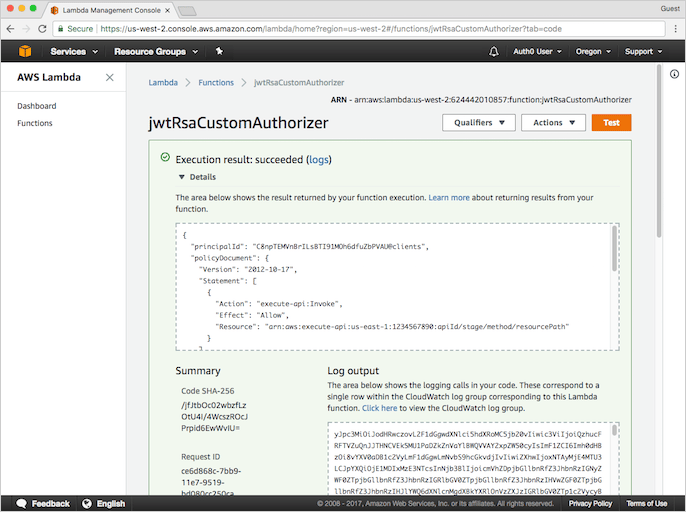
15. Run your test by selecting it and clicking **Test**. If the test was successful, you'll see: "Execution result: succeeded". Expanding the output window should show a message similar to the one you received after your successful local test.
### Create the Lambda function and deploy the custom authorizer
Now that you've configured your custom authorizer for your environment and tested it to see it works, deploy it to AWS.
1. Create a bundle that you can upload to AWS by running `npm run bundle`. This generates a `custom-authorizer.zip` bundle containing the source, configuration, and node modules required by AWS Lambda.
2. Navigate to the [Lambda console](https://console.aws.amazon.com/lambda), and click **Create function**.
3. On the **Select blueprint** page, click **Author from scratch** to create a blank function. Under **Basic information**, provide values for the following parameters:
| Parameter | Value |
| --------------- | ----------------------------------------------------------------- |
| **Name** | A name for your Lambda function, such as `jwtRsaCustomAuthorizer` |
| **Description** | A description for your Lambda function (optional) |
| **Runtime** | Select `Node.js 10.x` |
4. Click **Create Function** to continue.
5. On the **Configuration** page of your function, scroll down to the **Function Code** section.
6. Select **Upload a .ZIP file** as the **Code entry type**.
7. Click **Upload** and select the `custom-authorizer.zip` bundle you created earlier.
8. Then, create the following three **Environment variables**. Note that this information is identical to that which is the `.env` file.
| Parameter | Value |
| ------------------ | ------------------------------------------------------------------------------------------------------------ |
| **`TOKEN_ISSUER`** | The issuer of the token. If Auth0 is the token issuer, use `https://{yourDomain}/` |
| **`JWKS_URI`** | The URL of the JWKS endpoint. If Auth0 is the token issuer, use `https://{yourDomain}/.well-known/jwks.json` |
| **`AUDIENCE`** | The **identifier** value of the API you created in step 1. |
9. In the **Execution role** section, select **Use an existing role** then select the IAM role you created previously as the **Existing role**.
10. Under **Basic settings**, set **Timeout** to **30** sec.
11. Click **Save**.
12. To test the Lambda function you just created, click **Test** in the top-right corner.
13. Copy the contents of your `event.json` file into the **Configure test event** form. You can use the default "Hello World" event template.
14. Click **Create**.
15. Run your test by selecting it and clicking **Test**. If the test was successful, you'll see: "Execution result: succeeded". Expanding the output window should show a message similar to the one you received after your successful local test.
 ### Configure API Gateway custom authorizer
1. Return to API Gateway Console and open the **PetStore** API we created earlier.
2. Using the left-hand navigation, open **Authorizers** and select **Create New Authorizer**, then set the following parameters, and click **Create**.
| Parameter | Value |
| ------------------------ | ------------------------------------------------------------- |
| **Name** | `jwt-rsa-custom-authorizer` |
| **Type** | Select **Lambda** |
| **Lambda Region** | Use the region for the Lambda function you created previously |
| **Lambda Function** | `jwtRsaCustomAuthorizer` |
| **Lambda Invoke Role** | The IAM Role ARN you copied above |
| **Lambda Event Payload** | Select **Token** |
| **Token Source** | `Authorization` |
| **Token Validation** | `^Bearer [-0-9a-zA-z\.]*$` |
| **TTL (seconds)** | `3600` |
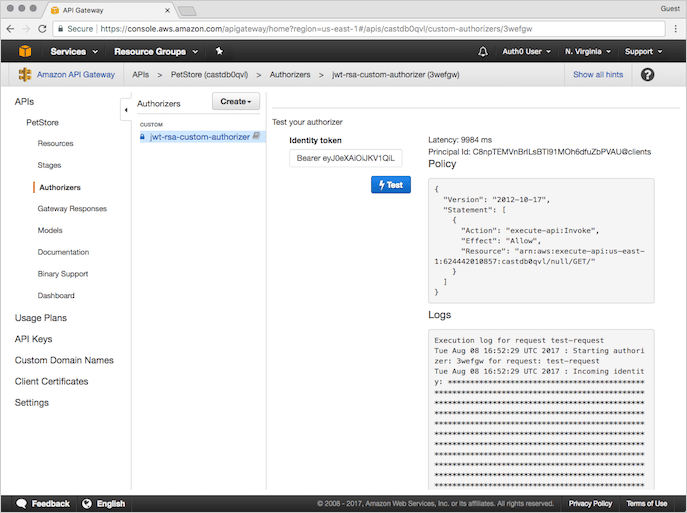
3. After AWS creates the authorizer and the page refreshes, test your authorizer by clicking **Test** and providing the Auth0 token (`Bearer ey...`) you previously used.
If the test was successful, you'll see a response similar to the following.
### Configure API Gateway custom authorizer
1. Return to API Gateway Console and open the **PetStore** API we created earlier.
2. Using the left-hand navigation, open **Authorizers** and select **Create New Authorizer**, then set the following parameters, and click **Create**.
| Parameter | Value |
| ------------------------ | ------------------------------------------------------------- |
| **Name** | `jwt-rsa-custom-authorizer` |
| **Type** | Select **Lambda** |
| **Lambda Region** | Use the region for the Lambda function you created previously |
| **Lambda Function** | `jwtRsaCustomAuthorizer` |
| **Lambda Invoke Role** | The IAM Role ARN you copied above |
| **Lambda Event Payload** | Select **Token** |
| **Token Source** | `Authorization` |
| **Token Validation** | `^Bearer [-0-9a-zA-z\.]*$` |
| **TTL (seconds)** | `3600` |
3. After AWS creates the authorizer and the page refreshes, test your authorizer by clicking **Test** and providing the Auth0 token (`Bearer ey...`) you previously used.
If the test was successful, you'll see a response similar to the following.
 ## Secure the API using custom authorizers
To learn how to secure your API's endpoints, see the Amazon API Gateway developer guide article: [Use API Gateway Lambda Authorizers](https://docs.aws.amazon.com/apigateway/latest/developerguide/apigateway-use-lambda-authorizer.html).
### Configure API Gateway resources to use the custom authorizer
1. Log in to AWS, and navigate to the [API Gateway Console](http://console.aws.amazon.com/apigateway).
Custom authorizers are set on a method by method basis; if you want to secure multiple methods using a single authorizer, you'll need to repeat the following instructions for each method.
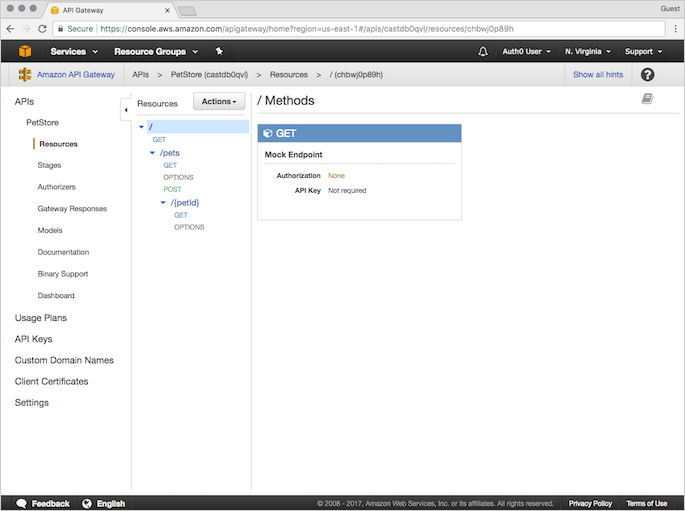
2. Open the **PetStore** API we created in step 2 of this tutorial. Under the **Resource** tree in the center pane, select the **GET** method under the `/pets` resource.
## Secure the API using custom authorizers
To learn how to secure your API's endpoints, see the Amazon API Gateway developer guide article: [Use API Gateway Lambda Authorizers](https://docs.aws.amazon.com/apigateway/latest/developerguide/apigateway-use-lambda-authorizer.html).
### Configure API Gateway resources to use the custom authorizer
1. Log in to AWS, and navigate to the [API Gateway Console](http://console.aws.amazon.com/apigateway).
Custom authorizers are set on a method by method basis; if you want to secure multiple methods using a single authorizer, you'll need to repeat the following instructions for each method.
2. Open the **PetStore** API we created in step 2 of this tutorial. Under the **Resource** tree in the center pane, select the **GET** method under the `/pets` resource.
 3. Select **Method Request**.
4. Under **Settings**, click the **pencil** icon to the right of **Authorization** and choose the `jwt-rsa-custom-authorizer` custom authorizer you created in step 3.
5. Click the **check mark** icon to save your choice of custom authorizer. Make sure the **API Key Required** field is set to `false`.
### Deploy the API
To make your changes public, deploy your API.
1. From the **Actions** menu, select **Deploy API**.
2. Provide the following values, and click **Deploy**:
| Parameter | Value |
| -------------------------- | --------------------------------------------- |
| **Deployment stage** | Choose `[New Stage]` |
| **Stage name** | Provide a name for your stage |
| **Stage description** | Provide a description for your stage |
| **Deployment description** | Provide a description for your API deployment |
If successful, you'll be redirected to the **Test Stage Editor**. Note the **Invoke URL** provided in the blue ribbon at the top because you need this to test your deployment.
## Test your deployment
To test your deployment, make a `GET` call to the **Invoke URL** you noted in the previous step. If this test fails, check that you obtained the JWT access token correctly.
For details, see [Get Access Tokens](/docs/secure/tokens/access-tokens/get-access-tokens).
```bash cURL lines theme={null}
curl --request GET \
--url https://%7ByourInvokeUrl%7D/pets
```
```csharp C# lines theme={null}
var client = new RestClient("https://%7ByourInvokeUrl%7D/pets");
var request = new RestRequest(Method.GET);
IRestResponse response = client.Execute(request);
```
```go Go lines theme={null}
package main
import (
"fmt"
"net/http"
"io/ioutil"
)
func main() {
url := "https://%7ByourInvokeUrl%7D/pets"
req, _ := http.NewRequest("GET", url, nil)
res, _ := http.DefaultClient.Do(req)
defer res.Body.Close()
body, _ := ioutil.ReadAll(res.Body)
fmt.Println(res)
fmt.Println(string(body))
}
```
```java Java lines theme={null}
HttpResponse response = Unirest.get("https://%7ByourInvokeUrl%7D/pets")
.asString();
```
```javascript Node.JS lines theme={null}
var axios = require("axios").default;
var options = {method: 'GET', url: 'https://%7ByourInvokeUrl%7D/pets'};
axios.request(options).then(function (response) {
console.log(response.data);
}).catch(function (error) {
console.error(error);
});
```
```php PHP lines theme={null}
$curl = curl_init();
curl_setopt_array($curl, [
CURLOPT_URL => "https://%7ByourInvokeUrl%7D/pets",
CURLOPT_RETURNTRANSFER => true,
CURLOPT_ENCODING => "",
CURLOPT_MAXREDIRS => 10,
CURLOPT_TIMEOUT => 30,
CURLOPT_HTTP_VERSION => CURL_HTTP_VERSION_1_1,
CURLOPT_CUSTOMREQUEST => "GET",
]);
$response = curl_exec($curl);
$err = curl_error($curl);
curl_close($curl);
if ($err) {
echo "cURL Error #:" . $err;
} else {
echo $response;
}
```
```python Python lines theme={null}
import http.client
conn = http.client.HTTPSConnection("")
conn.request("GET", "%7ByourInvokeUrl%7D/pets")
res = conn.getresponse()
data = res.read()
print(data.decode("utf-8"))
```
```ruby Ruby lines theme={null}
require 'uri'
require 'net/http'
require 'openssl'
url = URI("https://%7ByourInvokeUrl%7D/pets")
http = Net::HTTP.new(url.host, url.port)
http.use_ssl = true
http.verify_mode = OpenSSL::SSL::VERIFY_NONE
request = Net::HTTP::Get.new(url)
response = http.request(request)
puts response.read_body
```
3. Select **Method Request**.
4. Under **Settings**, click the **pencil** icon to the right of **Authorization** and choose the `jwt-rsa-custom-authorizer` custom authorizer you created in step 3.
5. Click the **check mark** icon to save your choice of custom authorizer. Make sure the **API Key Required** field is set to `false`.
### Deploy the API
To make your changes public, deploy your API.
1. From the **Actions** menu, select **Deploy API**.
2. Provide the following values, and click **Deploy**:
| Parameter | Value |
| -------------------------- | --------------------------------------------- |
| **Deployment stage** | Choose `[New Stage]` |
| **Stage name** | Provide a name for your stage |
| **Stage description** | Provide a description for your stage |
| **Deployment description** | Provide a description for your API deployment |
If successful, you'll be redirected to the **Test Stage Editor**. Note the **Invoke URL** provided in the blue ribbon at the top because you need this to test your deployment.
## Test your deployment
To test your deployment, make a `GET` call to the **Invoke URL** you noted in the previous step. If this test fails, check that you obtained the JWT access token correctly.
For details, see [Get Access Tokens](/docs/secure/tokens/access-tokens/get-access-tokens).
```bash cURL lines theme={null}
curl --request GET \
--url https://%7ByourInvokeUrl%7D/pets
```
```csharp C# lines theme={null}
var client = new RestClient("https://%7ByourInvokeUrl%7D/pets");
var request = new RestRequest(Method.GET);
IRestResponse response = client.Execute(request);
```
```go Go lines theme={null}
package main
import (
"fmt"
"net/http"
"io/ioutil"
)
func main() {
url := "https://%7ByourInvokeUrl%7D/pets"
req, _ := http.NewRequest("GET", url, nil)
res, _ := http.DefaultClient.Do(req)
defer res.Body.Close()
body, _ := ioutil.ReadAll(res.Body)
fmt.Println(res)
fmt.Println(string(body))
}
```
```java Java lines theme={null}
HttpResponse response = Unirest.get("https://%7ByourInvokeUrl%7D/pets")
.asString();
```
```javascript Node.JS lines theme={null}
var axios = require("axios").default;
var options = {method: 'GET', url: 'https://%7ByourInvokeUrl%7D/pets'};
axios.request(options).then(function (response) {
console.log(response.data);
}).catch(function (error) {
console.error(error);
});
```
```php PHP lines theme={null}
$curl = curl_init();
curl_setopt_array($curl, [
CURLOPT_URL => "https://%7ByourInvokeUrl%7D/pets",
CURLOPT_RETURNTRANSFER => true,
CURLOPT_ENCODING => "",
CURLOPT_MAXREDIRS => 10,
CURLOPT_TIMEOUT => 30,
CURLOPT_HTTP_VERSION => CURL_HTTP_VERSION_1_1,
CURLOPT_CUSTOMREQUEST => "GET",
]);
$response = curl_exec($curl);
$err = curl_error($curl);
curl_close($curl);
if ($err) {
echo "cURL Error #:" . $err;
} else {
echo $response;
}
```
```python Python lines theme={null}
import http.client
conn = http.client.HTTPSConnection("")
conn.request("GET", "%7ByourInvokeUrl%7D/pets")
res = conn.getresponse()
data = res.read()
print(data.decode("utf-8"))
```
```ruby Ruby lines theme={null}
require 'uri'
require 'net/http'
require 'openssl'
url = URI("https://%7ByourInvokeUrl%7D/pets")
http = Net::HTTP.new(url.host, url.port)
http.use_ssl = true
http.verify_mode = OpenSSL::SSL::VERIFY_NONE
request = Net::HTTP::Get.new(url)
response = http.request(request)
puts response.read_body
```