> ## Documentation Index
> Fetch the complete documentation index at: https://docs-dev-docs-event-stream-action-templates.mintlify.site/llms.txt
> Use this file to discover all available pages before exploring further.

> Learn how to configure a progressive profile form using Forms for Actions

# Use Cases: Configure a progressive profile form using Forms

<Card title="Before you start">
  1. Create a [Machine-to-Machine Application](/docs/get-started/auth0-overview/create-applications/machine-to-machine-apps) with the following scopes enabled:

  * `read:users`
  * `update:users`
  * `create:users`
  * `read:users_app_metadata`
  * `update:users_app_metadata`
  * `create:users_app_metadata`

  2. Add a [Vault connection](/docs/customize/forms/vault) using the M2M application credentials.
</Card>

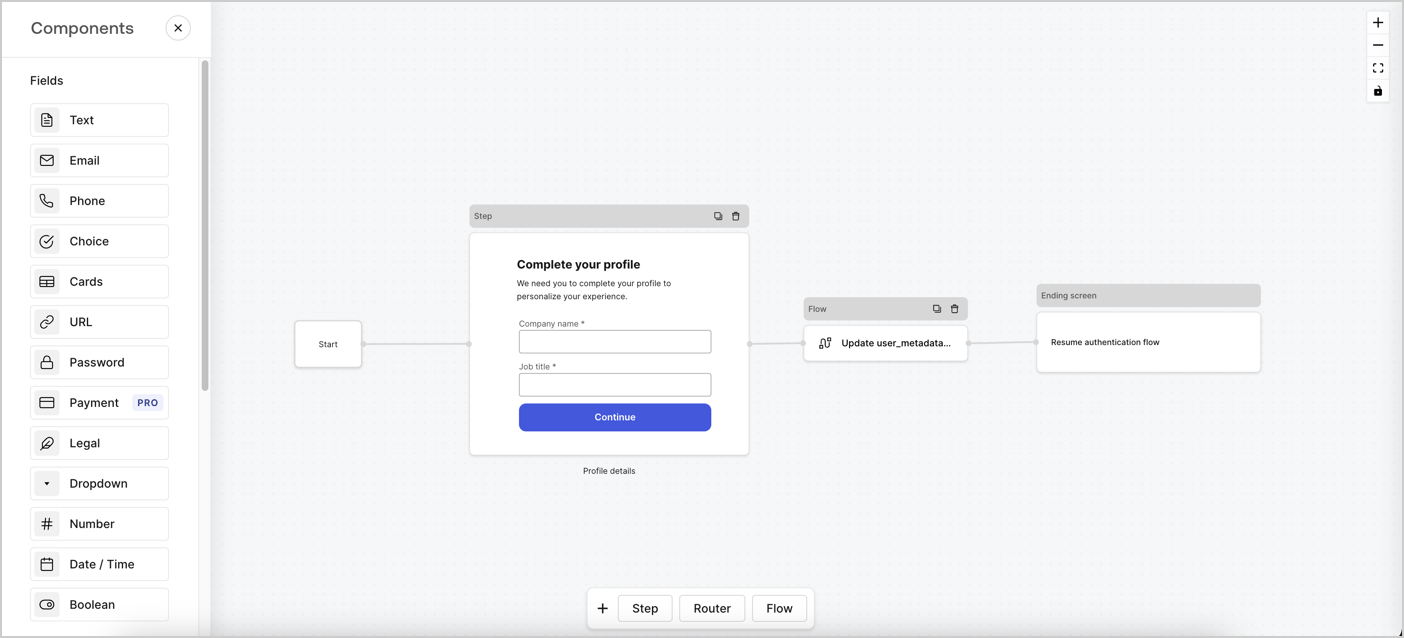
Forms for Actions allows you to create progressive profiling flows to decide when to prompt users to collect missing information, such as company name and job title, and store them as `user_metadata` attributes.
<Frame>
  <img src="https://mintcdn.com/docs-dev-docs-event-stream-action-templates/YlSGjDQ1BrChv4Jn/docs/images/cdy7uua7fh8z/xUx9YmnHvnAqL19JvNtNP/60dae88f893d4ebe8e3523421e960596/Progressive-profle-overview.png?fit=max&auto=format&n=YlSGjDQ1BrChv4Jn&q=85&s=f113435624be05f602f12b98e298d2f1" alt="Dashboard > Actions > Forms > Form" data-og-width="1404" width="1404" data-og-height="638" height="638" data-path="docs/images/cdy7uua7fh8z/xUx9YmnHvnAqL19JvNtNP/60dae88f893d4ebe8e3523421e960596/Progressive-profle-overview.png" data-optimize="true" data-opv="3" srcset="https://mintcdn.com/docs-dev-docs-event-stream-action-templates/YlSGjDQ1BrChv4Jn/docs/images/cdy7uua7fh8z/xUx9YmnHvnAqL19JvNtNP/60dae88f893d4ebe8e3523421e960596/Progressive-profle-overview.png?w=280&fit=max&auto=format&n=YlSGjDQ1BrChv4Jn&q=85&s=d3488e261dc4a4362bfe5fd374b515f0 280w, https://mintcdn.com/docs-dev-docs-event-stream-action-templates/YlSGjDQ1BrChv4Jn/docs/images/cdy7uua7fh8z/xUx9YmnHvnAqL19JvNtNP/60dae88f893d4ebe8e3523421e960596/Progressive-profle-overview.png?w=560&fit=max&auto=format&n=YlSGjDQ1BrChv4Jn&q=85&s=01d7a9e930dc62e4eedd469df2f3e211 560w, https://mintcdn.com/docs-dev-docs-event-stream-action-templates/YlSGjDQ1BrChv4Jn/docs/images/cdy7uua7fh8z/xUx9YmnHvnAqL19JvNtNP/60dae88f893d4ebe8e3523421e960596/Progressive-profle-overview.png?w=840&fit=max&auto=format&n=YlSGjDQ1BrChv4Jn&q=85&s=dc03c1d998353b1a464b71f0dec98580 840w, https://mintcdn.com/docs-dev-docs-event-stream-action-templates/YlSGjDQ1BrChv4Jn/docs/images/cdy7uua7fh8z/xUx9YmnHvnAqL19JvNtNP/60dae88f893d4ebe8e3523421e960596/Progressive-profle-overview.png?w=1100&fit=max&auto=format&n=YlSGjDQ1BrChv4Jn&q=85&s=a4cd3778efb425ce2a37e735c1d1594b 1100w, https://mintcdn.com/docs-dev-docs-event-stream-action-templates/YlSGjDQ1BrChv4Jn/docs/images/cdy7uua7fh8z/xUx9YmnHvnAqL19JvNtNP/60dae88f893d4ebe8e3523421e960596/Progressive-profle-overview.png?w=1650&fit=max&auto=format&n=YlSGjDQ1BrChv4Jn&q=85&s=2acd099c2eb24bdd90ecba869c2a75fa 1650w, https://mintcdn.com/docs-dev-docs-event-stream-action-templates/YlSGjDQ1BrChv4Jn/docs/images/cdy7uua7fh8z/xUx9YmnHvnAqL19JvNtNP/60dae88f893d4ebe8e3523421e960596/Progressive-profle-overview.png?w=2500&fit=max&auto=format&n=YlSGjDQ1BrChv4Jn&q=85&s=de924a4b0d1a0c4649eed87b2d13c148 2500w" />
</Frame>

The sections below outline how you can create a progressive profile form using nodes and flows, along with steps for adding your form to a [Post Login Action](/docs/customize/actions/explore-triggers/signup-and-login-triggers/login-trigger).

## Create a form from scratch

Follow these steps to create a form to gather information:

1. Open the Form editor by selecting **Auth0 Dashboard > Actions > Forms.**
2. Select **Create Form** > **Start from scratch**.

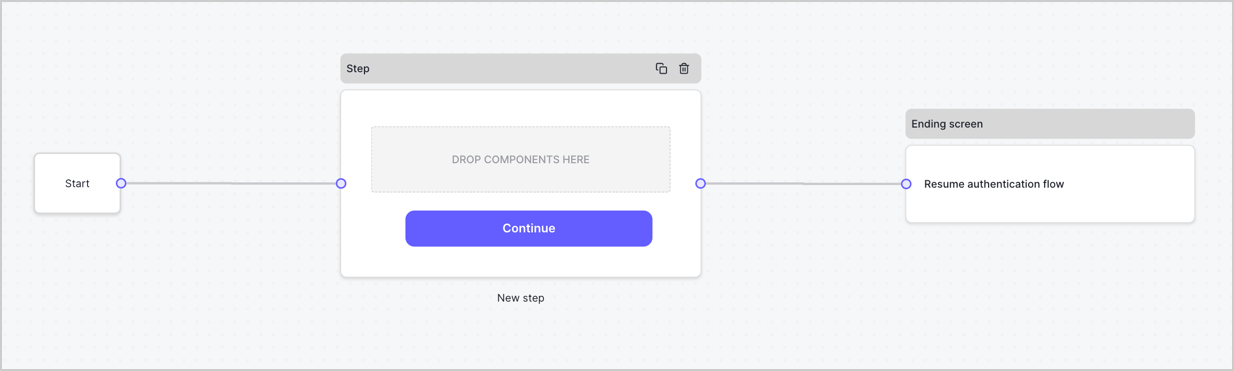
By default, a new form contains a Start node, a Step node, and an Ending screen node.
<Frame>
  <img src="https://mintcdn.com/docs-dev-docs-event-stream-action-templates/4qFzmJi6DiADu06-/docs/images/cdy7uua7fh8z/2TZ9jSjgEcARFpULI6hz4R/a4319a1bd482f2ee5cc23100fdb2f42c/New-form-Forms-for-action-use-case.png?fit=max&auto=format&n=4qFzmJi6DiADu06-&q=85&s=887dac050c8c8bd7d2232821c7b90d18" alt="Dashboard > Forms > Use Cases > Form" data-og-width="1234" width="1234" data-og-height="371" height="371" data-path="docs/images/cdy7uua7fh8z/2TZ9jSjgEcARFpULI6hz4R/a4319a1bd482f2ee5cc23100fdb2f42c/New-form-Forms-for-action-use-case.png" data-optimize="true" data-opv="3" srcset="https://mintcdn.com/docs-dev-docs-event-stream-action-templates/4qFzmJi6DiADu06-/docs/images/cdy7uua7fh8z/2TZ9jSjgEcARFpULI6hz4R/a4319a1bd482f2ee5cc23100fdb2f42c/New-form-Forms-for-action-use-case.png?w=280&fit=max&auto=format&n=4qFzmJi6DiADu06-&q=85&s=0d353511f37ad2e0a6b28863dbc04510 280w, https://mintcdn.com/docs-dev-docs-event-stream-action-templates/4qFzmJi6DiADu06-/docs/images/cdy7uua7fh8z/2TZ9jSjgEcARFpULI6hz4R/a4319a1bd482f2ee5cc23100fdb2f42c/New-form-Forms-for-action-use-case.png?w=560&fit=max&auto=format&n=4qFzmJi6DiADu06-&q=85&s=e84f2587e975b298f0b0c288f5d73e5d 560w, https://mintcdn.com/docs-dev-docs-event-stream-action-templates/4qFzmJi6DiADu06-/docs/images/cdy7uua7fh8z/2TZ9jSjgEcARFpULI6hz4R/a4319a1bd482f2ee5cc23100fdb2f42c/New-form-Forms-for-action-use-case.png?w=840&fit=max&auto=format&n=4qFzmJi6DiADu06-&q=85&s=bd9492da352c3d872580247c2804a58e 840w, https://mintcdn.com/docs-dev-docs-event-stream-action-templates/4qFzmJi6DiADu06-/docs/images/cdy7uua7fh8z/2TZ9jSjgEcARFpULI6hz4R/a4319a1bd482f2ee5cc23100fdb2f42c/New-form-Forms-for-action-use-case.png?w=1100&fit=max&auto=format&n=4qFzmJi6DiADu06-&q=85&s=e4ec967c468139bfb6881f10c46c8761 1100w, https://mintcdn.com/docs-dev-docs-event-stream-action-templates/4qFzmJi6DiADu06-/docs/images/cdy7uua7fh8z/2TZ9jSjgEcARFpULI6hz4R/a4319a1bd482f2ee5cc23100fdb2f42c/New-form-Forms-for-action-use-case.png?w=1650&fit=max&auto=format&n=4qFzmJi6DiADu06-&q=85&s=e8edfa6356e38a265637e3db5364f67a 1650w, https://mintcdn.com/docs-dev-docs-event-stream-action-templates/4qFzmJi6DiADu06-/docs/images/cdy7uua7fh8z/2TZ9jSjgEcARFpULI6hz4R/a4319a1bd482f2ee5cc23100fdb2f42c/New-form-Forms-for-action-use-case.png?w=2500&fit=max&auto=format&n=4qFzmJi6DiADu06-&q=85&s=d2598409636d15a092a26c6ea202333a 2500w" />
</Frame>

### Configure the Step node

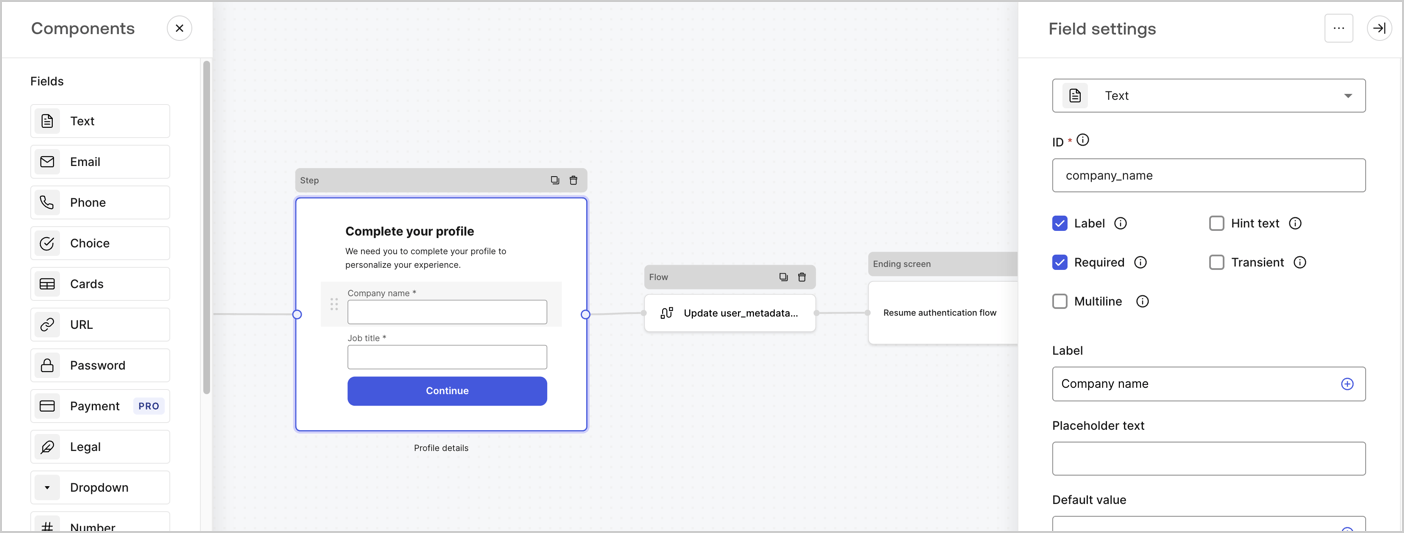
The Step node is the graphical interface visible to users. Add [Fields](/docs/customize/forms/nodes-and-components) to the Step node to collect the user's company name and job title values by following these steps:

1. Drag a **Rich text** field from the **Components menu** into the **Step** node.

   * **Rich text**: Enter a custom message.

     * **Example**: `Complete your profile! We need you to complete your profile to personalize your experience.`
   * Select **Save**.
2. Drag a **Text** field into the **Step** node.

   * **ID**: Enter `company_name`.
   * **Label**: Enable the checkbox.
   * **Label**: Enter `Company name`.
   * **Required**: Enable the checkbox.
   * Select **Save**.
3. Drag a **Text** field into the **Step** node.

   1. **ID**: Enter `job_title`.
   2. **Label**: Enter `Job title`.
   3. **Label**: Enable the checkbox.
   4. **Required**: Enable the checkbox.
   5. Select **Save**.
4. Select **Publish** to save.
<Frame>
  <img src="https://mintcdn.com/docs-dev-docs-event-stream-action-templates/wYcZudKzAy7DVE3d/docs/images/cdy7uua7fh8z/6H1lRzwKyYioQyQJ9MtIoM/aa248e92fc028a68a5b92ff361a11644/progressive-profile-step.png?fit=max&auto=format&n=wYcZudKzAy7DVE3d&q=85&s=07c70d2379c22fba77fe61be68e78ba5" alt="Dashboard > Actions > Forms > Form > Step node" data-og-width="1404" width="1404" data-og-height="533" height="533" data-path="docs/images/cdy7uua7fh8z/6H1lRzwKyYioQyQJ9MtIoM/aa248e92fc028a68a5b92ff361a11644/progressive-profile-step.png" data-optimize="true" data-opv="3" srcset="https://mintcdn.com/docs-dev-docs-event-stream-action-templates/wYcZudKzAy7DVE3d/docs/images/cdy7uua7fh8z/6H1lRzwKyYioQyQJ9MtIoM/aa248e92fc028a68a5b92ff361a11644/progressive-profile-step.png?w=280&fit=max&auto=format&n=wYcZudKzAy7DVE3d&q=85&s=4001b46009c8a8eb1300bccee6e7b70d 280w, https://mintcdn.com/docs-dev-docs-event-stream-action-templates/wYcZudKzAy7DVE3d/docs/images/cdy7uua7fh8z/6H1lRzwKyYioQyQJ9MtIoM/aa248e92fc028a68a5b92ff361a11644/progressive-profile-step.png?w=560&fit=max&auto=format&n=wYcZudKzAy7DVE3d&q=85&s=86f889ec49c2df327ab4414b912278d0 560w, https://mintcdn.com/docs-dev-docs-event-stream-action-templates/wYcZudKzAy7DVE3d/docs/images/cdy7uua7fh8z/6H1lRzwKyYioQyQJ9MtIoM/aa248e92fc028a68a5b92ff361a11644/progressive-profile-step.png?w=840&fit=max&auto=format&n=wYcZudKzAy7DVE3d&q=85&s=7a94553716b979b19f413c7683cb3ebe 840w, https://mintcdn.com/docs-dev-docs-event-stream-action-templates/wYcZudKzAy7DVE3d/docs/images/cdy7uua7fh8z/6H1lRzwKyYioQyQJ9MtIoM/aa248e92fc028a68a5b92ff361a11644/progressive-profile-step.png?w=1100&fit=max&auto=format&n=wYcZudKzAy7DVE3d&q=85&s=68fb8e8ddd182ada64caec979084c387 1100w, https://mintcdn.com/docs-dev-docs-event-stream-action-templates/wYcZudKzAy7DVE3d/docs/images/cdy7uua7fh8z/6H1lRzwKyYioQyQJ9MtIoM/aa248e92fc028a68a5b92ff361a11644/progressive-profile-step.png?w=1650&fit=max&auto=format&n=wYcZudKzAy7DVE3d&q=85&s=35ff3c3e630eb7ddf3c74cb9b3530ae1 1650w, https://mintcdn.com/docs-dev-docs-event-stream-action-templates/wYcZudKzAy7DVE3d/docs/images/cdy7uua7fh8z/6H1lRzwKyYioQyQJ9MtIoM/aa248e92fc028a68a5b92ff361a11644/progressive-profile-step.png?w=2500&fit=max&auto=format&n=wYcZudKzAy7DVE3d&q=85&s=f5a26bc9a489847698ee4bc7378dc25d 2500w" />
</Frame>

### Configure the flow node

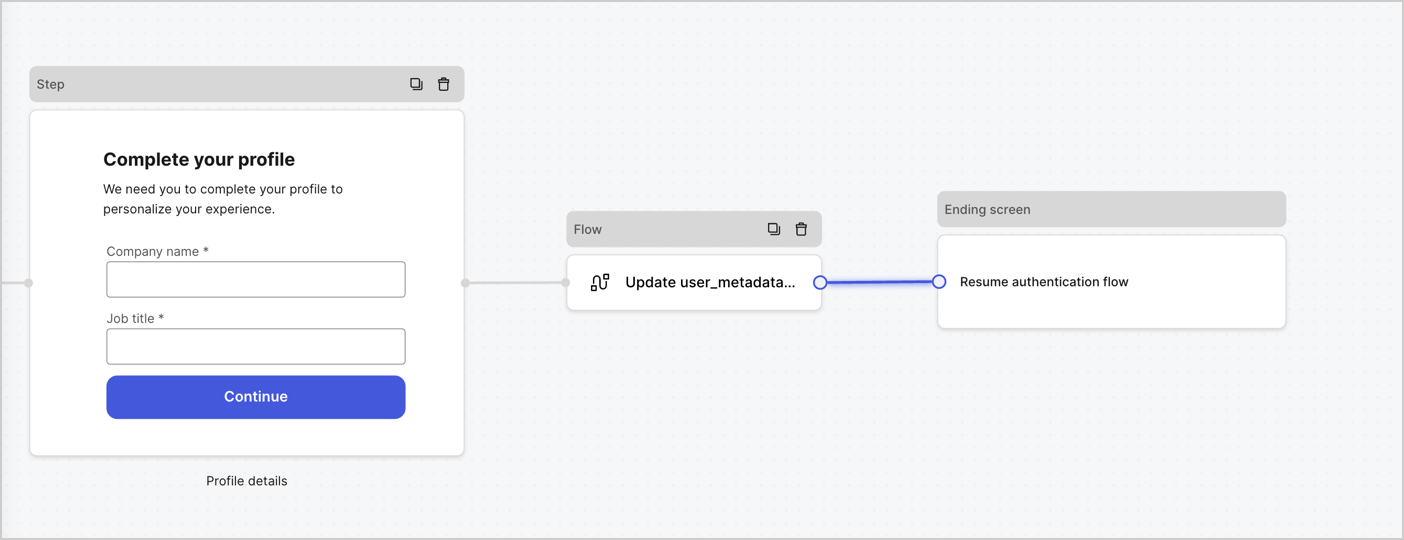
Add a **Flow** node after the **Step** node to update the `user_metadata` and resume the authentication flow by following these steps:

1. Select **Flow** from the bottom of the Form editor.
2. Remove the existing link between the **Step** and **Ending Screen** nodes.
3. Select the new **Flow** > **Click to add a flow** > **Create a new flow.**

   * Enter `Update user_metadata` in the **Name** field.
   * Select **Create**.
   * Select **Save**.
4. Link the **Flow** node to the **Step** and **Ending Screen** nodes as pictured below.
5. Select **Publish** to save.
<Frame>
  <img src="https://mintcdn.com/docs-dev-docs-event-stream-action-templates/DJz3781nwG6wS-wJ/docs/images/cdy7uua7fh8z/5C91DaWn4LGtJT9BF87ssu/095171d0c452a287c44bfde12fd6d13f/link-nodes.png?fit=max&auto=format&n=DJz3781nwG6wS-wJ&q=85&s=60d0325d3df018ef636e27c089569801" alt="Dashboard > Actions > Forms > Form" data-og-width="1404" width="1404" data-og-height="540" height="540" data-path="docs/images/cdy7uua7fh8z/5C91DaWn4LGtJT9BF87ssu/095171d0c452a287c44bfde12fd6d13f/link-nodes.png" data-optimize="true" data-opv="3" srcset="https://mintcdn.com/docs-dev-docs-event-stream-action-templates/DJz3781nwG6wS-wJ/docs/images/cdy7uua7fh8z/5C91DaWn4LGtJT9BF87ssu/095171d0c452a287c44bfde12fd6d13f/link-nodes.png?w=280&fit=max&auto=format&n=DJz3781nwG6wS-wJ&q=85&s=df942dc1335b309572c7b0dc72f68436 280w, https://mintcdn.com/docs-dev-docs-event-stream-action-templates/DJz3781nwG6wS-wJ/docs/images/cdy7uua7fh8z/5C91DaWn4LGtJT9BF87ssu/095171d0c452a287c44bfde12fd6d13f/link-nodes.png?w=560&fit=max&auto=format&n=DJz3781nwG6wS-wJ&q=85&s=da04cc32ddba3e2de9f07a8a0d270c39 560w, https://mintcdn.com/docs-dev-docs-event-stream-action-templates/DJz3781nwG6wS-wJ/docs/images/cdy7uua7fh8z/5C91DaWn4LGtJT9BF87ssu/095171d0c452a287c44bfde12fd6d13f/link-nodes.png?w=840&fit=max&auto=format&n=DJz3781nwG6wS-wJ&q=85&s=2548444bc54762570c9e43fddca4baa0 840w, https://mintcdn.com/docs-dev-docs-event-stream-action-templates/DJz3781nwG6wS-wJ/docs/images/cdy7uua7fh8z/5C91DaWn4LGtJT9BF87ssu/095171d0c452a287c44bfde12fd6d13f/link-nodes.png?w=1100&fit=max&auto=format&n=DJz3781nwG6wS-wJ&q=85&s=5e9bce6ba70e0aa29f5792342e84a4a7 1100w, https://mintcdn.com/docs-dev-docs-event-stream-action-templates/DJz3781nwG6wS-wJ/docs/images/cdy7uua7fh8z/5C91DaWn4LGtJT9BF87ssu/095171d0c452a287c44bfde12fd6d13f/link-nodes.png?w=1650&fit=max&auto=format&n=DJz3781nwG6wS-wJ&q=85&s=4d0db72cbaed9278c3ffdfdf68efc258 1650w, https://mintcdn.com/docs-dev-docs-event-stream-action-templates/DJz3781nwG6wS-wJ/docs/images/cdy7uua7fh8z/5C91DaWn4LGtJT9BF87ssu/095171d0c452a287c44bfde12fd6d13f/link-nodes.png?w=2500&fit=max&auto=format&n=DJz3781nwG6wS-wJ&q=85&s=08b4e97b277a0d4e76a109b251a7f335 2500w" />
</Frame>

Add an Auth0 Update user action to the flow by following these steps:

1. Select the **Update user\_metadata** flow, then select the **Edit Flow** to open the Flow editor in a new tab.
2. Below the **Start** action, select the **+** icon to add an **Update user** action. Complete the fields below, then select **Save** to continue.

   * **Connection**: Select from the dropdown the Vault connection to your M2M application.

   * **User ID**: Enter `{{context.user.user_id}}`.

   * **Body**: Copy and paste the following code to update the user\_metadata with `job_title` and `company_name` properties.

     ```json lines theme={null}
     {
        "user_metadata": {
           "job_title": "{{fields.job_title}}",
           "company_name": "{{fields.company_name}}"
        }
     }
     ```

   * Select **Save**.
3. Select **Publish** to save.

<Frame>
  <img src="https://mintcdn.com/docs-dev-docs-event-stream-action-templates/tcenw4jcNpftRqWN/docs/images/cdy7uua7fh8z/65Jx4W5oIZJyyvA8z4HqIx/0661b1a8ca6361c54fc4fef07ba59f0b/update-user.png?fit=max&auto=format&n=tcenw4jcNpftRqWN&q=85&s=044bf1a36dcfefa3c1cca48dd3ee0ec8" alt="Dashboard > Actions > Forms > Flows" data-og-width="1404" width="1404" data-og-height="244" height="244" data-path="docs/images/cdy7uua7fh8z/65Jx4W5oIZJyyvA8z4HqIx/0661b1a8ca6361c54fc4fef07ba59f0b/update-user.png" data-optimize="true" data-opv="3" srcset="https://mintcdn.com/docs-dev-docs-event-stream-action-templates/tcenw4jcNpftRqWN/docs/images/cdy7uua7fh8z/65Jx4W5oIZJyyvA8z4HqIx/0661b1a8ca6361c54fc4fef07ba59f0b/update-user.png?w=280&fit=max&auto=format&n=tcenw4jcNpftRqWN&q=85&s=61c7eacd027964f5c717654b49df6a59 280w, https://mintcdn.com/docs-dev-docs-event-stream-action-templates/tcenw4jcNpftRqWN/docs/images/cdy7uua7fh8z/65Jx4W5oIZJyyvA8z4HqIx/0661b1a8ca6361c54fc4fef07ba59f0b/update-user.png?w=560&fit=max&auto=format&n=tcenw4jcNpftRqWN&q=85&s=dff9b905a7f6eae3371ac065bc1f644f 560w, https://mintcdn.com/docs-dev-docs-event-stream-action-templates/tcenw4jcNpftRqWN/docs/images/cdy7uua7fh8z/65Jx4W5oIZJyyvA8z4HqIx/0661b1a8ca6361c54fc4fef07ba59f0b/update-user.png?w=840&fit=max&auto=format&n=tcenw4jcNpftRqWN&q=85&s=fe047850fcb181d5b2263c9f971094e9 840w, https://mintcdn.com/docs-dev-docs-event-stream-action-templates/tcenw4jcNpftRqWN/docs/images/cdy7uua7fh8z/65Jx4W5oIZJyyvA8z4HqIx/0661b1a8ca6361c54fc4fef07ba59f0b/update-user.png?w=1100&fit=max&auto=format&n=tcenw4jcNpftRqWN&q=85&s=dea77b85a7944ebd81202d1922c944b4 1100w, https://mintcdn.com/docs-dev-docs-event-stream-action-templates/tcenw4jcNpftRqWN/docs/images/cdy7uua7fh8z/65Jx4W5oIZJyyvA8z4HqIx/0661b1a8ca6361c54fc4fef07ba59f0b/update-user.png?w=1650&fit=max&auto=format&n=tcenw4jcNpftRqWN&q=85&s=dac08c21453ca4f8138ebe7ee06b48b0 1650w, https://mintcdn.com/docs-dev-docs-event-stream-action-templates/tcenw4jcNpftRqWN/docs/images/cdy7uua7fh8z/65Jx4W5oIZJyyvA8z4HqIx/0661b1a8ca6361c54fc4fef07ba59f0b/update-user.png?w=2500&fit=max&auto=format&n=tcenw4jcNpftRqWN&q=85&s=7a9e82fdaeca97f812ae906407c899f5 2500w" />
</Frame>

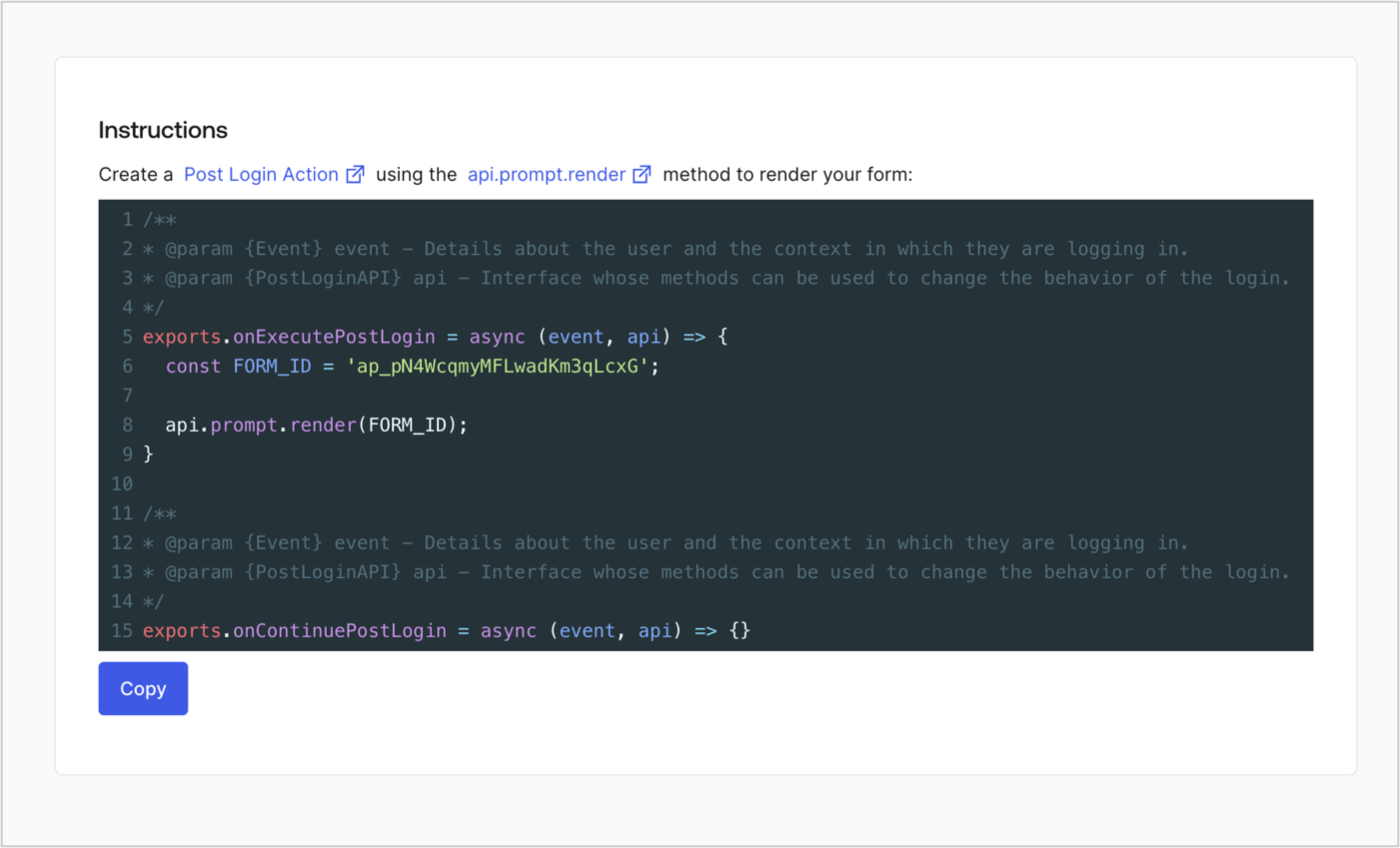
### Retrieve the form render code

Retrieve the form render code to visually render the form with a custom Post Login Action by following these steps:

* From the Form editor, select **`<> Render`**.
* Select **Copy**.
<Frame>
  <img src="https://mintcdn.com/docs-dev-docs-event-stream-action-templates/B7hSimOXFe7dopGk/docs/images/cdy7uua7fh8z/2EIUzc539sq9lwoTKbjoJv/496a864c0fc44a782c9cadca119dbfb0/embed.png?fit=max&auto=format&n=B7hSimOXFe7dopGk&q=85&s=2996132725ea63d97c16affb351e156b" alt="Dashboard > Actions > Forms > Form > Embed" data-og-width="1400" width="1400" data-og-height="848" height="848" data-path="docs/images/cdy7uua7fh8z/2EIUzc539sq9lwoTKbjoJv/496a864c0fc44a782c9cadca119dbfb0/embed.png" data-optimize="true" data-opv="3" srcset="https://mintcdn.com/docs-dev-docs-event-stream-action-templates/B7hSimOXFe7dopGk/docs/images/cdy7uua7fh8z/2EIUzc539sq9lwoTKbjoJv/496a864c0fc44a782c9cadca119dbfb0/embed.png?w=280&fit=max&auto=format&n=B7hSimOXFe7dopGk&q=85&s=e98430e99982479d6ec52d5c1339c535 280w, https://mintcdn.com/docs-dev-docs-event-stream-action-templates/B7hSimOXFe7dopGk/docs/images/cdy7uua7fh8z/2EIUzc539sq9lwoTKbjoJv/496a864c0fc44a782c9cadca119dbfb0/embed.png?w=560&fit=max&auto=format&n=B7hSimOXFe7dopGk&q=85&s=a3b3925581423fa058fb76ba61839c8a 560w, https://mintcdn.com/docs-dev-docs-event-stream-action-templates/B7hSimOXFe7dopGk/docs/images/cdy7uua7fh8z/2EIUzc539sq9lwoTKbjoJv/496a864c0fc44a782c9cadca119dbfb0/embed.png?w=840&fit=max&auto=format&n=B7hSimOXFe7dopGk&q=85&s=749e75ac988e84b2f05b0d14cfffc9cd 840w, https://mintcdn.com/docs-dev-docs-event-stream-action-templates/B7hSimOXFe7dopGk/docs/images/cdy7uua7fh8z/2EIUzc539sq9lwoTKbjoJv/496a864c0fc44a782c9cadca119dbfb0/embed.png?w=1100&fit=max&auto=format&n=B7hSimOXFe7dopGk&q=85&s=43792547d977d541cdaac6902f706168 1100w, https://mintcdn.com/docs-dev-docs-event-stream-action-templates/B7hSimOXFe7dopGk/docs/images/cdy7uua7fh8z/2EIUzc539sq9lwoTKbjoJv/496a864c0fc44a782c9cadca119dbfb0/embed.png?w=1650&fit=max&auto=format&n=B7hSimOXFe7dopGk&q=85&s=845a039a76545b4eb6627cd61cc9f7ef 1650w, https://mintcdn.com/docs-dev-docs-event-stream-action-templates/B7hSimOXFe7dopGk/docs/images/cdy7uua7fh8z/2EIUzc539sq9lwoTKbjoJv/496a864c0fc44a782c9cadca119dbfb0/embed.png?w=2500&fit=max&auto=format&n=B7hSimOXFe7dopGk&q=85&s=26df126fc0a8c1f2313b8421234dae27 2500w" />
</Frame>

## Create a Post Login Action

Create a post-login Action to render your form by following these steps:

1. Navigate to **Auth0 Dashboard > Actions > Flows > Login.**
2. Select the **+** icon and select **Build from scratch**:

   * **Name**: Enter `Render Progressive Profile Form`.
   * **Trigger**: Select `Login / Post Login`.
   * **Runtime**: Select the recommended version.
3. Select **Create**.

To configure the post-login Action:

1. Delete the existing code from the Code editor.
2. Paste the form embed code into the Code editor.
3. Edit the code to define the conditional logic that will render the form.

   ```javascript lines theme={null}
   /**
   * @param {Event} event - Details about the user and the context in which they are logging in.
   * @param {PostLoginAPI} api - Interface whose methods can be used to change the behavior of the login.
   */
   exports.onExecutePostLogin = async (event, api) => {
     const FORM_ID = 'REPLACE_WITH_YOUR_FORM_ID';

     if (
       event.stats.logins_count > 2 &&
       !event.user.user_metadata.company_name &&
       !event.user.user_metadata.job_title
     ) {
       api.prompt.render(FORM_ID);
     }
   }

   exports.onContinuePostLogin = async (event, api) => { }
   ```

   <Callout icon="file-lines" color="#0EA5E9" iconType="regular">
     The example code above will render the form when a user has a login count > 2 and is missing the user metadata company\_name and job\_title properties.
   </Callout>
4. Select **Deploy.**
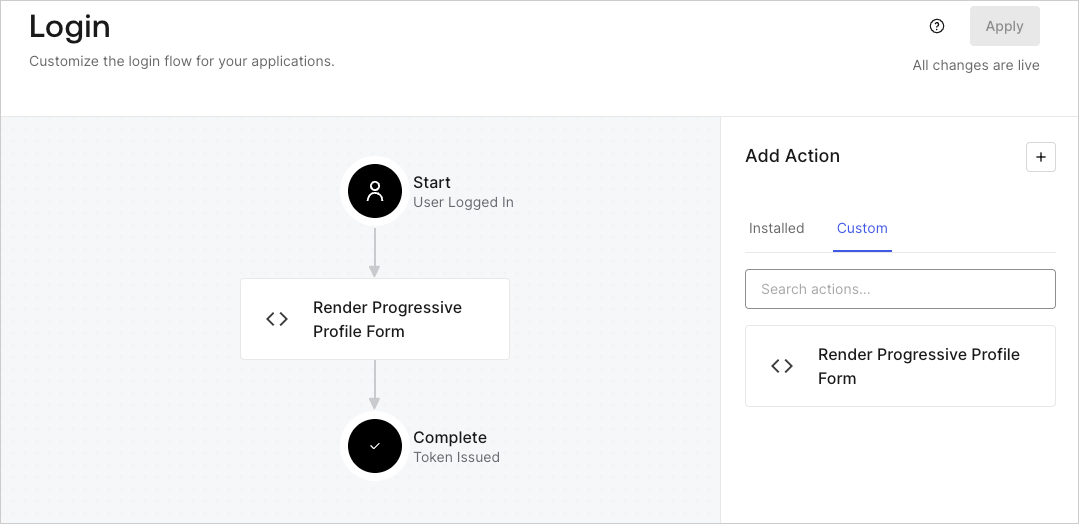
5. Drag and Drop the **Render Progressive Profile Form** Action to the **Login** flow.
   <Frame>
     <img src="https://mintcdn.com/docs-dev-docs-event-stream-action-templates/0yESejeOU6QiEi-j/docs/images/cdy7uua7fh8z/1QjjZdpTqTxx012UDN4xk9/99fba5ef4068a5688f1762eea7f42976/renderprogessiveprofile.png?fit=max&auto=format&n=0yESejeOU6QiEi-j&q=85&s=ae4127a1891362b382252fd6b12f8ebf" alt="Dashboard > Forms > Use Cases Progressive Profile Login Action" data-og-width="1079" width="1079" data-og-height="524" height="524" data-path="docs/images/cdy7uua7fh8z/1QjjZdpTqTxx012UDN4xk9/99fba5ef4068a5688f1762eea7f42976/renderprogessiveprofile.png" data-optimize="true" data-opv="3" srcset="https://mintcdn.com/docs-dev-docs-event-stream-action-templates/0yESejeOU6QiEi-j/docs/images/cdy7uua7fh8z/1QjjZdpTqTxx012UDN4xk9/99fba5ef4068a5688f1762eea7f42976/renderprogessiveprofile.png?w=280&fit=max&auto=format&n=0yESejeOU6QiEi-j&q=85&s=d3ad11899ac8990d260415d06282a11e 280w, https://mintcdn.com/docs-dev-docs-event-stream-action-templates/0yESejeOU6QiEi-j/docs/images/cdy7uua7fh8z/1QjjZdpTqTxx012UDN4xk9/99fba5ef4068a5688f1762eea7f42976/renderprogessiveprofile.png?w=560&fit=max&auto=format&n=0yESejeOU6QiEi-j&q=85&s=80b55724c241426bfc04b809162dd291 560w, https://mintcdn.com/docs-dev-docs-event-stream-action-templates/0yESejeOU6QiEi-j/docs/images/cdy7uua7fh8z/1QjjZdpTqTxx012UDN4xk9/99fba5ef4068a5688f1762eea7f42976/renderprogessiveprofile.png?w=840&fit=max&auto=format&n=0yESejeOU6QiEi-j&q=85&s=1b0147be33078d54c8a7c3e500500bb7 840w, https://mintcdn.com/docs-dev-docs-event-stream-action-templates/0yESejeOU6QiEi-j/docs/images/cdy7uua7fh8z/1QjjZdpTqTxx012UDN4xk9/99fba5ef4068a5688f1762eea7f42976/renderprogessiveprofile.png?w=1100&fit=max&auto=format&n=0yESejeOU6QiEi-j&q=85&s=ea85a5ae6a134729b412feff3da99cc4 1100w, https://mintcdn.com/docs-dev-docs-event-stream-action-templates/0yESejeOU6QiEi-j/docs/images/cdy7uua7fh8z/1QjjZdpTqTxx012UDN4xk9/99fba5ef4068a5688f1762eea7f42976/renderprogessiveprofile.png?w=1650&fit=max&auto=format&n=0yESejeOU6QiEi-j&q=85&s=90eb7ffef485fb36af968017f4e9c1e1 1650w, https://mintcdn.com/docs-dev-docs-event-stream-action-templates/0yESejeOU6QiEi-j/docs/images/cdy7uua7fh8z/1QjjZdpTqTxx012UDN4xk9/99fba5ef4068a5688f1762eea7f42976/renderprogessiveprofile.png?w=2500&fit=max&auto=format&n=0yESejeOU6QiEi-j&q=85&s=df826abd727684c7b8e3cb658005dca8 2500w" />
   </Frame>
6. Select **Apply**.

### Test implementation

Test the implementation by following these steps:

1. Log in with an existing user whose login count is greater than 2 and their `user_metadata` attributes `company_name` and `job_title` have no values.
2. The post-login action in the Login flow will render the form and prompt for the information.
3. Select **Auth0 Dashboard > User Management > Users,** locate the user and verify that the `user_metadata` attributes `company_name` and `job_title` contain information.
