> ## Documentation Index
> Fetch the complete documentation index at: https://docs-dev-docs-event-stream-action-templates.mintlify.site/llms.txt
> Use this file to discover all available pages before exploring further.
> Learn about the User Import/Export extension, which allows you to import and export users from or to any database you have configured in your account.
# User Import / Export Extension
The **User Import/Export Extension** will be deprecated in September 2025. You can access the same features now available [directly in the Auth0 Management Dashboard](/docs/manage-users/user-migration/bulk-user-import-export).
The **User Import / Export Extension** allows you to:
* Bulk import your existing database users into Auth0
* Search for and export some (or all) of your Auth0 database users
For a list of user profile fields that can be imported and exported, see [User Profile Attributes](/docs/manage-users/user-accounts/user-profiles/user-profile-structure).
You must be a Dashboard Admin to use this extension.
## Install the extension
To install this extension, go to [Auth0 Dashboard > Extensions](https://manage.auth0.com/#/extensions), and select **User Import / Export**.
The extension does not require any additional configuration before it can be installed, so select **Install** in the informational pop-up window to proceed.
## Use the extension
After you've installed your extension, you'll see it listed in your list of installed extensions. Click on **Import / Export Extension** to launch.
You'll be asked to grant permission for the extension to access your Auth0 account for the listed activities the first time you launch the extension.
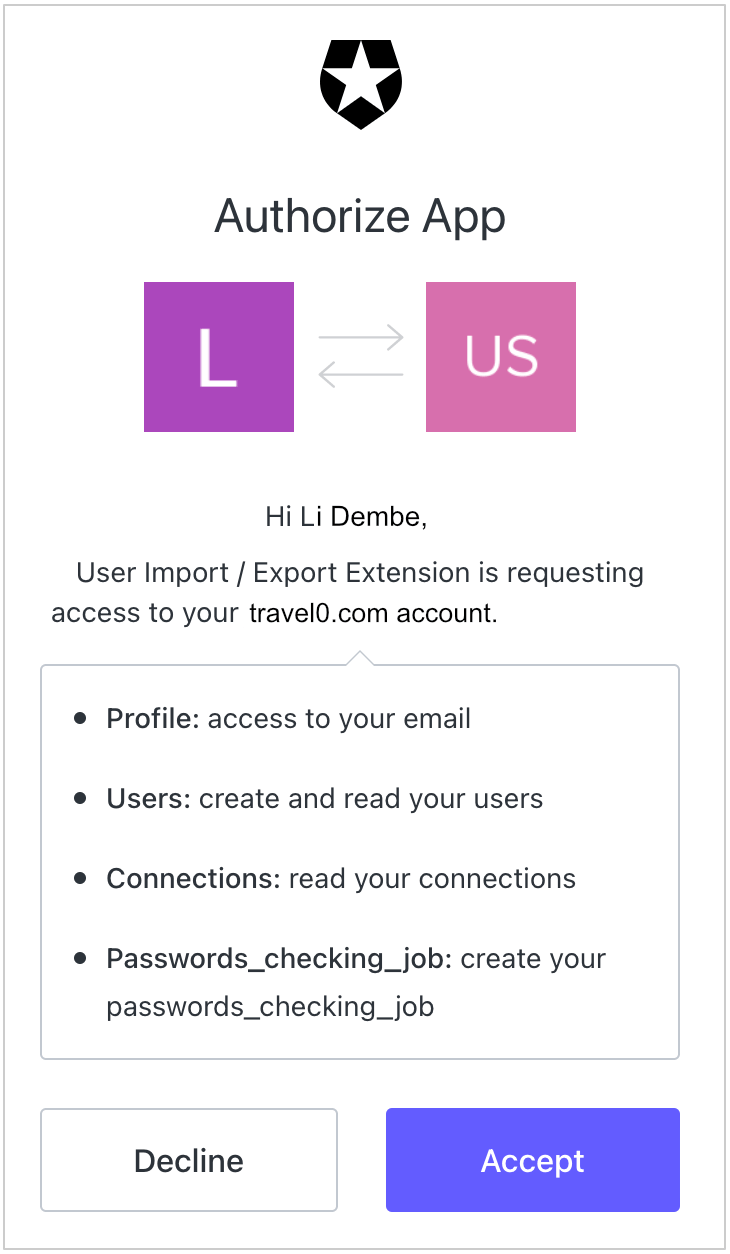 Click the **check mark** to proceed.
There are two ways of using this extension:
* Bulk import your existing database users into Auth0
* Search for and export some (or all) of your Auth0 database users
Both use cases are explained in further detail below.
### Import users
By default, any time you open the extension, you'll see the **User Import** screen (if you're on the export screen, you can return to this screen by click **Import** in the left-hand navigation bar).
To import your users, drag and drop a valid JSON file ([schema and examples here](/docs/manage-users/user-migration/bulk-user-import-database-schema-and-examples)) onto the area that says **Drop your file here, or click to select**. Alternatively, you can click on this area to browse your files and select the appropriate JSON file. The JSON file should contain the list of users that you are planning to import.
If you are using an export file from an Auth0 tenant, you must convert the exported file from `ndjson` to [JSON](/docs/manage-users/user-migration/bulk-user-exports#json-compatible-format). To keep the same user IDs, you must remove the `auth0| prefix` from all imported user IDs.
The import process automatically adds the `auth0| prefix` to the imported user IDs. If you do not remove the `auth0|` prefix before importing, the user IDs return as `auth0|auth0|...`
Select the database connection for which your users will be imported. Please make sure that the connection you choose has been enabled for at least one application.
Click **Start Importing Users** to begin the import process.
When done, you'll see the following **Completed** message.
Click the **check mark** to proceed.
There are two ways of using this extension:
* Bulk import your existing database users into Auth0
* Search for and export some (or all) of your Auth0 database users
Both use cases are explained in further detail below.
### Import users
By default, any time you open the extension, you'll see the **User Import** screen (if you're on the export screen, you can return to this screen by click **Import** in the left-hand navigation bar).
To import your users, drag and drop a valid JSON file ([schema and examples here](/docs/manage-users/user-migration/bulk-user-import-database-schema-and-examples)) onto the area that says **Drop your file here, or click to select**. Alternatively, you can click on this area to browse your files and select the appropriate JSON file. The JSON file should contain the list of users that you are planning to import.
If you are using an export file from an Auth0 tenant, you must convert the exported file from `ndjson` to [JSON](/docs/manage-users/user-migration/bulk-user-exports#json-compatible-format). To keep the same user IDs, you must remove the `auth0| prefix` from all imported user IDs.
The import process automatically adds the `auth0| prefix` to the imported user IDs. If you do not remove the `auth0|` prefix before importing, the user IDs return as `auth0|auth0|...`
Select the database connection for which your users will be imported. Please make sure that the connection you choose has been enabled for at least one application.
Click **Start Importing Users** to begin the import process.
When done, you'll see the following **Completed** message.
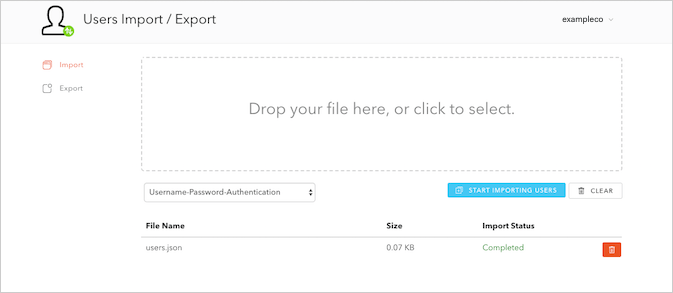 Once you've imported your users, you can manage them individually using [Auth0 Dashboard > User Management > Users](https://manage.auth0.com/#/users).
### Export users
Auth0 uses the ndjson format due to the large size of export files. Before you can import users, you'll need to convert from **ndjson** to **json** using the library of your choice (such as [jq](https://stedolan.github.io/jq/)). When exporting users intended to later be imported, user field names should be left as their defaults and not mapped to a Column Name.
To export your existing Auth0 users associated with database connections, select **Export**.
Once you've imported your users, you can manage them individually using [Auth0 Dashboard > User Management > Users](https://manage.auth0.com/#/users).
### Export users
Auth0 uses the ndjson format due to the large size of export files. Before you can import users, you'll need to convert from **ndjson** to **json** using the library of your choice (such as [jq](https://stedolan.github.io/jq/)). When exporting users intended to later be imported, user field names should be left as their defaults and not mapped to a Column Name.
To export your existing Auth0 users associated with database connections, select **Export**.
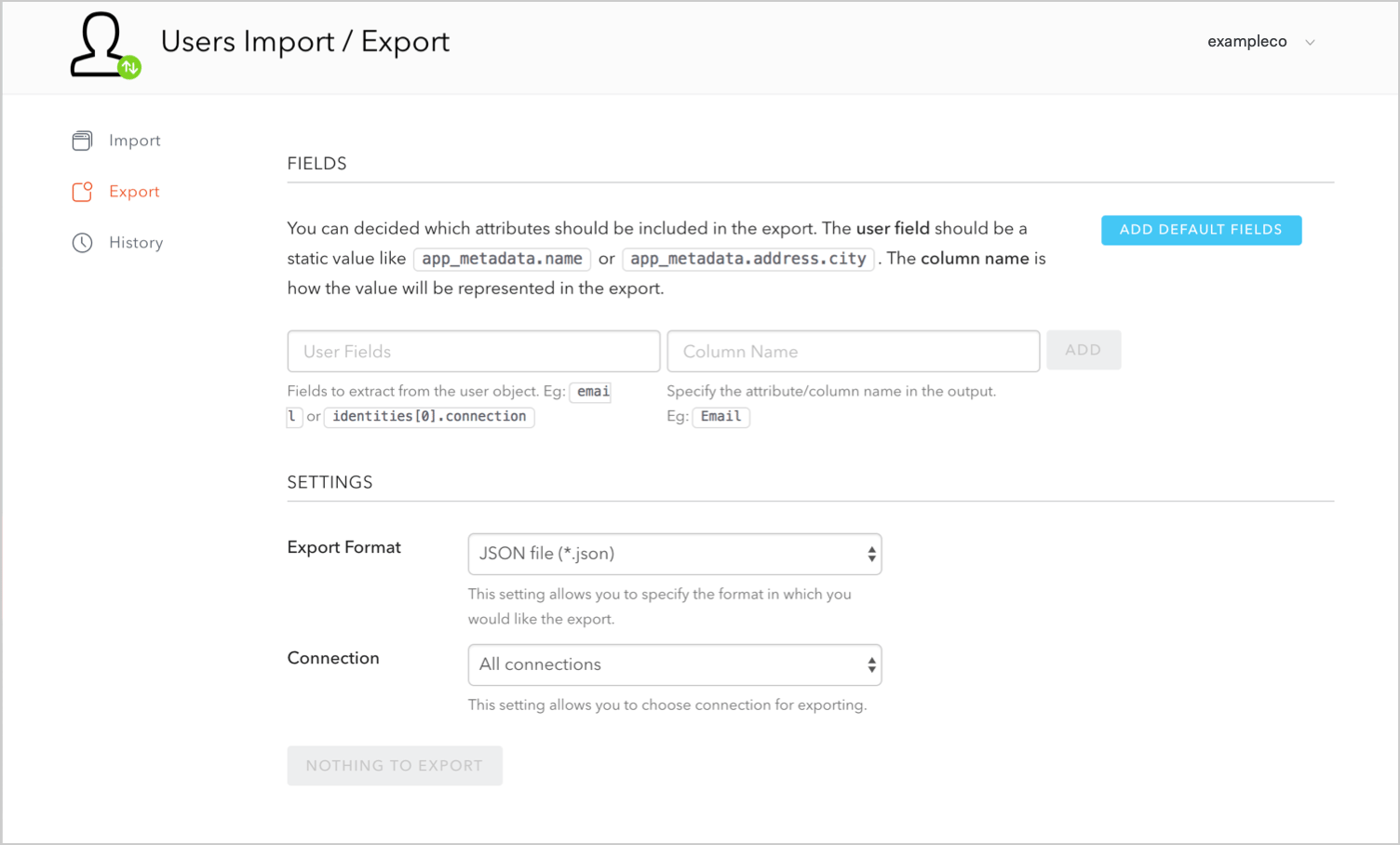 Under **User Fields**, you can decide which user attributes or expressions should be included in the export. The user attribute can be a static value like `user.user_metadata.name`, or it can be a JavaScript expression like `user.user_metadata.name || user.name`. Expressions will be evaluated during the export runtime. The **column name** value is how the value will be represented in the export.
You can click the **Add Default Fields** button to automatically select the default fields and populate their column names (this is also a good way for you to visualize how parameters/expressions will appear).
You can remove extraneous attributes/expressions by clicking on its associated **trash can** icon.
Under **Settings**, you can:
* Configure how your exported users are listed by providing a **User Attribute** by which users should be sorted (as well as whether the users should be sorted in ascending or descending order)
* Choose your **Export Format**; you can choose between JSON and CSV files
Under **User Fields**, you can decide which user attributes or expressions should be included in the export. The user attribute can be a static value like `user.user_metadata.name`, or it can be a JavaScript expression like `user.user_metadata.name || user.name`. Expressions will be evaluated during the export runtime. The **column name** value is how the value will be represented in the export.
You can click the **Add Default Fields** button to automatically select the default fields and populate their column names (this is also a good way for you to visualize how parameters/expressions will appear).
You can remove extraneous attributes/expressions by clicking on its associated **trash can** icon.
Under **Settings**, you can:
* Configure how your exported users are listed by providing a **User Attribute** by which users should be sorted (as well as whether the users should be sorted in ascending or descending order)
* Choose your **Export Format**; you can choose between JSON and CSV files
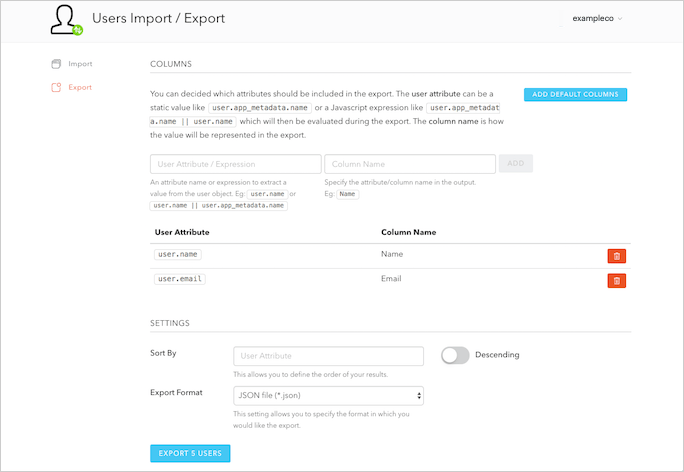 When you're ready, click **Export X Users** (where `X` is the number of users you're exporting).
You can download the file containing your users when the export is complete; you may need to use a third-party extraction tool if you run Windows 10 or lower.
## Update Users
The Auth0 Management API allows bulk user profile updates to `user_metadata` and `app_metadata` with the User Import/Export Extension.
Auth0 does not currently support bulk import for Passwordless. Use [Auth0 Management API](https://auth0.com/docs/api/management/v2#!/Users/patch_users_by_id) to update users individually.
### Export users
Using the [export process above](/docs/customize/extensions/user-import-export-extension#export-users), create a complete export file including all your user attributes.
Choose the JSON format for your export.
Download the file containing your users when the export is complete.
### Update your configuration
Make a **copy** of the JSON file you downloaded in the previous step.
This process can result in data loss. Create a backup of your user database in the event of data corruption.
Open the copy of the JSON file in a text editor. Your user schema should be similar to the one below:
```json lines expandable theme={null}
[
{
"Id":"auth0|626737a9813c000069daf462",
"Nickname":"testuser1",
"Name":"testuser1@auth0.com",
"email":"testuser1@auth0.com",
"Connection":"Username-Password-Authentication",
"Created At":"2022-04-26T00:07:05.098Z",
"Updated At":"2022-07-06T14:54:19.214Z"
},
{
"Id":"auth0|62d1a1853bdcf11ff5dca672",
"Nickname":"testuser2",
"Name":"testuser2@auth0.com",
"email":"testuser2@auth0.com",
"Connection":"Username-Password-Authentication",
"Created At":"2022-07-15T17:19:01.531Z",
"Updated At":"2022-07-15T17:19:01.532Z"
},
{
"Id":"auth0|62d1a1a524f32a4185c9ce23",
"Nickname":"testuser3",
"Name":"testuser3@auth0.com",
"email":"testuser3@auth0.com",
"Connection":"Username-Password-Authentication",
"Created At":"2022-07-15T17:19:33.484Z",
"Updated At":"2022-07-15T17:19:33.484Z"
}
]
```
Do not change the user email address because it is the lookup key for users in the database.
The Id must have a unique `connection|id`. If the same user Id exists in multiple connections, your update will fail.
To add an attribute, create a new field in each user schema and update with a value. In the example below, the "Family Name" attribute has a value of "Smith" with a comma after the new attribute value.
You can also add the `email_verified` attribute to multiple users and set the value to `true`.
```json lines theme={null}
{
"Id":"auth0|626737a9813c000069daf462",
"Nickname":"testuser1",
"Family Name":"Smith",
"Name":"testuser1@auth0.com",
"email":"testuser1@auth0.com",
"email_verified":true,
"Connection":"Username-Password-Authentication",
"Created At":"2022-04-26T00:07:05.098Z",
"Updated At":"2022-07-06T14:54:19.214Z"
}
```
Save the changes to your user file.
This process cannot block multiple users. You must block users individually in the Auth0 Dashboard or with the [Auth0 Management API](https://auth0.com/docs/api/management/v2#!/Users/patch_users_by_id).
### Import updated user profile data
The `users-import` endpoint allows you to upload your updated user profile file and update several users in one job. Navigate to the [Create import users job endpoint](https://auth0.com/docs/api/management/v2/#!/Jobs/post_users_imports).
Add your user file to the users parameter and add the database connection ID of the database you want to update.
The upsert value should be `true` to update the already existing user information.
To add your updates, select **Try** or use Postman to import the users.
Use the `job_id` to verify the status with the `jobs` [endpoint](https://auth0.com/docs/api/management/v2/#!/Jobs/get_jobs_by_id).
When you're ready, click **Export X Users** (where `X` is the number of users you're exporting).
You can download the file containing your users when the export is complete; you may need to use a third-party extraction tool if you run Windows 10 or lower.
## Update Users
The Auth0 Management API allows bulk user profile updates to `user_metadata` and `app_metadata` with the User Import/Export Extension.
Auth0 does not currently support bulk import for Passwordless. Use [Auth0 Management API](https://auth0.com/docs/api/management/v2#!/Users/patch_users_by_id) to update users individually.
### Export users
Using the [export process above](/docs/customize/extensions/user-import-export-extension#export-users), create a complete export file including all your user attributes.
Choose the JSON format for your export.
Download the file containing your users when the export is complete.
### Update your configuration
Make a **copy** of the JSON file you downloaded in the previous step.
This process can result in data loss. Create a backup of your user database in the event of data corruption.
Open the copy of the JSON file in a text editor. Your user schema should be similar to the one below:
```json lines expandable theme={null}
[
{
"Id":"auth0|626737a9813c000069daf462",
"Nickname":"testuser1",
"Name":"testuser1@auth0.com",
"email":"testuser1@auth0.com",
"Connection":"Username-Password-Authentication",
"Created At":"2022-04-26T00:07:05.098Z",
"Updated At":"2022-07-06T14:54:19.214Z"
},
{
"Id":"auth0|62d1a1853bdcf11ff5dca672",
"Nickname":"testuser2",
"Name":"testuser2@auth0.com",
"email":"testuser2@auth0.com",
"Connection":"Username-Password-Authentication",
"Created At":"2022-07-15T17:19:01.531Z",
"Updated At":"2022-07-15T17:19:01.532Z"
},
{
"Id":"auth0|62d1a1a524f32a4185c9ce23",
"Nickname":"testuser3",
"Name":"testuser3@auth0.com",
"email":"testuser3@auth0.com",
"Connection":"Username-Password-Authentication",
"Created At":"2022-07-15T17:19:33.484Z",
"Updated At":"2022-07-15T17:19:33.484Z"
}
]
```
Do not change the user email address because it is the lookup key for users in the database.
The Id must have a unique `connection|id`. If the same user Id exists in multiple connections, your update will fail.
To add an attribute, create a new field in each user schema and update with a value. In the example below, the "Family Name" attribute has a value of "Smith" with a comma after the new attribute value.
You can also add the `email_verified` attribute to multiple users and set the value to `true`.
```json lines theme={null}
{
"Id":"auth0|626737a9813c000069daf462",
"Nickname":"testuser1",
"Family Name":"Smith",
"Name":"testuser1@auth0.com",
"email":"testuser1@auth0.com",
"email_verified":true,
"Connection":"Username-Password-Authentication",
"Created At":"2022-04-26T00:07:05.098Z",
"Updated At":"2022-07-06T14:54:19.214Z"
}
```
Save the changes to your user file.
This process cannot block multiple users. You must block users individually in the Auth0 Dashboard or with the [Auth0 Management API](https://auth0.com/docs/api/management/v2#!/Users/patch_users_by_id).
### Import updated user profile data
The `users-import` endpoint allows you to upload your updated user profile file and update several users in one job. Navigate to the [Create import users job endpoint](https://auth0.com/docs/api/management/v2/#!/Jobs/post_users_imports).
Add your user file to the users parameter and add the database connection ID of the database you want to update.
The upsert value should be `true` to update the already existing user information.
To add your updates, select **Try** or use Postman to import the users.
Use the `job_id` to verify the status with the `jobs` [endpoint](https://auth0.com/docs/api/management/v2/#!/Jobs/get_jobs_by_id).