> ## Documentation Index
> Fetch the complete documentation index at: https://docs-dev-docs-event-stream-action-templates.mintlify.site/llms.txt
> Use this file to discover all available pages before exploring further.
> The document announces support for Universal Login and Passwordless connections.
# Passwordless with Universal Login
* Configure a Passwordless connection. To learn how, read the following articles:
* [Passwordless Authentication with Email](/docs/authenticate/passwordless/authentication-methods/email-otp)
* [Passwordless Authentication with Magic Links](/docs/authenticate/passwordless/authentication-methods/email-magic-link)
* [Passwordless Authentication with SMS](/docs/authenticate/passwordless/authentication-methods/sms-otp)
The Universal Login Experience supports [Passwordless connections](/docs/authenticate/passwordless), which allow users to provide a phone number or email address, and then receive a one-time password (OTP) to complete authentication.
## Enable Passwordless for Universal Login
To configure Universal Login to support Passwordless connections, you'll need to set the Authentication Profile to use a supported login flow, and update your application to specify the connection during authentication.
### Enable Identifier First
In the Auth0 Dashboard, go to [Authentication > Authentication Profile.](https://manage.auth0.com/?/authentication-profiles)
Select either **Identifier First** or **Identifier First + Biometrics**.
### Update your application
Depending on the type of connections you have enabled for your application, you may need to update your application to specify a Passwordless connection during login:
| Database connection | Passwordless connection | Need to specify? | User experience |
| ------------------- | ----------------------- | ---------------- | ---------------------------------------------------------------------------------------------- |
| Yes | SMS and/or Email | Yes | Specified Passwordless connection is presented during login. |
| No | SMS and Email | No | Passwordless connection that was created first is presented. |
| No | SMS or Email | No | Passwordless connection is presented (along with any enabled Social connections) during login. |
To specify a Passwordless connection during login, you must pass the `connection` parameter and its value (either `sms` or `email`) to the [Auth0 Authentication API Login endpoint](https://auth0.com/docs/api/authentication#login):
`https://mytenant.us.auth0.com/authorize?client_id={id}&``connection={sms|email}``&scope=…&response_type=code&response_mode=query&state=…&redirect_uri=http%3A%2F%2Flocalhost%3A3000&code_challenge=…`
If you are using one of our SDKs, you can specify a Passwordless connection during initialization. For example:
```js lines theme={null}
auth0 = await createAuth0Client({
domain: config.domain,
client_id: config.clientId,
connection: "email"
});
auth0 = await createAuth0Client({
domain: config.domain,
client_id: config.clientId,
connection: "sms"
});
```
If you are using Passwordless with Universal Login and [Single Sign-On](/docs/authenticate/single-sign-on), connection parameters `sms` and `email` do not utilize the existing Auth0 session, and the user will be prompted to log in.
### Test the connection
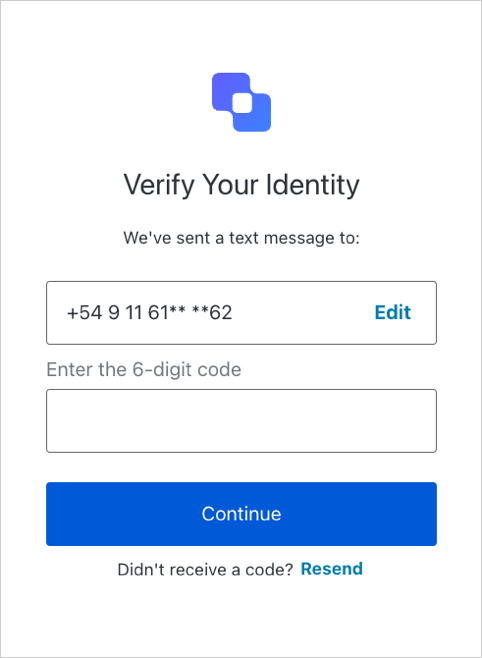
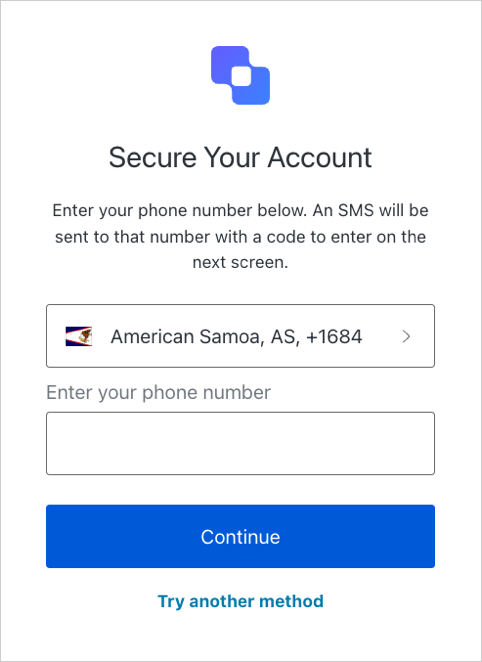
When the user is prompted to enter their OTP, they'll see one of the following screens:
### Signup
 ### Login